
Drag & drop images here or click to select
JPG, JPEG, PNG → JPG
Need an easy way to bring your pictures together? Our online tool makes it simple to combine JPG images into one organized file without installing desktop software. Use this free JPG file merger to arrange multiple pictures in your preferred order and create a combined image in just a few steps.
Whether you want to merge JPG files online for a document, put photos side by side, or combine JPG images online for a personal or professional project, the process is quick and straightforward. You can combine JPG files online to create a single result that is easy to save and share. The tool also helps you combine JPG Files into One JPG and JPEG Online, giving you a convenient way to organize images right from your browser.
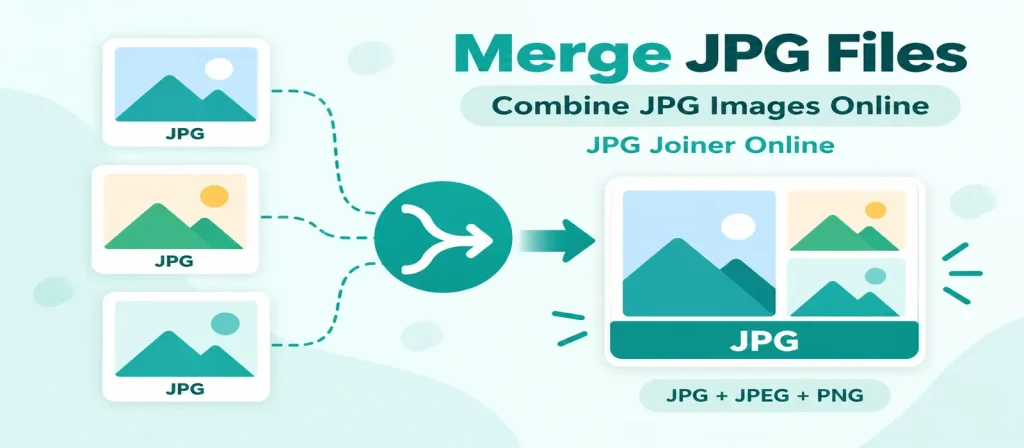
What Is Merging JPG Images and How Does It Work?
Merging JPG images means bringing two or more separate pictures together to create one combined image. Instead of keeping each picture in a different file, you can arrange them side by side, stack them vertically, or place them in a grid according to your needs. With a JPG joiner online, you can organize your images directly in your browser without needing advanced photo-editing skills.
There are many practical reasons to merge JPG files online, such as:
- Placing product photos together for a simple product display.
- Combining screenshots to explain a process or demonstrate an idea.
- Arranging photos side by side for comparison.
- Putting scanned images together for easier sharing.
- Creating a single image from multiple pictures for presentations or reports.
- Organizing personal photos into one convenient image.
You can also merge multiple images online when you want to share several related pictures as a single file instead of sending them individually. Depending on your project, different layouts can help you present your images more clearly.
Our tool makes it easy to combine JPG images online by letting you upload your pictures, arrange their order, select the layout and spacing, and download the finished result. You can merge JPG Files into One JPG and JPEG Online in a few simple steps, making image organization convenient for everyday tasks, work, and personal projects.
Try Our Professional Free Image Tools
⭐ More tools coming soon… | 100% Free
How to Merge JPG Files Online in a Few Simple Steps
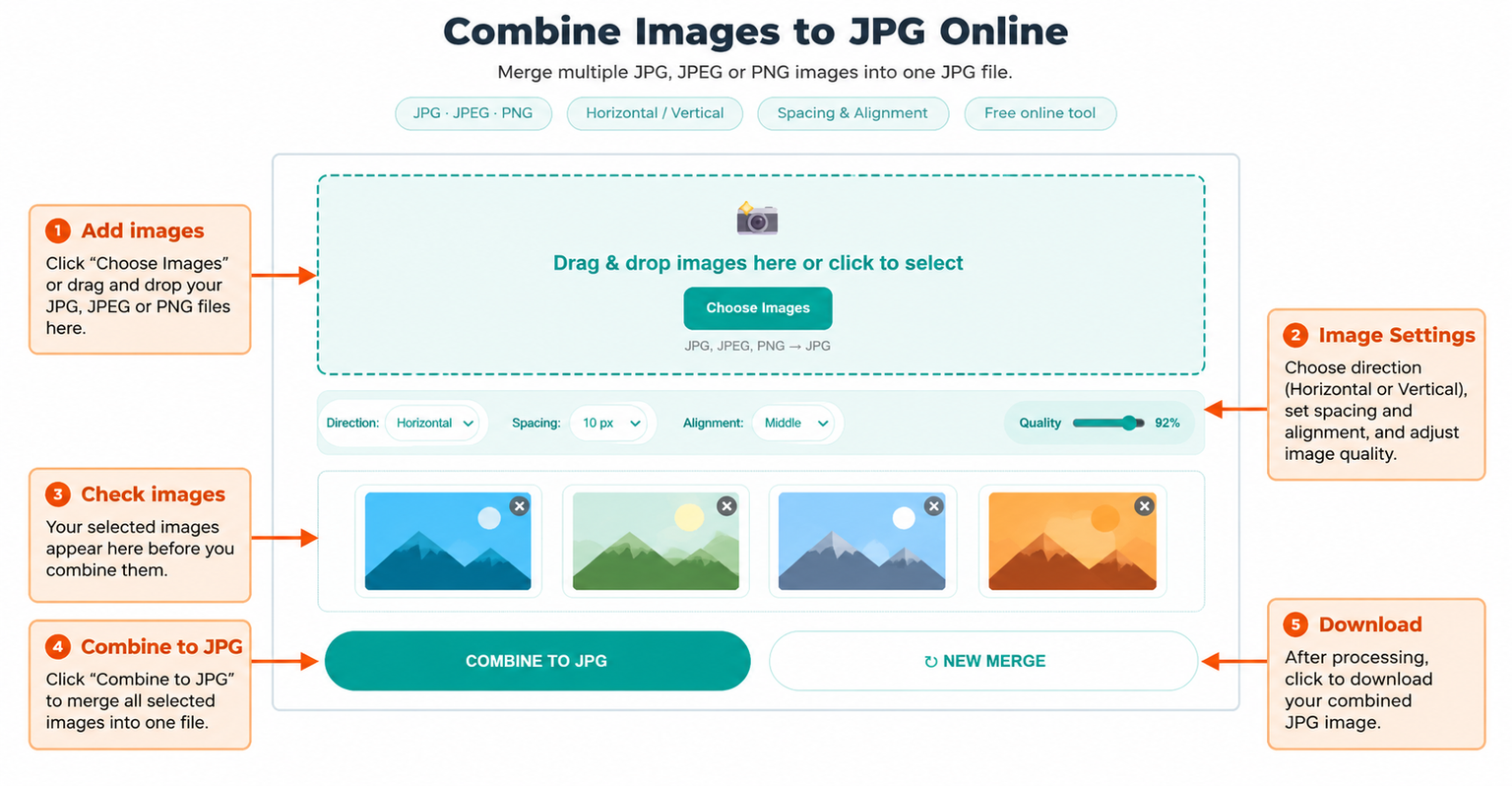
Combining pictures is easy when you have the right tool. Follow these steps to create one image from multiple pictures using our JPG joiner online.
1. Select Your Images
Open the tool and upload the JPG, JPEG, or PNG pictures you want to combine. You can select several images at once or drag and drop them into the upload area to get started.
2. Choose Your Layout and Arrange the Pictures
After uploading, arrange your images in the order you prefer. Select a horizontal layout to place pictures side by side, a vertical layout to stack them, or a grid to organize several images into rows and columns. You can also adjust the spacing and alignment to suit your needs.
3. Merge JPG and Download Your Image
Click the merge button to combine your selected pictures. Preview the finished result and download the new file when you are satisfied with its appearance. This simple process lets you merge JPG files online without installing additional software.
With JPGJoin, you can merge images online for documents, photo comparisons, presentations, or everyday projects. You can also combine JPG images online into one organized file, making related pictures easier to share and store. Whether you need to combine JPG Files into One JPG and JPEG Online for personal or professional use, the tool offers a straightforward way to bring your images together.
Why Use Our Tool to Merge JPG Files Online?
Bringing multiple pictures together should be simple, whether you are preparing documents, organizing photos, or creating images for a project. Our JPG joiner online tool offers a straightforward way to combine pictures in your browser, with useful layout options and an easy download process.
Free to Use Whenever You Need It
- Combine your pictures without purchasing a subscription
- Upload multiple images in one session
- Arrange pictures in the order that works best for your project
- Use the tool for personal tasks, study materials, or everyday work
No Installation or Complicated Setup
- Open the tool directly in your web browser
- Add your pictures from a compatible desktop, laptop, tablet, or phone
- Choose a horizontal, vertical, or grid layout
- Create a combined image without installing a separate image-editing application
Flexible Image Arrangement
- Adjust the spacing between pictures to improve the final layout
- Align images according to your preferred arrangement
- Move images up or down to change their order before merging
- Preview your combined image before downloading it
Convenient Image Output
When you merge JPG files online, you can bring related pictures together in a single image that is easier to organize and share. The tool lets you merge images online and download the combined result in JPG format. You can also combine JPG images online when preparing photo comparisons, visual instructions, product displays, or project documents.
Useful for Different Everyday Tasks
Whether you are organizing screenshots, preparing a presentation, or placing several photos together, JPGJoin helps simplify the process. Use it to combine JPG Files into One JPG and JPEG Online and create a single image from multiple supported pictures without navigating a complicated editing workflow.
JPG vs. JPEG: Which Format Should You Choose?
JPG and JPEG refer to the same image format, so you generally do not need to convert one into the other just because the file extensions look different. Both are widely supported and commonly used for photographs, website images, and everyday picture sharing.
When you use a JPG joiner online, you can bring compatible JPG and JPEG pictures together in one image. This makes it easier to organize related photos, prepare visual comparisons, or place multiple pictures into a single file. You can merge JPG files online without worrying about the extension alone, provided the files are valid and supported by the tool.
Tips for Getting a Better Merged Image
A little preparation can help you create a cleaner result when you merge JPG images online. Keep these suggestions in mind before downloading your combined picture:
- Check image dimensions: Pictures with very different widths and heights may leave uneven edges or empty space in the final layout
- Use suitable image quality: Combining a sharp photograph with a low-resolution image will not make the lower-quality picture sharper
- Arrange images in the right order: Move your pictures into the sequence you want before starting the merge
- Choose a suitable layout: Horizontal placement works well for side-by-side comparisons, while vertical stacking can be useful for screenshots and document images
- Adjust the spacing: Use a small gap or no gap, depending on how you want the final image to look
- Preview before downloading: Check the alignment and overall appearance to make sure the combined image meets your needs
- Consider the output file size: Large source images can create a large combined file, so resize or compress the result separately if needed
With these simple checks, you can combine JPG images online more confidently and create a result that suits your project. Whether you want to merge JPG Files into One JPG and JPEG Online for personal use, work, or sharing, JPGJoin provides a convenient way to organize multiple pictures into one image.
Combine Your Images with JPGJoin
Bring your pictures together in a single image with a simple browser-based workflow. Upload your files, choose your layout, and create a result that is ready to download.
Ready to get started? Use our free tool to merge JPG files online and organize your images in just a few steps.
Frequently Asked Questions
Is JPGJoin Free to Use?
Yes, you can use our JPG joiner online tool to combine images without purchasing software. Upload your pictures, select your preferred layout, and download the merged result.
How Do I Merge JPG Files Online?
To merge JPG files online, upload two or more supported images, arrange them in the desired order, and choose a horizontal, vertical, or grid layout. Adjust spacing and alignment, then click the merge button to create your image.
Can I Merge Multiple JPG Images at Once?
Yes, you can upload multiple JPG, JPEG, and PNG images in one session. The tool processes the selected pictures together, subject to your browser’s available memory and the tool’s image-size limits.
Will Merging JPG Images Affect Image Quality?
The final image may differ slightly from the original because JPG output uses compression. You can adjust the quality setting before merging to help balance image clarity and file size.
Can I merge JPG files on a Mobile Phone?
Yes, you can open the tool in a compatible mobile browser. Upload pictures from your device, arrange them, and download the combined image when processing is complete.
Can I Merge JPG and JPEG Files Together?
Yes, JPG and JPEG are file extensions for the same image format, so compatible files with either extension can be used together. You can merge JPG images online without converting every file’s extension first.
Can I Change the Order of Images Before Merging?
Yes, use the up and down controls beside each uploaded image to change its position. Check the sequence before merging so the final image follows your preferred order.
How Do I Download the Combined Image?
After processing, a preview of your merged image appears on the page. Select Download Image to save the result to your device. The current tool exports the final image in JPG format.