
Merge PDF Online – Combine Multiple PDF Files into One
Combine multiple PDF files into one document quickly and easily with our Merge PDF online free tool. You just upload your PDF files, arrange them in the order you want, and combine them into a single PDF, merge them and download directly in browser — no software installation or sign-up required.
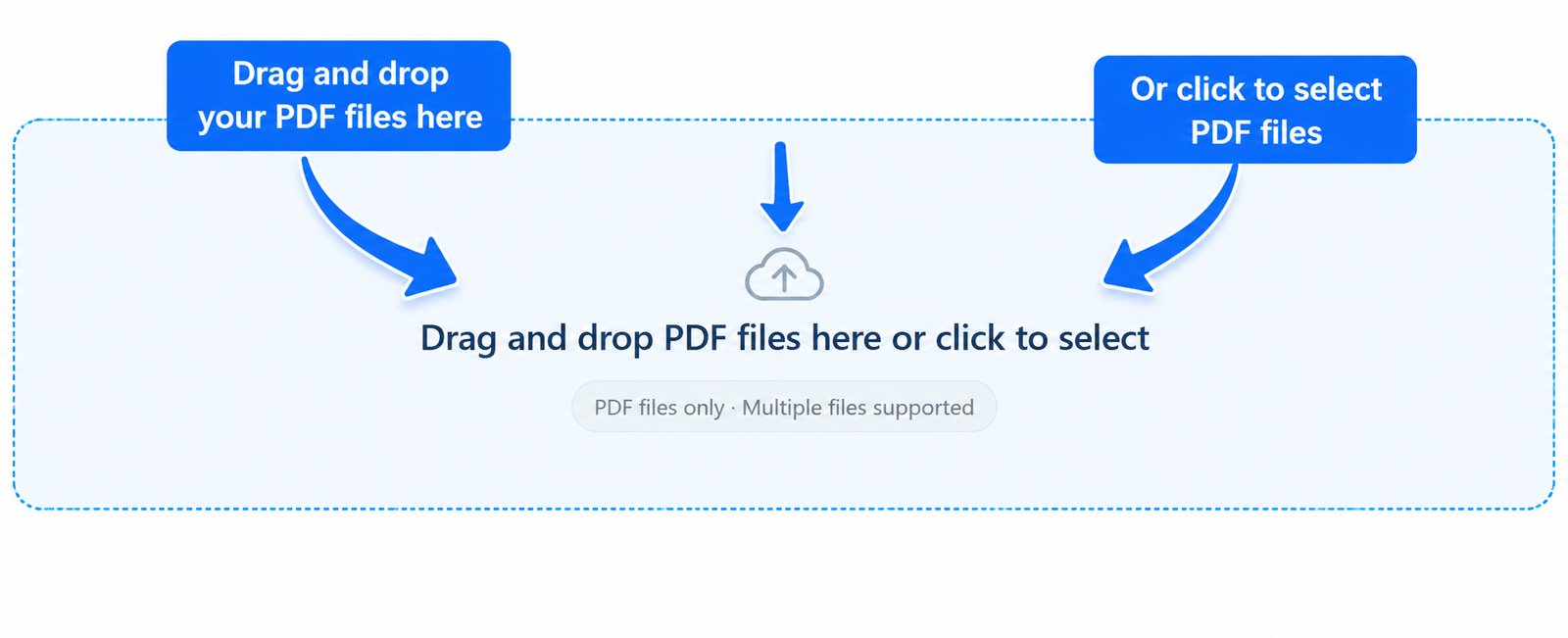
Drag and drop PDF files here or click to select
PDF files only · Multiple files supportedYour PDF Files
0 filesMerging your PDF files...
Preparing your files
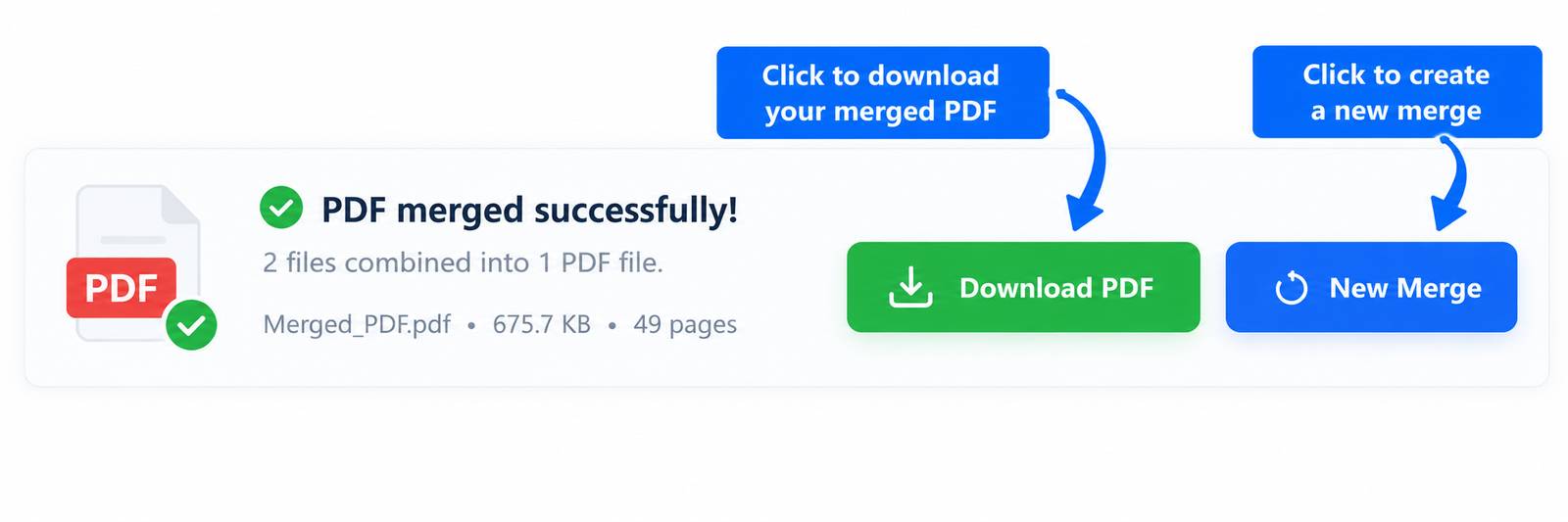
Your PDF is ready
Your files have been successfully merged.
More Useful Tools
Quickly access our most useful PDF conversion and editing tools.
How to Merge PDF Files Online?
Combine multiple PDF files into one document in just a few simple steps without installing complicated software.
Upload Your PDF Files
Start by uploading the PDF files you want to combine and you can select multiple PDF files from your device or simply drag and drop them into the PDF merger.
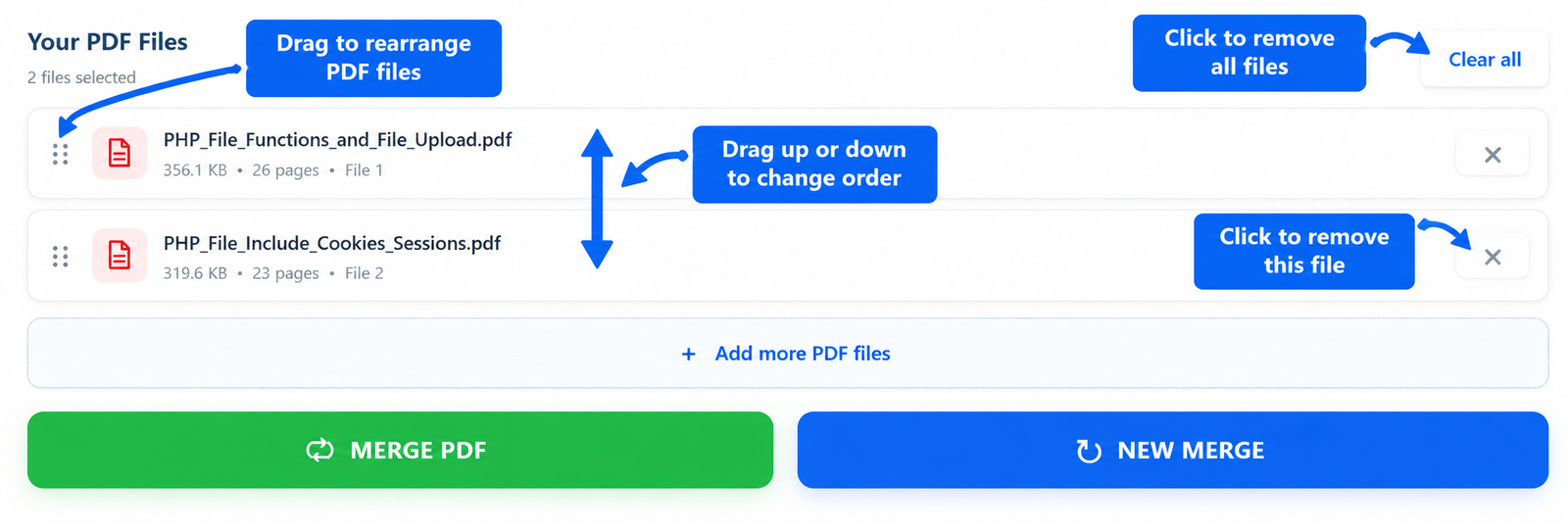
Arrange Your PDF Files
Once your PDF files are selected, review their order before merging and can arrange the files in the sequence you want so the final PDF follows the correct order.
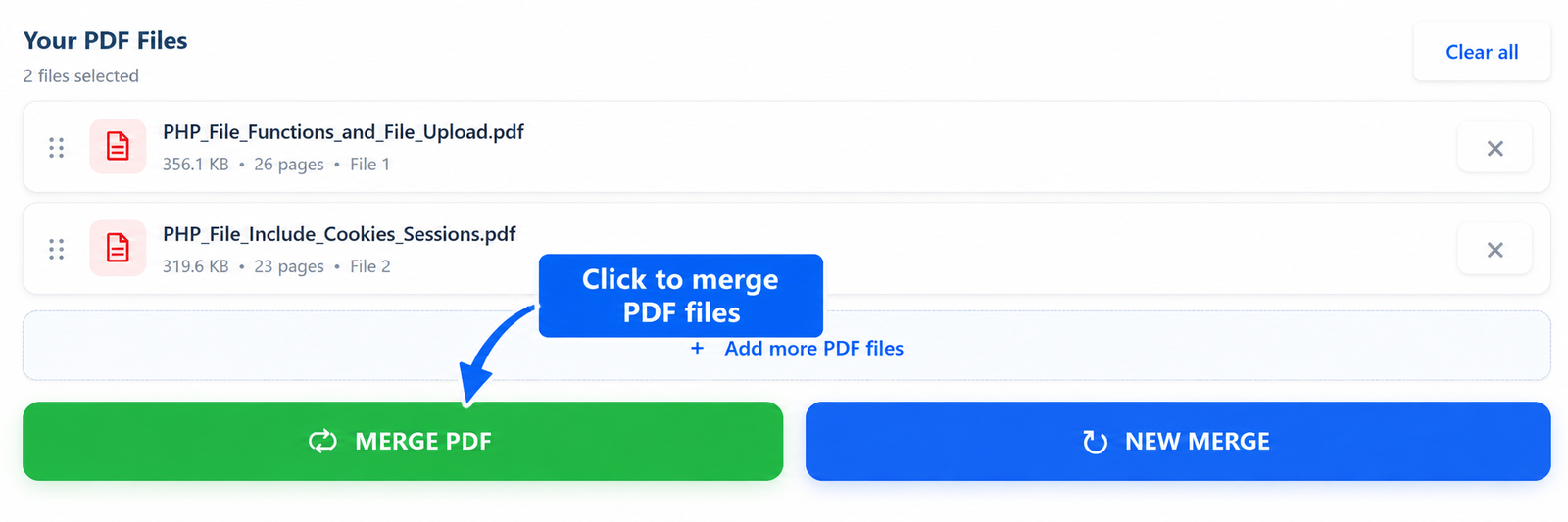
Merge Your PDF Files
After arranging your files, click the Merge PDF button to combine the selected documents into one PDF file. The files are processed directly in your browser.
Download Your Merged PDF
When the merging process is complete, download your new PDF file and save it to your device. Your selected documents are combined into a single file ready to use or share.
Why Merge PDF Files Online?
Combining multiple PDF files into one document can make your files easier to organize, share, and manage. If you have several documents that belong together, a PDF merger lets you combine them into a single PDF instead of keeping several separate files.
JPGJoin makes it simple to merge PDF files online without requiring complicated desktop software. You can add your PDF files, arrange them in the order you want, and create one combined PDF from your selected documents.
Keep Related Documents in One File
When several PDF files are part of the same project, keeping them together can make the final document easier to manage. You might have reports, assignments, forms, invoices, scanned documents, or other files that need to be kept together. Instead of sharing each PDF separately, you can merge PDF files into one document.
Arrange Your PDF Files in the Right Order
The order of your documents can be important when creating a final PDF. You can arrange the selected files in the sequence you need before merging them. This helps keep chapters, pages, reports, or other documents organized in the final file.
Make Sharing Easier
Sending several PDF attachments separately can be inconvenient, especially when the documents belong to the same project. By combining them into one PDF, you can create a single file that is easier to attach, share, store, and review.
Useful for Work, Study, and Everyday Documents
A PDF merger can be useful for many different tasks. Students can combine assignments or study materials, while professionals can organize reports, forms, invoices, and project documents into one file. It can also be useful whenever several related PDFs need to be kept together.
Merge PDF Files Without Complicated Software
You do not need a complicated PDF editing application for simple merging tasks. With JPGJoin, you can upload your documents, arrange them, and create a single PDF directly from your browser, making the process straightforward and convenient.
PDF vs Separate Files: Which Should You Use?
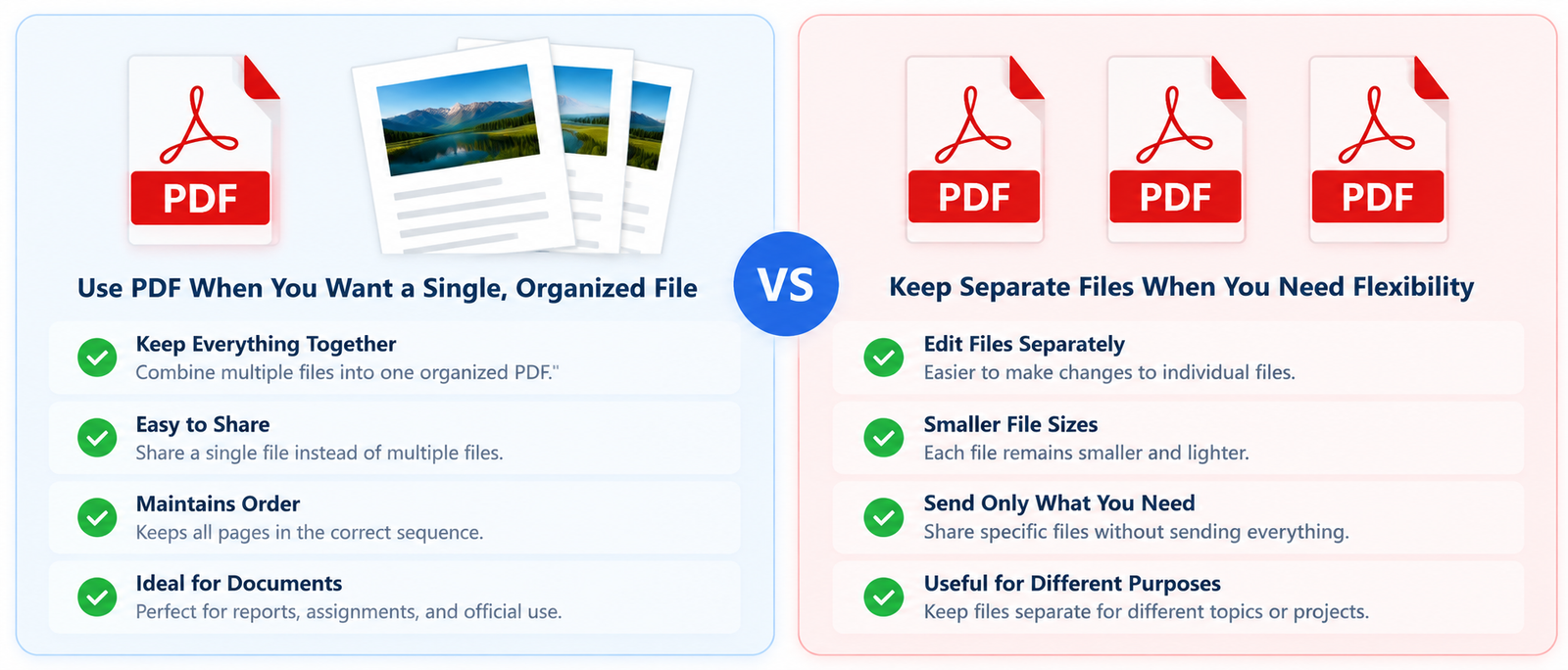
Keeping related documents in separate files can sometimes make them harder to organize, share, and review. A single PDF can be more convenient when several documents belong to the same project or need to be submitted together. With a PDF merger, you can combine multiple PDF files into one organized document while keeping the original PDF content together.
When you merge PDF files, the selected documents are brought together into one final PDF in the order you choose. This can be useful for assignments, reports, invoices, applications, scanned documents, project files, and other collections of related PDFs.
Separate PDF Files Are Useful for Individual Documents
Keeping documents separate can be useful when each file needs to be shared, edited, or managed independently. For example, different reports, forms, or invoices may need to remain as individual files. Separate PDFs can also make it easier to send only one specific document when you do not need to share the entire collection.
One Merged PDF Makes Related Documents Easier to Manage
A merged PDF can be more convenient when several documents need to stay together. Instead of opening or sharing multiple files, you can create one document containing all the selected PDFs in the required order. This can make the final file easier to store, review, and share.
Why Merge PDF Files Into One Document?
Merging PDFs is particularly useful when you need to submit several documents as one file. Students can combine assignments or study materials, while professionals can combine reports, forms, invoices, or project documents. The final PDF provides a simple way to keep related files together without manually copying their contents into another document.
Features of Our PDF Merger
JPGJoin is designed to make PDF merging straightforward while giving you useful control over the documents you combine. You can add multiple PDF files, arrange them in the required order, review your selection, and create a single PDF without complicated software.
| Feature | JPGJoin | Basic PDF Merger |
|---|---|---|
| Multiple PDF Support | ✓ Supported | ✓ Usually supported |
| PDF File Reordering | ✓ Available | Varies |
| Drag & Drop Upload | ✓ Supported | Varies |
| File Preview | ✓ Available | Varies |
| Remove Individual Files | ✓ Available | Varies |
| Clear Selected Files | ✓ Available | Varies |
| Browser-Based Processing | ✓ Yes | Depends on the tool |
| Single PDF Output | ✓ Yes | ✓ Usually supported |
| No Software Installation | ✓ Yes | Varies |
| Download After Merging | ✓ Available | Varies |
Easily Arrange Your PDF Files
You can organize the selected PDF files before creating the final document. This makes it easier to keep pages, reports, assignments, or other documents in the order you need.
Review and Manage Your Selection
The file list lets you review the PDFs you have selected before merging. You can remove an individual file or clear the selection and start again if you need to make changes.
Merge PDFs Directly in Your Browser
The PDF merger is designed to process your selected documents directly through the browser, providing a simple way to combine your files without opening a separate PDF editing program.
Create One PDF From Multiple Documents
Once your files are arranged and ready, the merge process creates one combined PDF. This can make it easier to store, share, and manage documents that belong together.
FAQs About Merging PDF Files
Can I merge multiple PDF files into one?
Yes. You can upload multiple PDF files to the PDF merger, arrange them in the order you want, and combine them into a single PDF document.
Is it free to merge PDF files online?
Yes. JPGJoin lets you merge PDF files online without requiring paid PDF editing software or a subscription. Simply add your PDF files, arrange them, and create your combined PDF.
Can I change the order of PDF files before merging?
Yes. You can arrange your selected PDF files before starting the merge process. This allows you to control the order in which the documents appear in the final PDF.
Can I remove a PDF after uploading it?
Yes. You can review your selected files and remove an individual PDF that you do not want to include. You can also clear the selection and start again when needed.
Do I need to install software to merge PDFs?
No. JPGJoin works directly in your web browser, so you do not need to install a separate PDF editor or desktop application. Upload your documents, arrange them, and merge them directly from the browser.
Can I merge PDF files from my phone?
Yes. You can use the PDF merger through a modern mobile web browser. Select the PDF files from your device, arrange them, and create the combined PDF.
Will merging PDFs reduce their quality?
Merging PDF files combines the selected documents into one PDF rather than converting them into another image format. The content of the original PDF files is brought together into the final document.
Are my PDF files uploaded to a server?
The PDF merging process is performed directly in your browser. Your selected files are processed by the tool in the browser rather than being sent to a separate remote PDF-processing server for the merging operation.
How many PDF files can I merge at once?
You can select multiple PDF files and combine them into one document. The available number of files may depend on your browser, device memory, and the size of the PDFs you select.
Where is my merged PDF file saved?
After the merging process is completed, the combined PDF is downloaded through your browser using its normal download settings. You can then open, move, or share the file from your device.