
PDF to JPG Converter Online

Convert PDF pages to JPG images online with JPGJoin - Upload your PDF file and quickly turn its pages into high-quality JPG images without installing any software. Our PDF to JPG converter works directly in your browser, making it easy to convert PDF pages to JPG Online on desktop, tablet, or mobile.

📄

Convert PDF Pages to JPG

Drag and drop your PDF file here, or select a PDF from your device.

PDF only  •  Multiple-page PDFs supported  •  Free & browser-based

More Useful Editing Tools

Quickly access our most useful images conversion and editing tools beside PDF to Images Converter.

Need to turn a PDF document into image files? JPGJoin makes it easy to convert your PDF into JPG online without installing complicated software. Upload your PDF, choose the pages and image settings you need, and create high-quality JPG images directly in your browser. Whether you need individual PDF pages as JPG images for sharing, websites, presentations, documents, or everyday use, our Online PDF to JPG converter provides a simple and convenient way to convert your files online.
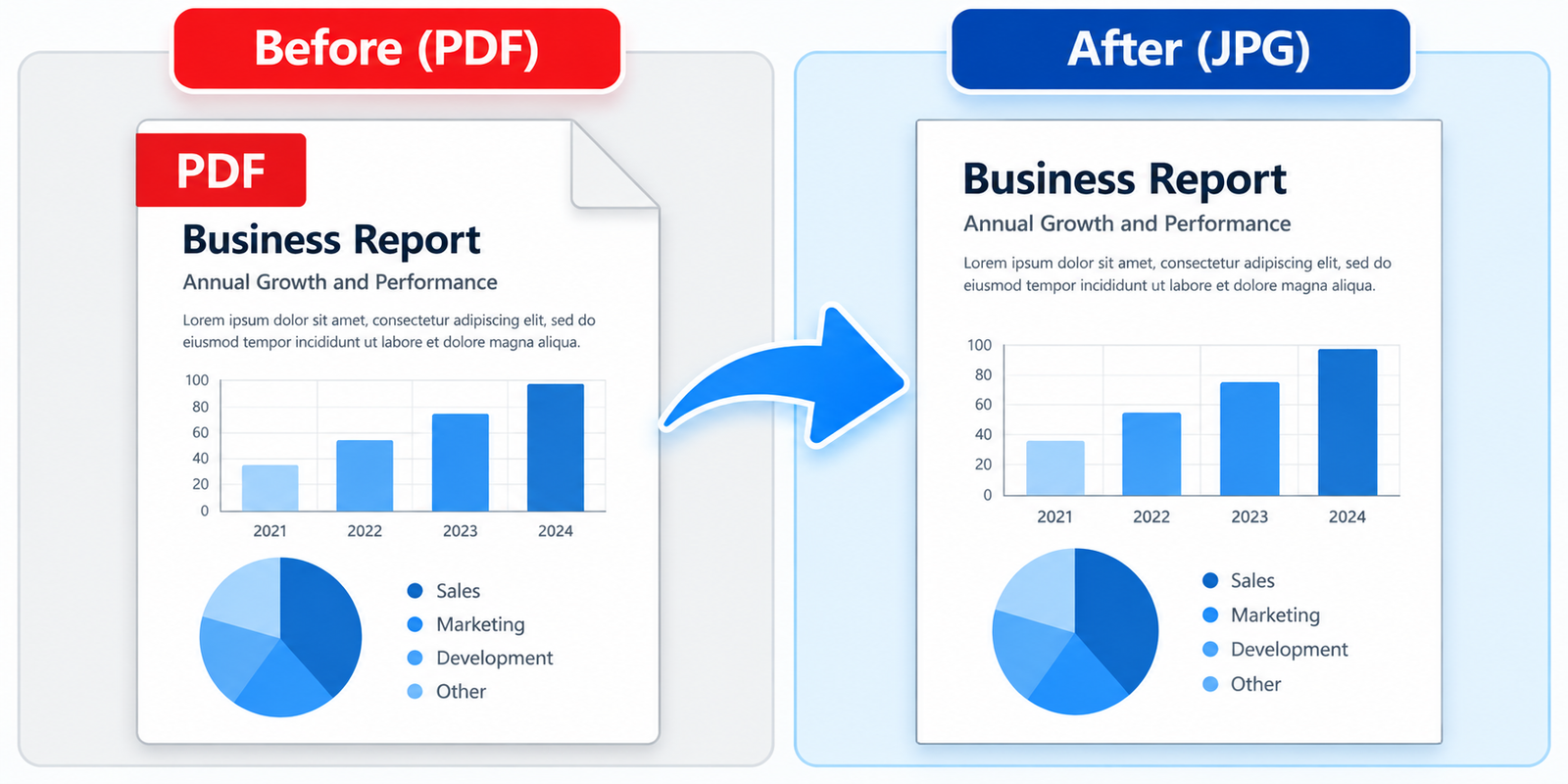
Download converted JPG images from PDF pages

Why Convert PDF to JPG?

PDF files are excellent for keeping documents organized and preserving their original layout, but there are times when an image format is more convenient. When you convert your PDF pages into JPG, each selected PDF page becomes a separate JPG image that can be viewed, shared, uploaded, or used in applications that work better with standard image files.

One common reason to use a PDF to JPG converter is compatibility. JPG images are widely supported by browsers, phones, computers, social platforms, design applications, and content management systems. Converting a document page into a JPG can make it easier to add a specific page to a website, presentation, online form, email, or other project without requiring the recipient to open the complete PDF.

Converting individual PDF pages to JPG can also be useful when you only need selected information from a larger document. Instead of sharing an entire PDF, you can convert the relevant pages and use them as separate image files. This can be especially helpful for reports, brochures, certificates, scanned documents, product information, and visual content.

Another advantage is convenience when working with multiple pages. JPGJoin lets you select the pages you need and convert them into separate JPG images. You can then download the images individually or download the converted files together, making it easier to organize and share the results.

The best format depends on how you plan to use your document. If you need an editable or searchable document, keeping the original PDF may be more appropriate. If you need a visual representation of one or more pages, converting PDF to JPG online can provide a practical image-based alternative.

How to Convert PDF to JPG Online?

Converting a PDF into JPG images is simple with JPGJoin - You can upload your PDF, choose the pages you want to convert, adjust the JPG quality and resolution, and download the finished images directly from your browser. Follow these steps to convert PDF into images online quickly and easily.

Step 1: Upload Your PDF File

Start by opening the JPGJoin PDF to JPG converter. Drag and drop your PDF file into the upload area, or click the upload button to select a PDF from your device. JPGJoin reads the document directly in your browser and displays the PDF name and number of pages before you begin the conversion.
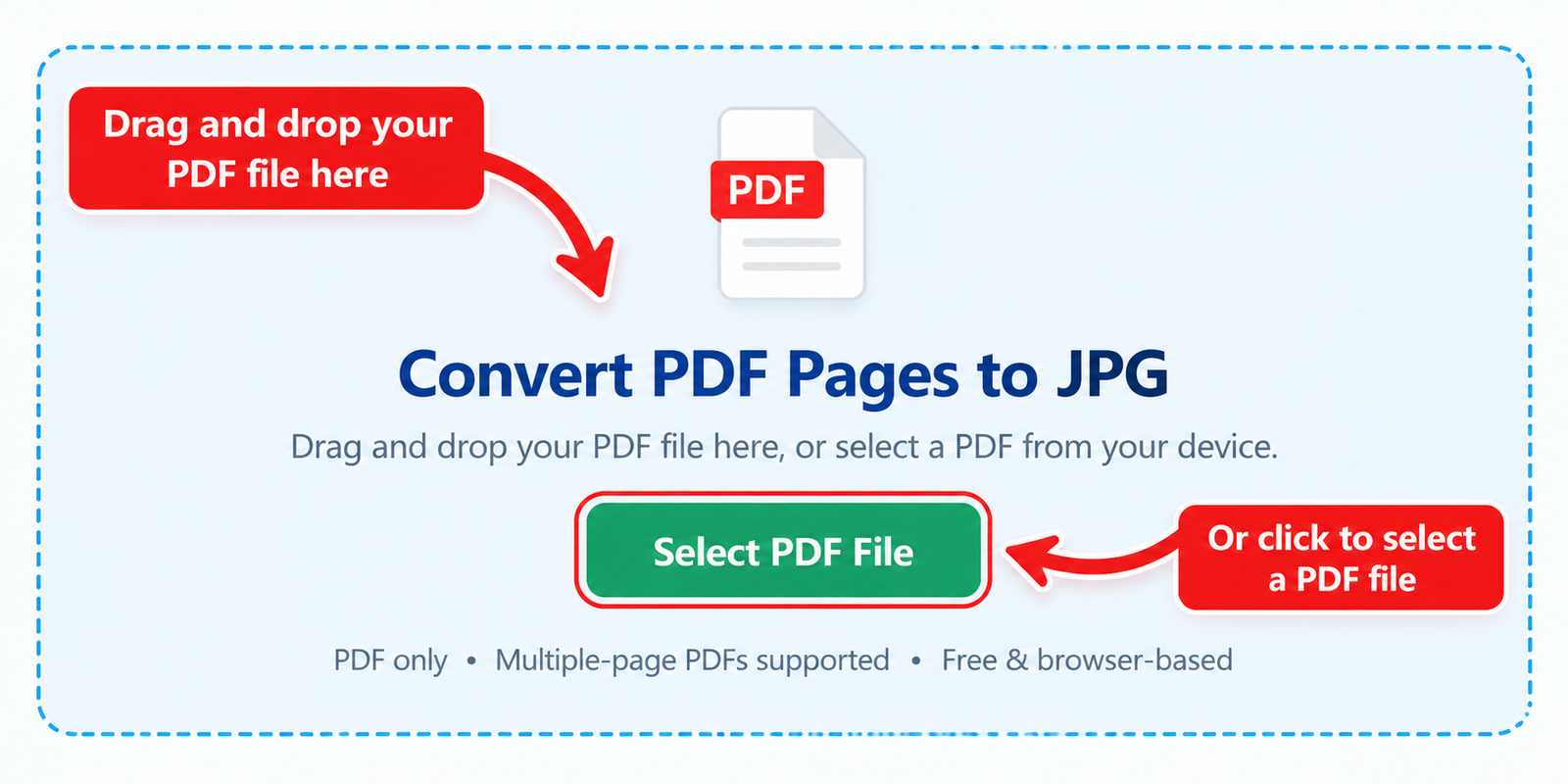
Upload a PDF file to the PDF to JPG converter

Step 2: Choose Your JPG Settings

After uploading your PDF, choose the settings for your JPG images. You can adjust the JPG quality according to your needs and select an image resolution such as 72, 150, 200, or 300 DPI. Higher resolution can produce sharper images, while lower settings can help keep the resulting JPG files smaller.

You can also choose the background option for the converted PDF pages. Select the setting that works best for your document before continuing with the PDF to JPG conversion.
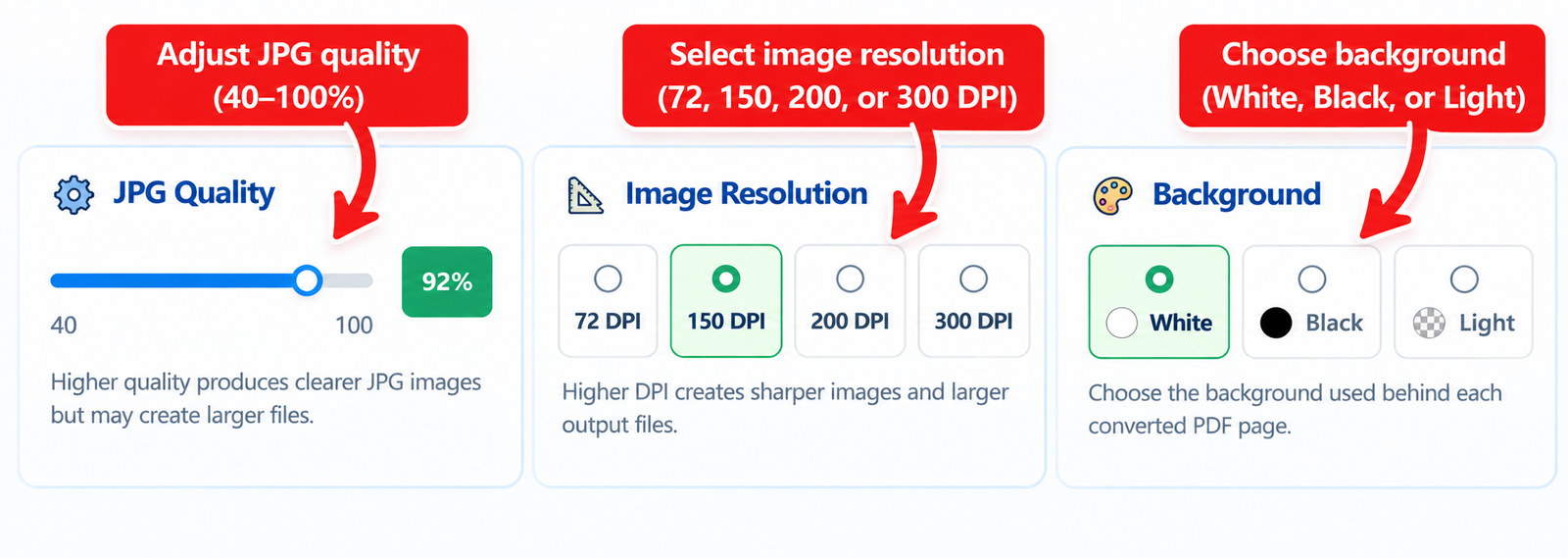
Choose JPG quality resolution and background settings for PDF conversion

Step 3: Select PDF Pages

JPGJoin lets you decide which PDF pages you want to convert. Choose All Pages if you want to convert the complete document, or select Custom Range when you only need specific pages. You can enter page numbers and ranges such as 1-3, 5, 8-10 to convert only the pages you need.

Selecting specific pages is useful when you do not need to convert the entire PDF. It can save time and help you create only the JPG images required for your project.
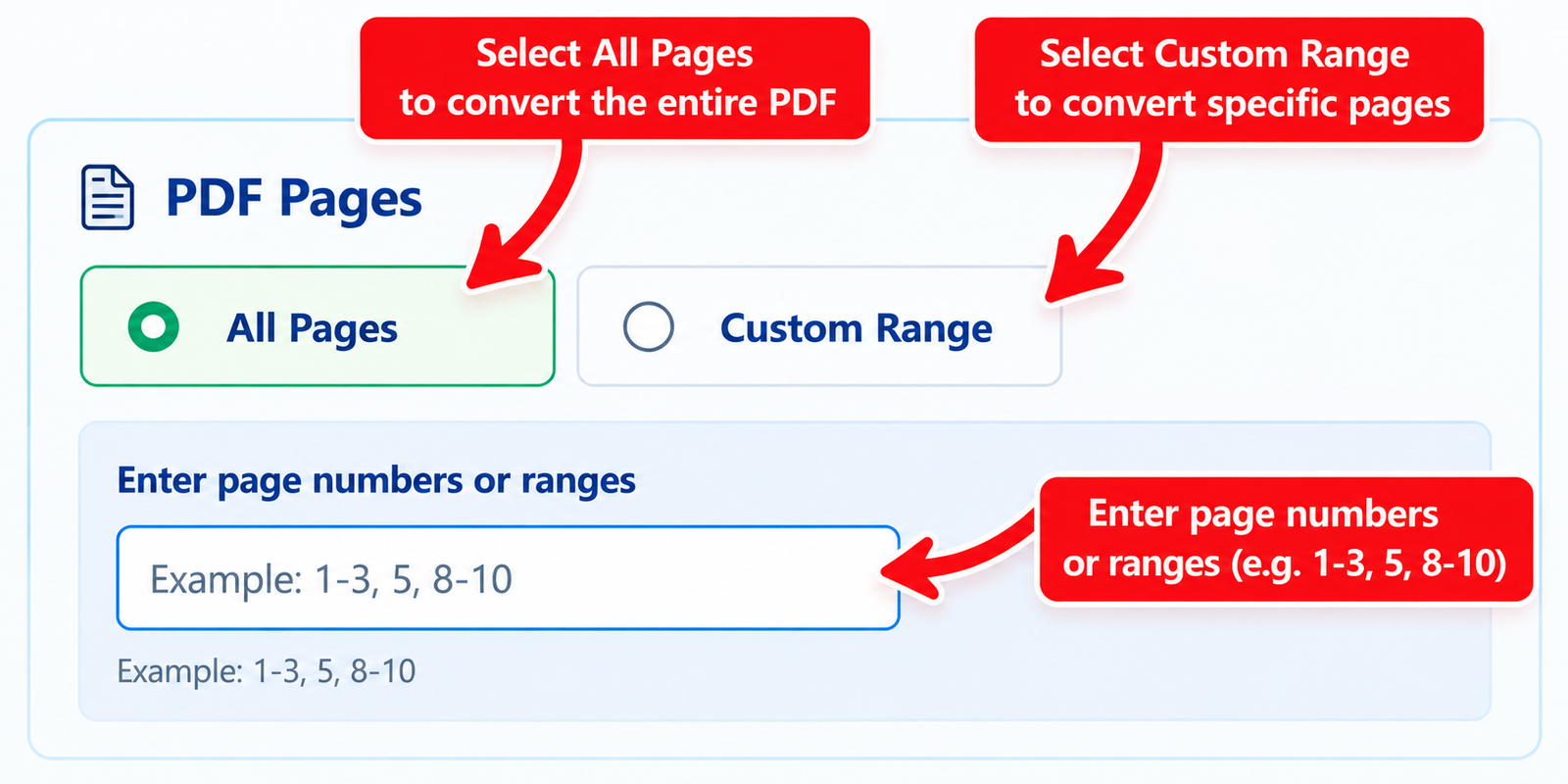
Select PDF pages or custom page ranges to convert to JPG

Step 4: Convert PDF to JPG

Once your pages and settings are ready, click Convert PDF to JPG. JPGJoin processes the selected PDF pages and creates a separate JPG image for each page. The conversion takes place directly in your browser, so you can see the progress as your PDF pages are converted into image files.
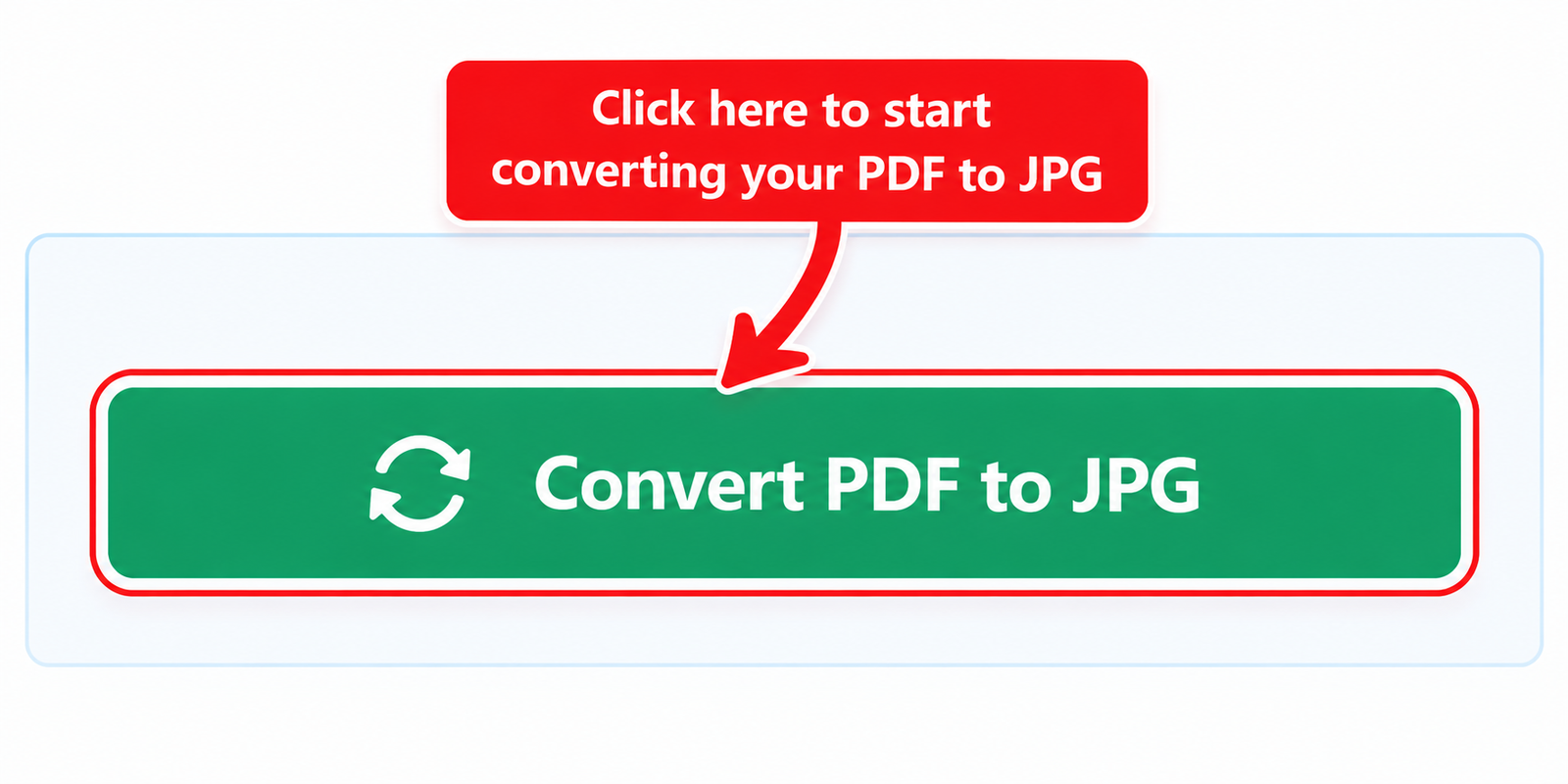
Convert selected PDF pages into JPG images online

Step 5: Download Your JPG Images

When the conversion is complete, JPGJoin displays the resulting JPG images with previews and file details. You can download individual images when you only need specific pages, or use the Download All JPG Images option to download the converted pages together as a ZIP file.

Your converted files are now ready to use in websites, presentations, documents, emails, online forms, or other projects that require JPG images.
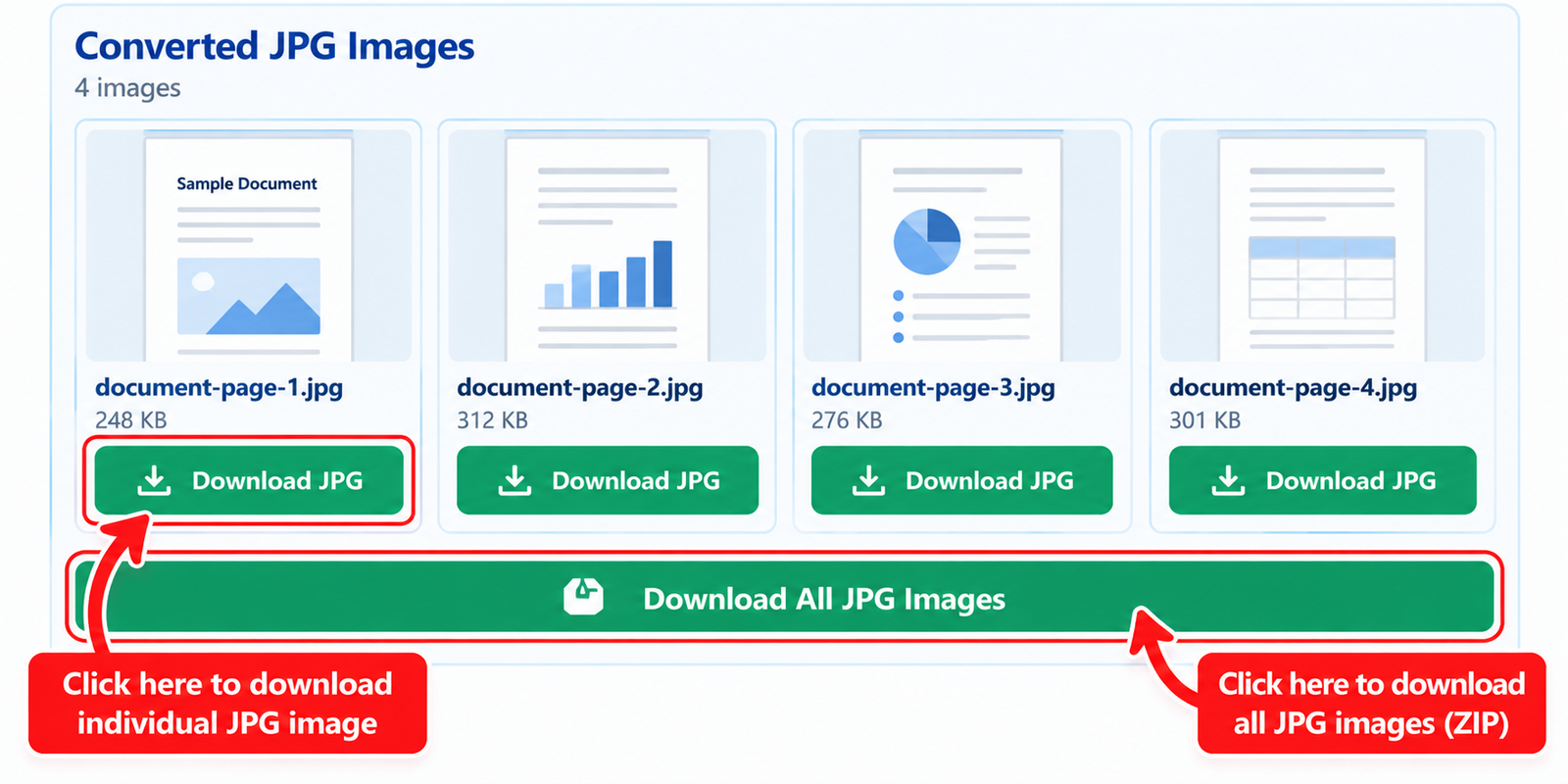
Download converted JPG images from PDF pages

That is all you need to do. With JPGJoin, you can convert PDF to JPG online in a few simple steps while choosing the pages, resolution, quality, and output settings that fit your needs.

PDF to JPG: Which Settings Should You Choose?

When you convert PDF pages online to JPG images, choosing the right output settings can make a noticeable difference in image quality, file size, and overall usability. JPGJoin gives you control over the main settings that affect your converted images, including resolution, JPG quality, and background appearance. The best choices depend on whether you need sharp images for printing, readable pages for documents, or smaller JPG files for online sharing.

DPI and Image Resolution

DPI, or dots per inch, controls the resolution used when PDF pages are rendered into JPG images. JPGJoin provides 72, 150, 200, and 300 DPI options. A lower resolution such as 72 DPI can be suitable for basic web use, previews, and quick sharing, while 150 or 200 DPI can provide a useful balance between clarity and file size.

If you need more detailed JPG images, 300 DPI can produce a sharper result, particularly for documents containing small text, diagrams, or fine details. Keep in mind that higher resolution can also create larger image files. For most everyday PDF to JPG conversion, 150 DPI is a practical starting point.

JPG Quality

The JPG quality setting controls how strongly the converted image is compressed. A higher quality level generally preserves more visual detail, while a lower setting can reduce the resulting file size. JPGJoin lets you adjust the quality according to your needs, making it easier to find a suitable balance between image appearance and storage size.

For documents with text, screenshots, graphics, or detailed layouts, using a higher quality setting can help keep the converted JPG images clear and readable. If file size is more important than maximum image quality, you can choose a lower setting.

Color and Background

PDF pages can contain different types of content, including text, photographs, illustrations, and colored graphics. When converting PDF pages into JPG images, the background setting can affect how the final images appear. JPGJoin provides white, black, and light background options for the converted pages.

A white background is a practical choice for most documents and printed pages. A black background can be useful for certain visual content, while the light option can provide an alternative appearance for specific PDF pages. Choose the background that best matches how you intend to use the converted images.

In general, 150 DPI with a high JPG quality is a good starting point for everyday document conversion. You can increase the resolution when additional detail is important or adjust the quality when you need smaller JPG files.

PDF to JPG on iPhone, Android, Windows & Mac

You can convert PDF to JPG on a wide range of devices using a modern web browser. JPGJoin works directly in the browser, so you can upload your PDF, select the pages you need, choose your JPG settings, and download the converted images without installing a separate conversion program.

PDF to JPG on iPhone

On an iPhone, open JPGJoin in Safari or another supported browser. Select your PDF file from your device and upload it to the PDF to JPG converter. Choose the pages and settings you need, start the conversion, and download the resulting JPG images to your device.

PDF to JPG on Android

Android users can also convert PDF to JPG online directly from a mobile browser. Open JPGJoin, upload the PDF from your device, select the required pages, and choose your preferred resolution and JPG quality. Once the conversion is complete, download the JPG images to your Android device.

PDF to JPG on Windows

On Windows, open JPGJoin in your preferred browser and upload your PDF. You can convert all pages or select a custom page range, then adjust the resolution, quality, and background settings before converting. The resulting JPG images can be downloaded individually or together as a ZIP file.

PDF to JPG on Mac

Mac users can follow the same straightforward process using Safari, Chrome, or another supported browser. Upload your PDF, choose the pages you want to convert, adjust the available JPG settings, and start the conversion. You can then download the converted pages as JPG images.

Whether you are using an iPhone, Android phone, Windows PC, or Mac, JPGJoin provides a simple way to convert PDF pages to JPG without requiring a dedicated desktop or mobile conversion application. Your workflow remains the same across devices, making it easy to create JPG images whenever you need them.

FAQs About Online PDF to JPG Converter

What is a PDF to JPG converter?

A PDF to JPG converter is an online tool that changes PDF pages into JPG image files. Instead of keeping a document in PDF format, you can convert each selected page into an individual image that is easier to view, share, upload, or use in other applications.

How can I convert PDF to JPG online?

To convert PDF to JPG online, upload your PDF file to JPGJoin, choose your preferred JPG quality and DPI, select all pages or a custom page range, and start the conversion. Once processing is complete, you can download the JPG images individually or download them together as a ZIP file.

Can I convert multiple PDF pages to JPG?

Yes, JPGJoin can convert multiple pages from a PDF into separate JPG images. You can convert all pages at once or select a specific range of pages when you only need certain parts of the document.

Can I convert only selected PDF pages to JPG?

Yes, The PDF to JPG converter includes a custom page selection option. You can enter individual pages or ranges, such as 1-3, 5, 8-10, to convert only the pages you need instead of processing the entire PDF.

What DPI should I use when converting PDF into JPG's?

The right DPI depends on how you plan to use the images. A lower setting such as 72 DPI can work well for basic previews and web use, while 150 or 200 DPI provides a good balance between image quality and file size. For sharper, more detailed JPG images, 300 DPI is a better choice.

Can I control the JPG quality?

Yes, You can adjust the JPG quality before converting your PDF. Higher quality generally preserves more visual detail, while a lower quality setting can produce smaller image files. This allows you to choose a suitable balance between quality and file size.

Can I convert a PDF into Images without installing software?

Yes, JPGJoin works directly in your web browser, so you do not need to install a separate PDF conversion program. Upload your file, select your settings, convert the pages, and download the resulting JPG images from the browser.

Can I use the PDF to JPG converter on my phone?

Yes, You can use the PDF to JPG converter on compatible iPhone and Android browsers as well as on Windows and Mac computers. The browser-based workflow makes it convenient to convert PDF pages without installing dedicated conversion software.

What happens to my PDF pages after conversion?

Each selected PDF page is rendered as a separate JPG image. This means a multi-page PDF can produce multiple JPG files, with each image representing one page of the original document. You can then download the generated images individually or together as a ZIP file.

Is PDF to Images useful for sharing documents online?

Yes, JPG images can be convenient when a website, platform, presentation, or messaging service requires an image rather than a PDF. Converting selected pages to JPG can also make it easier to share specific pages without sending the complete document.

Scroll to Top