
Crop Images with Fast Online Image Cropper Tool For Free

Crop images online quickly and easily with our free image cropper. You only drag or upload your JPG, JPEG, or PNG photo, adjust the crop area to the size or aspect ratio you want, and download your cropped image directly in your browser — no software installation or signup required.

Drag & Drop your image here or
JPG, JPEG, PNG or WebP

More Useful Tools

Quickly access our most useful PDF conversion and editing tools.

How to Crop an Image Online?

Crop images online is a simple way to remove unwanted areas, focus on the important part of a photo, or prepare an image for a specific size or aspect ratio. With JPGJoin, you can crop an image online directly in your browser without installing any software.

Follow the steps below to crop your JPG, JPEG, PNG, or WebP image quickly and download the finished image when you are done.

1. Upload Your Image

Start by uploading the image you want to crop and can either click the Select an Image button or drag and drop your image into the upload area.

JPGJoin.com supports common image formats including JPG, JPEG, PNG, and WebP, so you can crop most photos and images without converting them first.
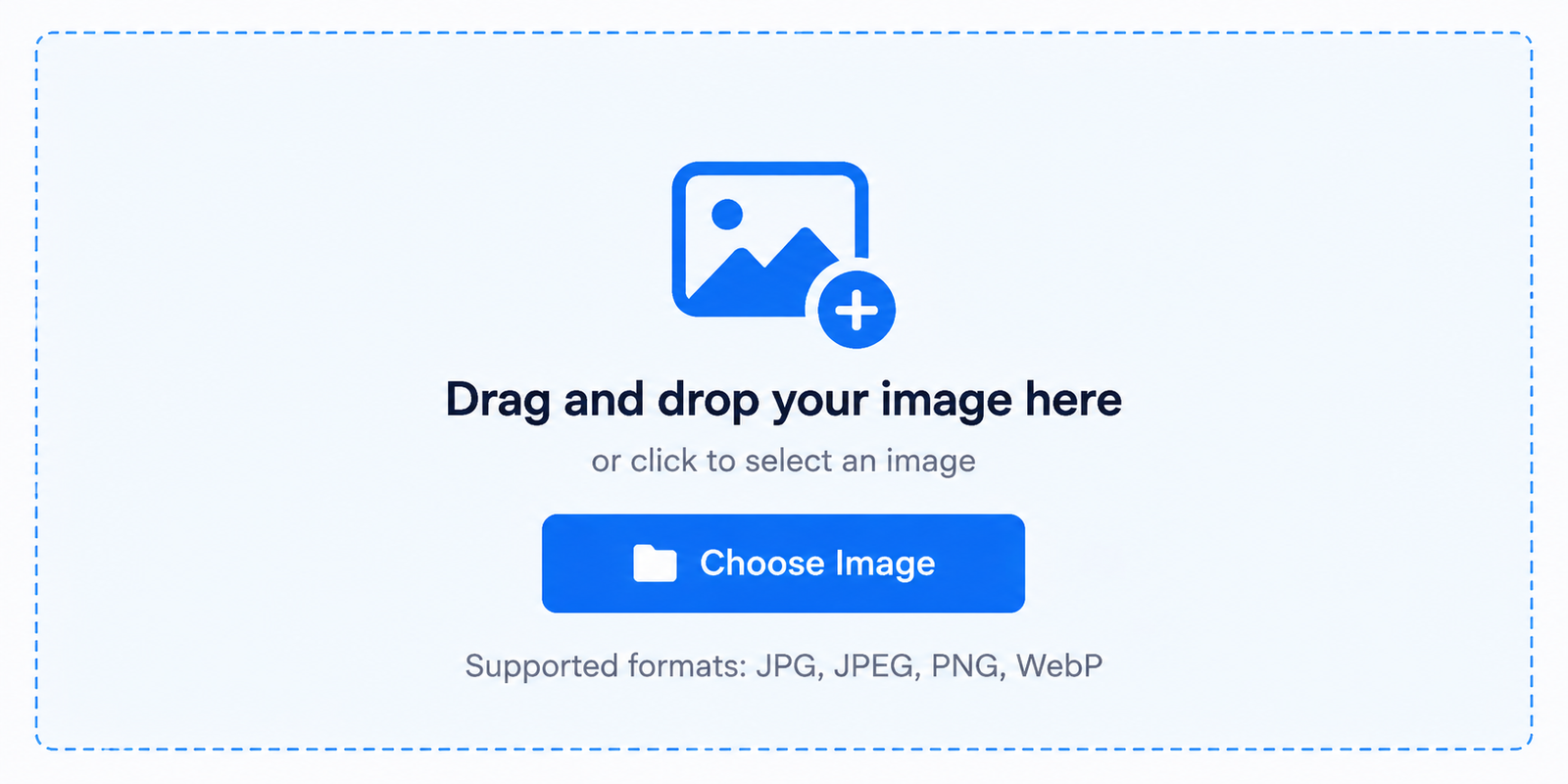
Upload an image to the JPGJoin online image cropper

2. Select the Area You Want to Keep

After your image is uploaded, the crop editor will appear and crop selection is placed over your image so you can choose exactly which part of the photo you want to keep.

Drag the crop area to move it around the image and can also drag the corner handles to increase or decrease the selected area. This makes it easy to remove unwanted backgrounds, edges, or other parts of the image.
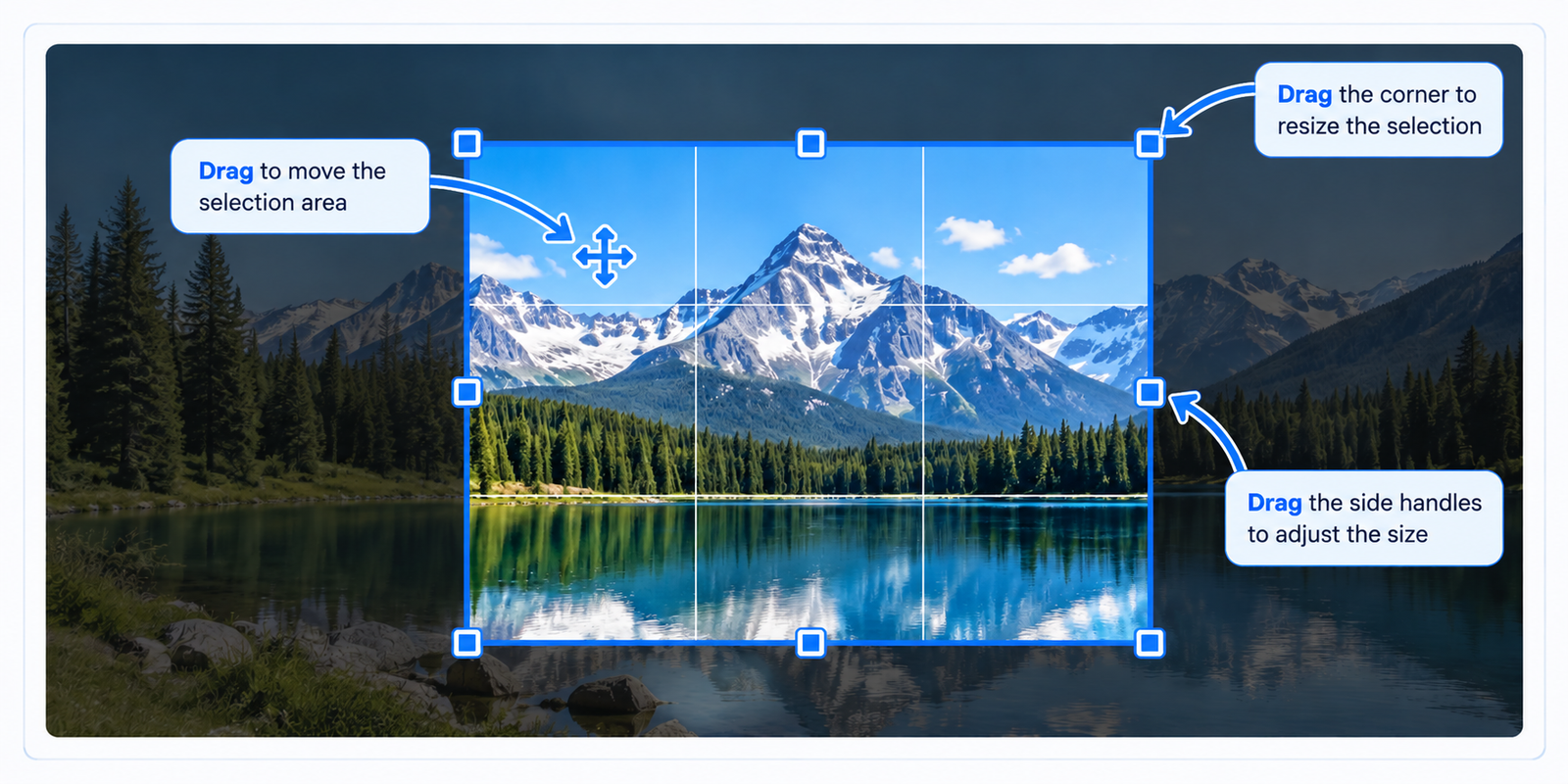
Select the area of an image to crop using the JPGJoin crop tool

3. Choose a Crop Mode

JPGJoin gives you different ways to control your crop and can use Free mode to crop images online when you want complete control over the crop area, or use fixed and ratio-based options when you need a more specific result.

Free cropping is useful when you simply want to remove unwanted portions of a photo. Ratio-based cropping is helpful when preparing images for social media, websites, profile pictures, thumbnails, or other layouts that require a particular shape.
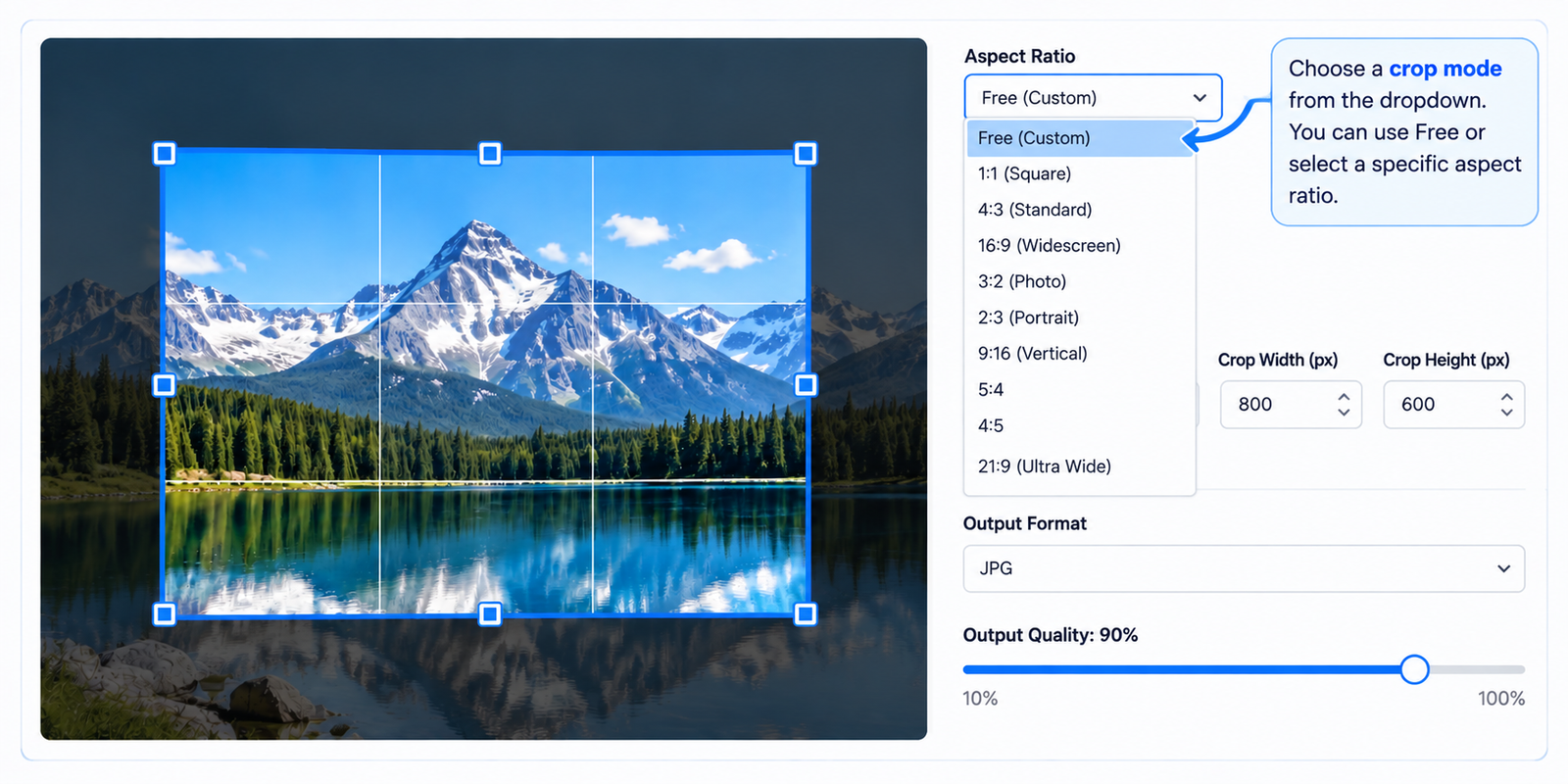
Choose free, fixed, or aspect ratio crop mode in the image cropper

4. Set the Width, Height, or Aspect Ratio

If you need a specific crop size, you can adjust the width and height values of the selected area which is useful when an image needs to fit a particular size or layout.

You can also choose from common aspect ratios such as 1:1, 4:3, 16:9, 3:2, 2:3, 9:16, 5:4, 4:5, and 21:9. These presets make it easier to crop images online with consistent dimensions without manually calculating the ratio.
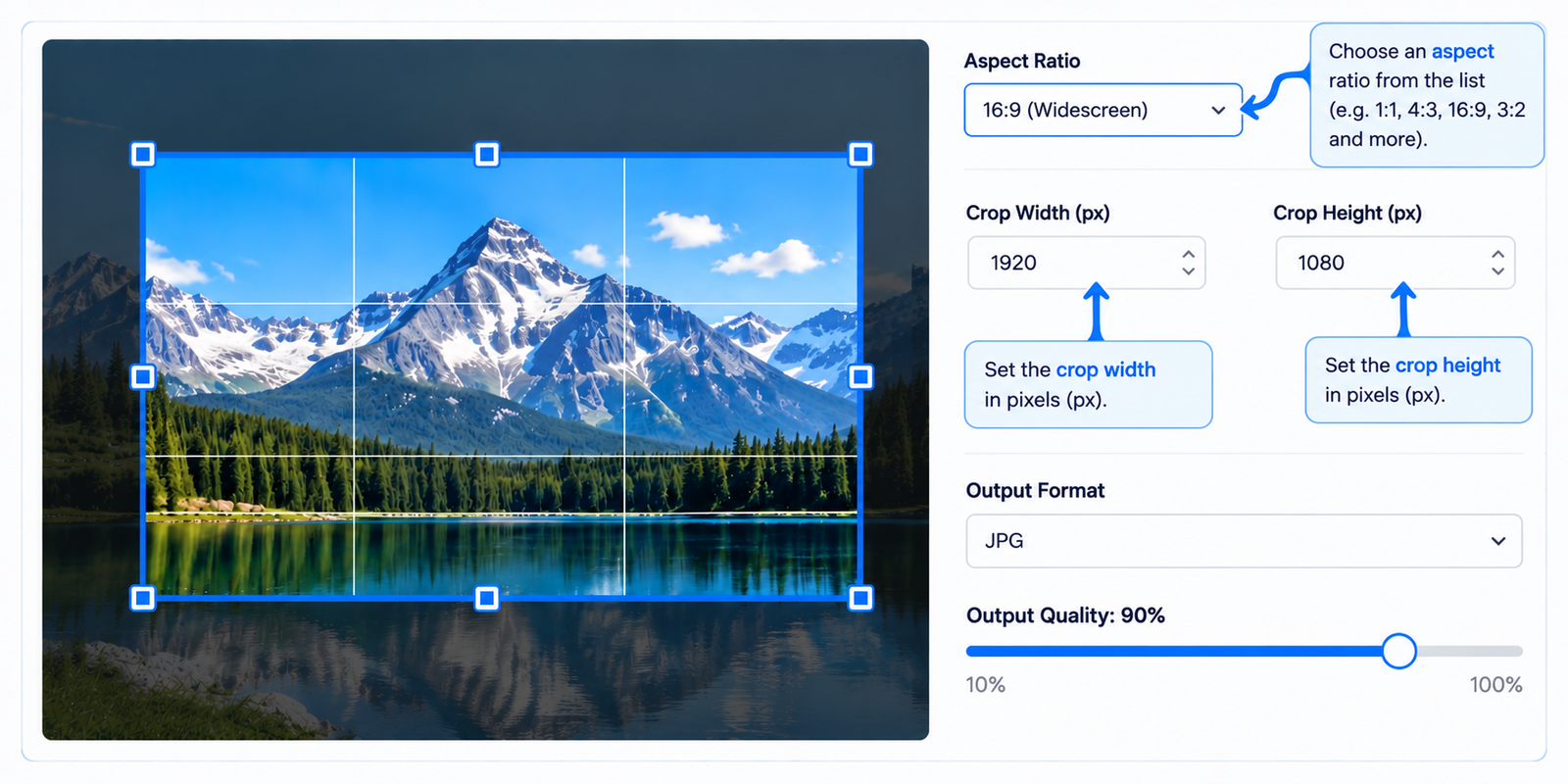
Set image width height and aspect ratio when cropping an image online

5. Check the Crop Preview

Before downloading your crop images, check the selected area in the crop workspace and make sure the important part of the photo is inside the selection and that unwanted areas have been removed.

You can move or resize the crop selection as many times as needed until the composition looks right.
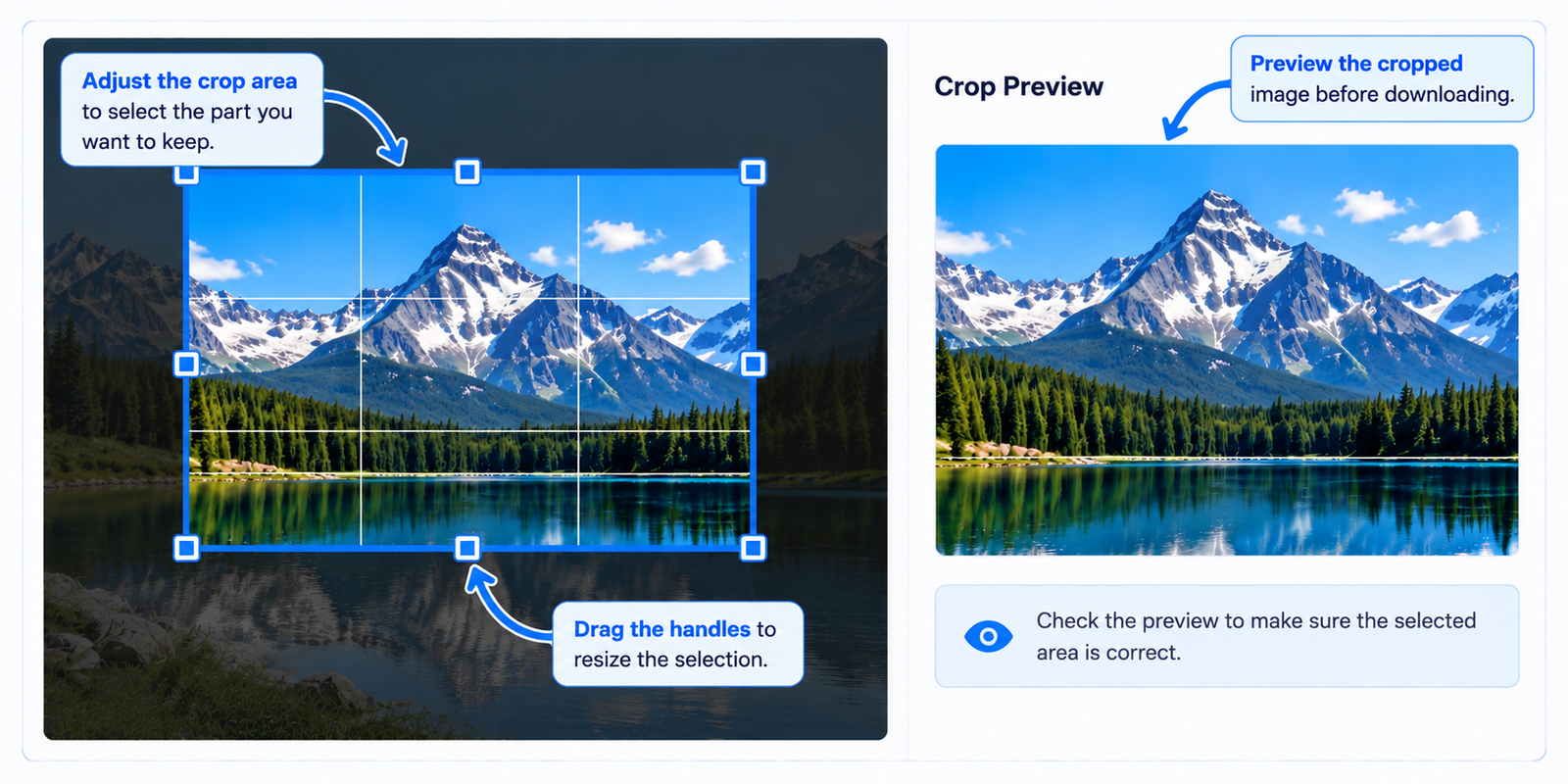
Preview the selected crop area before downloading the image

6. Choose the Output Format and Quality

Once you are happy with the crop, choose the format you want for the downloaded image. JPGJoin lets you export the cropped image as JPG, PNG, or WebP.

You can also adjust the image quality before downloading and higher quality setting can preserve more image detail, while a lower setting can help reduce the final file size.
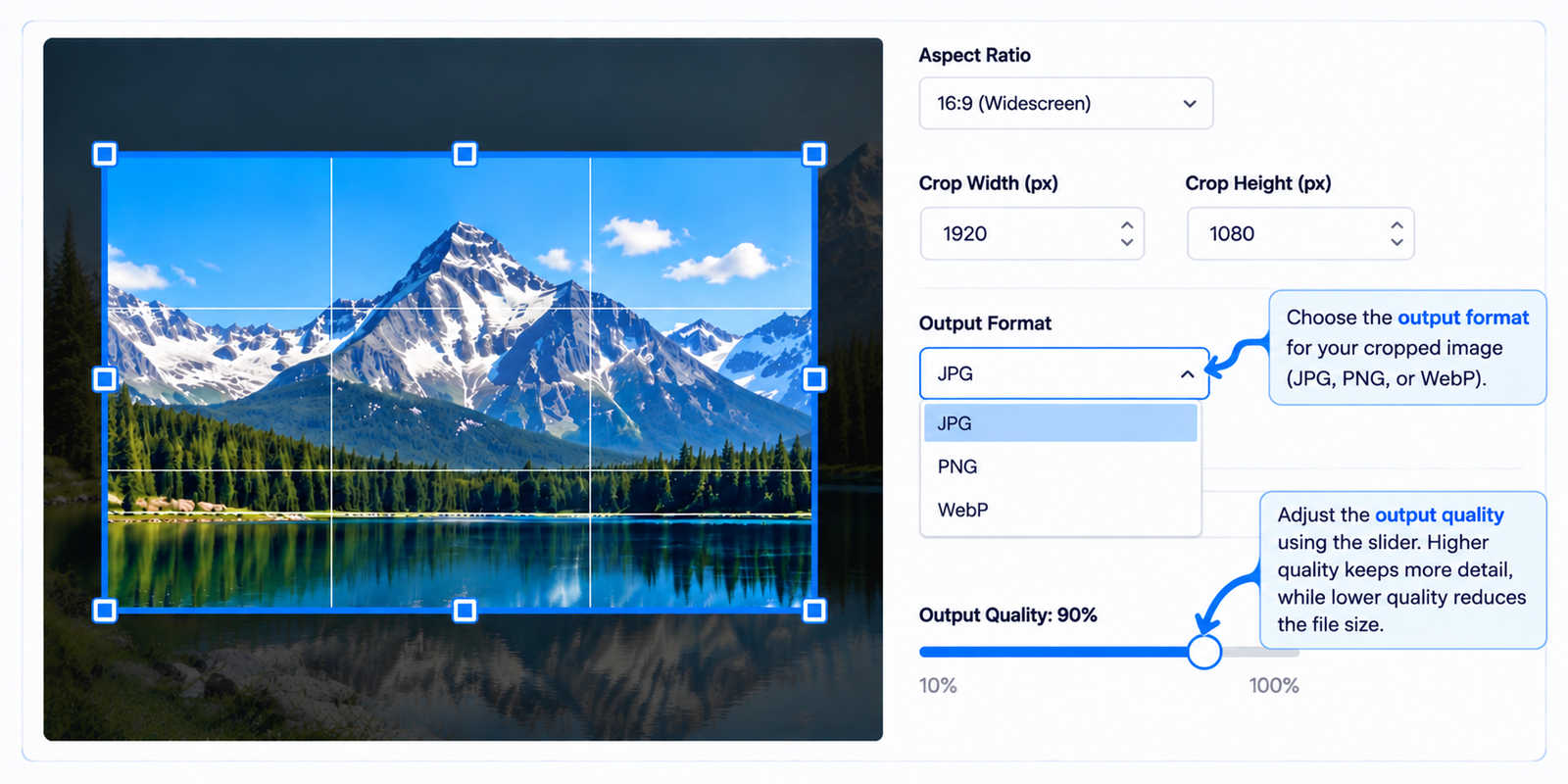
Choose JPG PNG or WebP format and image quality before downloading

7. Crop and Download Your Image

When everything looks correct, click the Crop & Download button. The tool processes the image directly in your browser and downloads the cropped version to your device.

You do not need to install an image editing program or create an account just to crop a photo and the process is quick and works directly from your web browser.
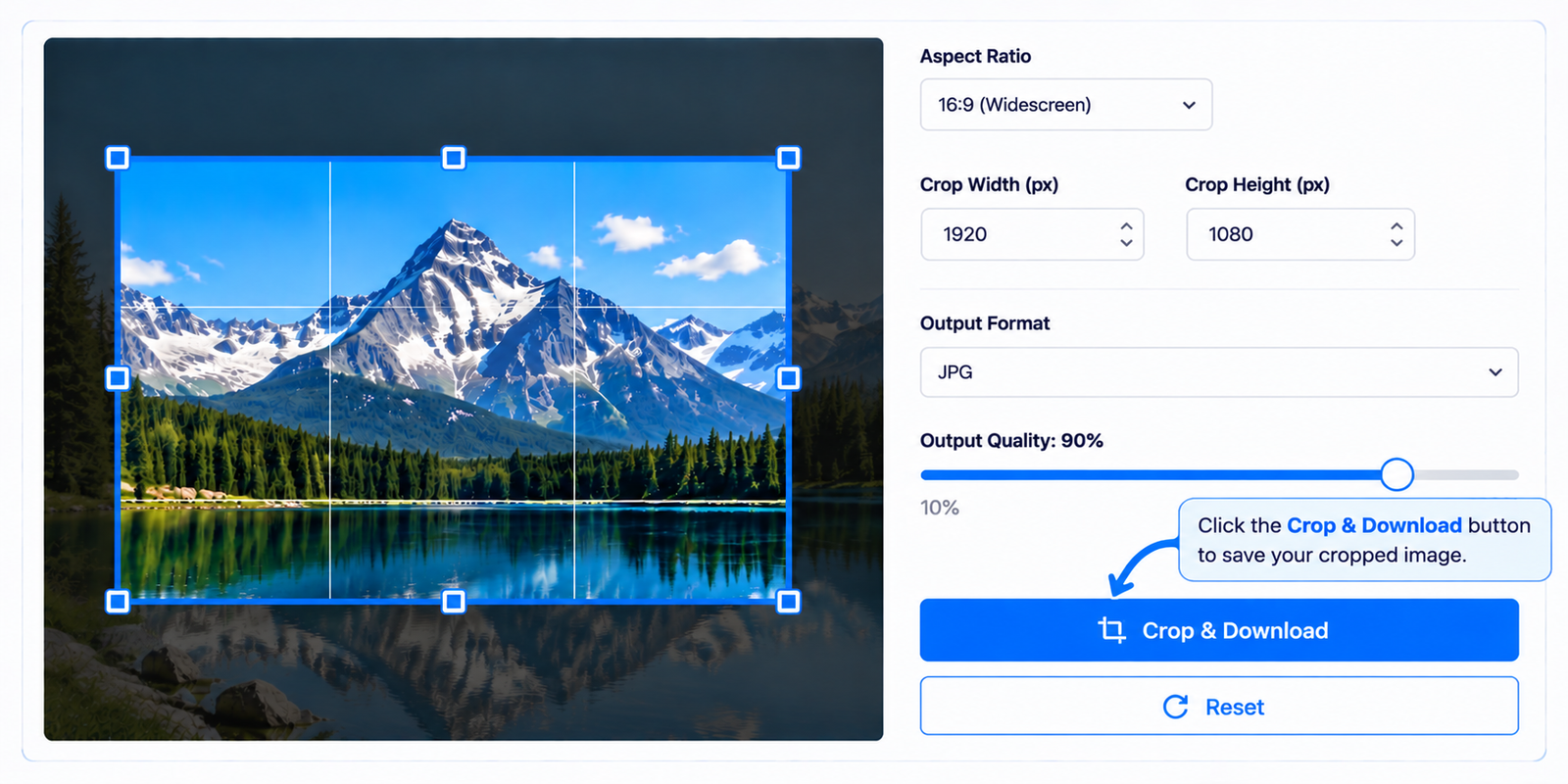
Crop and download the finished image using JPGJoin

Crop Images Online Without Complicated Software

Whether you need to remove unwanted parts of a photo, create a square profile picture, prepare an image for a website, or change the shape of an image, an online image cropper can make the process much easier.

JPGJoin provides a simple way to crop JPG, JPEG, PNG, and WebP images online with adjustable crop areas, common aspect ratios, output formats, and quality settings. Everything is handled directly in your browser, making it convenient for quick image editing.

Supported Image Formats for Cropping

JPGJoin's online image cropper supports several commonly used image formats, making it easy to crop photos and graphics without first converting them to another file type. You can upload JPG, JPEG, PNG, and WebP images directly into the crop tool.

Whether you are working with a regular photograph, a transparent PNG, or a modern WebP image, you can select the area you want to keep, adjust the crop dimensions, and download the crop images online in your preferred supported format.

JPG and JPEG Images

JPG and JPEG are among the most widely used image formats for photographs and everyday images which are especially useful when you want relatively small file sizes while maintaining good visual quality.

You can upload JPG or JPEG photos to JPGJoin and crop them to remove unwanted areas, change their composition, or prepare them for a particular size or aspect ratio.

PNG Images

PNG is commonly used for graphics, screenshots, illustrations, logos, and images that may require transparency. JPGJoin lets you upload PNG files and crop the area you need without requiring a separate image editing application.

PNG can also be selected as an output format when you want to preserve the image in a format that supports transparency.

WebP Images

WebP is a modern image format commonly used on websites because it can provide efficient file sizes while maintaining good image quality. If you have a WebP image that needs trimming or reframing, you can upload it directly to the JPGJoin cropper.

After cropping, you can choose one of the available output formats supported by the tool based on how you plan to use the image.

Which Image Format Should You Use?

The best format depends on how you plan to use the cropped image and photographs are commonly saved as JPG or JPEG, while PNG is useful for graphics and images where transparency is important. WebP can be a practical choice for web content when smaller file sizes are desirable.

You do not need to worry about converting your image before cropping. Simply upload a supported file, adjust the crop area, select the output format if necessary, and download the finished crop images online.

Crop JPG, PNG, JPEG, and WebP Images Online

With JPGJoin, you can crop JPG, JPEG, PNG, and WebP images online using a simple browser-based editor. The tool provides controls for selecting the crop area, adjusting dimensions, choosing aspect ratios, and selecting the output format.

This makes it convenient to prepare images for websites, documents, social media content, presentations, profile pictures, thumbnails, and other everyday uses.

Why Use JPGJoin Image Cropper?

Cropping an image should not require complicated editing software or advanced design skills. JPGJoin provides a simple online image cropper that lets you quickly select the part of an image you want to keep and download the result from your browser.

Whether you are editing a personal photo, preparing an image for a website, or creating content for social media, the cropper gives you practical controls without making the process unnecessarily complicated.

Simple and Easy to Use

The JPGJoin image cropper is designed with a straightforward workflow. Upload your image, select the area you want to keep, adjust the crop, and download the finished image.

You do not need professional image-editing experience to use the basic cropping controls. The visual crop area makes it easy to see what will remain in the final image.

Crop Images Directly in Your Browser

You can use JPGJoin directly from a modern web browser without installing a separate desktop image-editing application. This makes it convenient when you need to make a quick crop from a computer, laptop, tablet, or other supported device.

Simply open the crop image tool, upload your file, make the required adjustments, and download the result when you are finished.

Free Image Cropping

JPGJoin provides a convenient way to crop images online for free. You can use the crop controls to adjust the image without needing a paid image-editing application for a simple cropping task.

This is particularly useful when you only need to remove unwanted areas, change the framing of a photo, or prepare an image for a particular layout.

Flexible Crop Sizes and Aspect Ratios

Different projects require different image shapes. JPGJoin includes flexible crop controls along with commonly used aspect ratios, so you can create square, landscape, portrait, and widescreen crops according to your requirements.

You can also adjust the crop dimensions manually when a particular width or height is required.

Support for Popular Image Formats

You can upload commonly used image formats including JPG, JPEG, PNG, and WebP. This means you can work with different types of photographs and graphics without having to convert the original file before cropping.

The tool also provides output format options so you can select a supported format that suits your intended use.

Choose Your Output Quality

JPGJoin.com includes quality settings that give you more control over the downloaded image. You can select a higher quality when preserving image detail is important or choose a lower setting when reducing file size is more important.

Having control over output quality can be helpful when preparing images for websites, documents, uploads, or other situations where file size matters.

No Complicated Signup Process

For a simple image-cropping task, you can get started without going through a complicated account setup process. Open the tool, upload your image, make your crop, and download the result.

This keeps the workflow focused on what you actually need to do crop images online and save the finished file.

Useful for Everyday Image Editing

An online image cropper can be useful for many everyday tasks like to crop personal photographs, website images, profile pictures, thumbnails, screenshots, product photos, presentations, and other visual content.

Instead of opening a full image-editing program for simple crop Images, you can use JPGJoin.com when you only need to change the visible area of an image.

A Convenient Way to Crop Images Online

JPGJoin combines simple cropping controls with adjustable dimensions, aspect ratio options, multiple image formats, and output quality settings and gives you the essential tools needed for everyday image cropping without an unnecessarily complicated interface.

If you need to crop a JPG, JPEG, PNG, or WebP image online, upload your image above, adjust the crop area, and download the result when it is ready.

FAQs About Cropping Images

Upload your JPG, JPEG, PNG, or WebP image to the JPGJoin image cropper. Select the area you want to keep, adjust the crop size or aspect ratio if needed, choose your output settings, and click Crop & Download to save the finished image.

Yes, JPGJoin.com provides a free online image cropper that you can use to crop images online directly in your browser without installing desktop image-editing software.

JPGJoin.com supports several common image formats, including JPG, JPEG, PNG, and WebP. You can upload a supported image, adjust the crop area, and download the result using the available output options.

Yes, JPGJoin.com provides width and height controls that allow you to adjust the crop area according to the dimensions you need. This can be useful when an image needs to fit a particular layout or size.

Yes, You can use predefined aspect ratios such as 1:1, 4:3, 16:9, 3:2, 2:3, 9:16, 5:4, 4:5, and 21:9. These options make it easier to create images with consistent proportions.

Yes. Select the 1:1 aspect ratio to create a square crop. You can then move the selection to position the subject correctly before downloading the image.

Yes, PNG images are supported. Upload your PNG file, select the area you want to keep, adjust the crop as needed, and choose one of the available output formats before downloading.

Yes, JPGJoin supports WebP images. You can upload a WebP file, select the required crop area, and download the crop images online using the available format options.

Cropping removes parts of an image rather than stretching the remaining content. Using an appropriate crop area or aspect ratio helps you maintain the natural proportions of the important part of the photo.

Yes. JPGJoin provides output options for JPG, PNG, and WebP. You can select the format you want before downloading your cropped image.

Yes. The cropper includes quality options that let you choose an appropriate output quality before downloading the cropped image. Higher quality settings can preserve more detail, while lower settings may produce a smaller file.

No. JPGJoin is a browser-based image cropping tool, so you can crop supported images online without installing a separate image-editing program.

No account is required for the basic image cropping workflow. You can upload a supported image, make your crop, and download the result directly from the tool.

Yes. JPGJoin is designed to work in a web browser, including supported mobile browsers. You can upload an image from your device, adjust the crop area, and download the result.

Cropped images can be useful for profile pictures, website images, thumbnails, product photos, presentations, documents, social media content, and many other everyday image-editing tasks.

Scroll to Top