Upload the Image You Want to Split
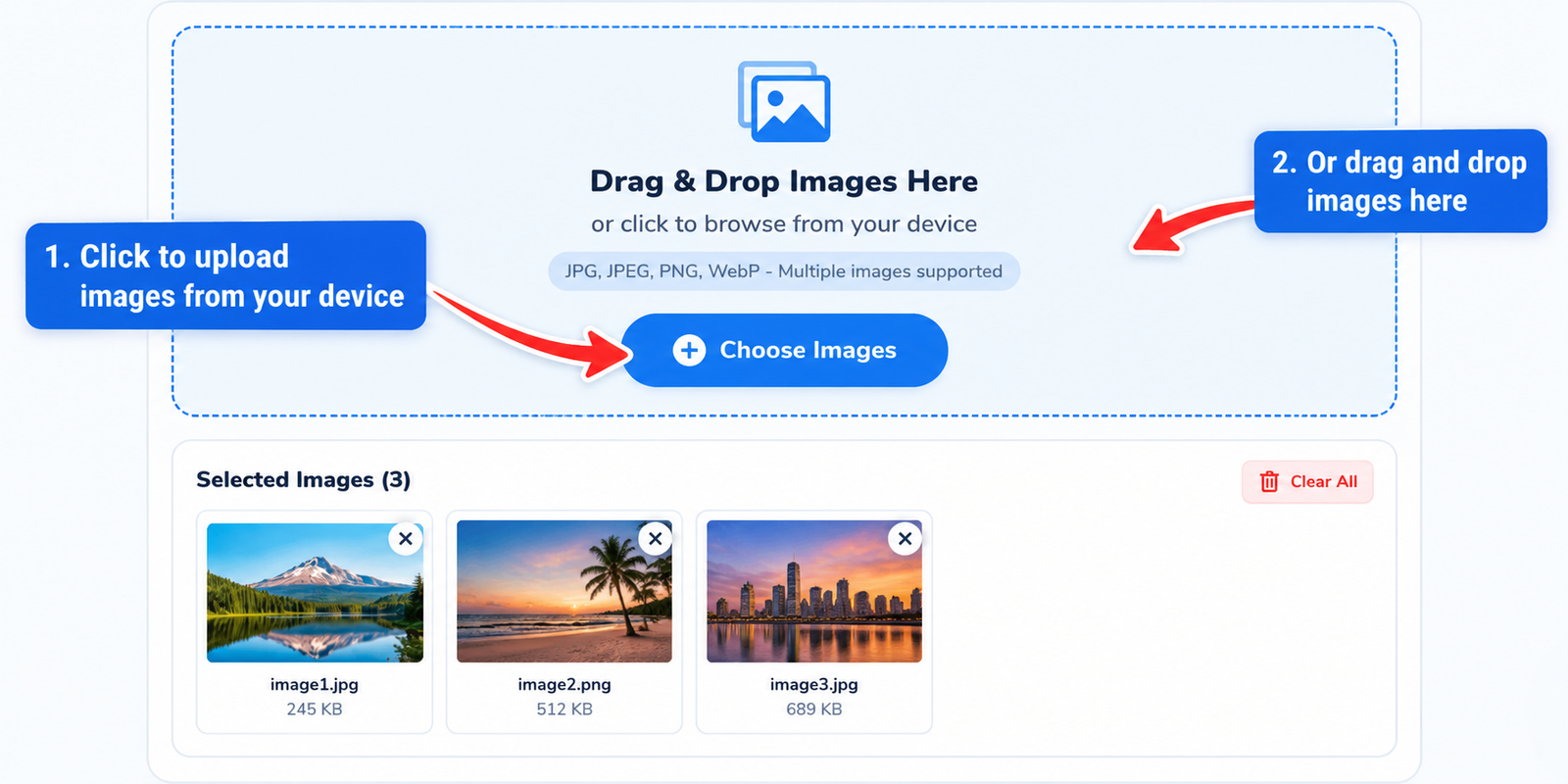
You can choose JPG, JPEG, PNG, or WebP image from your device or drag and drop it directly into the tool. Your image will appear in the preview area so you can check it before creating the separate pieces.
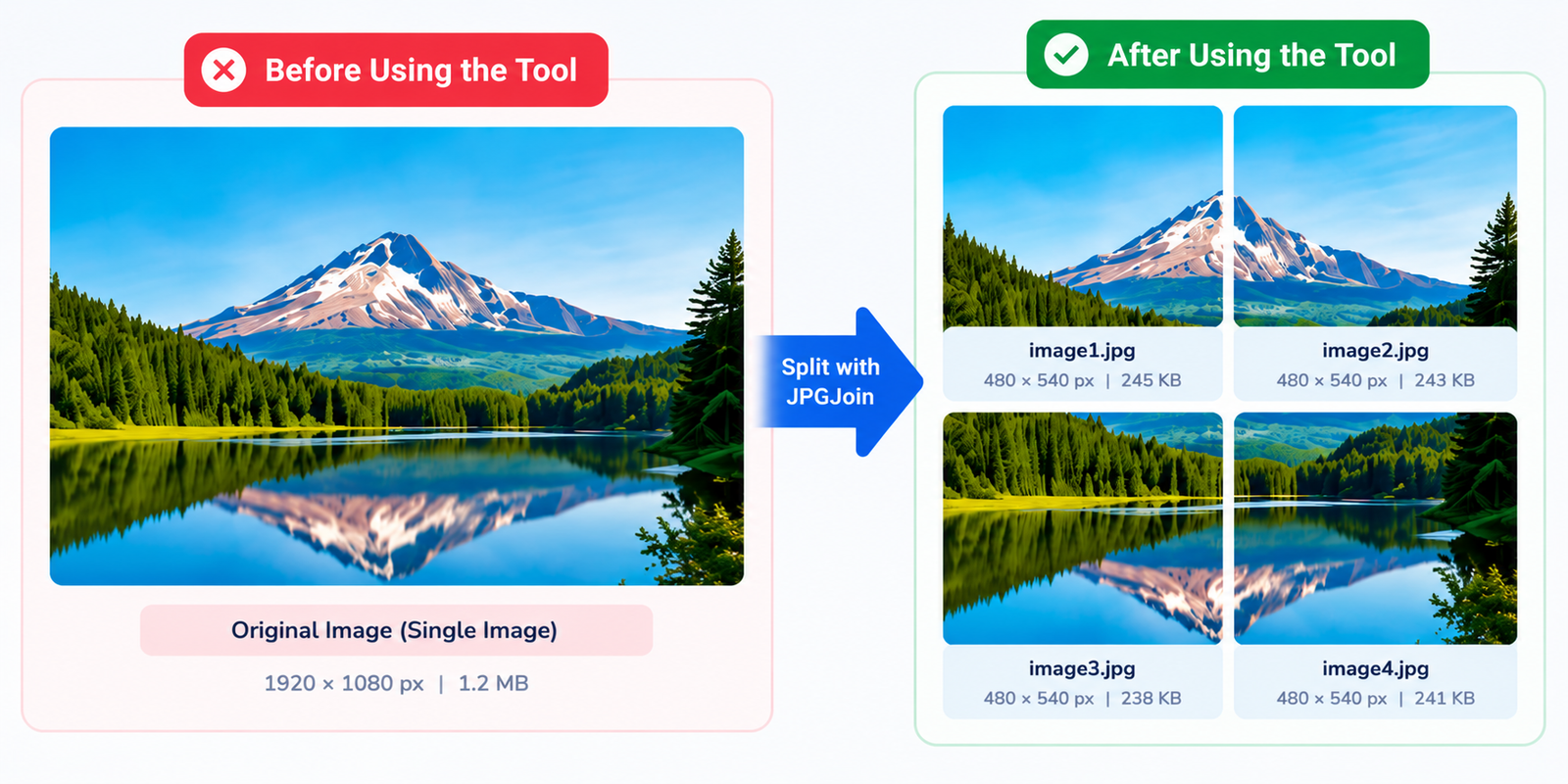
Need to divide a photo or graphic into smaller sections? With JPGJoin, you can split image online quickly and easily – just upload your image, choose how you want to divide it, and get separate image pieces without installing any software. Our online image splitter works right in your browser and makes it easy to split JPG images, photos, and other common image files in just a few clicks.
Drag and drop your image here, or select an image from your device.
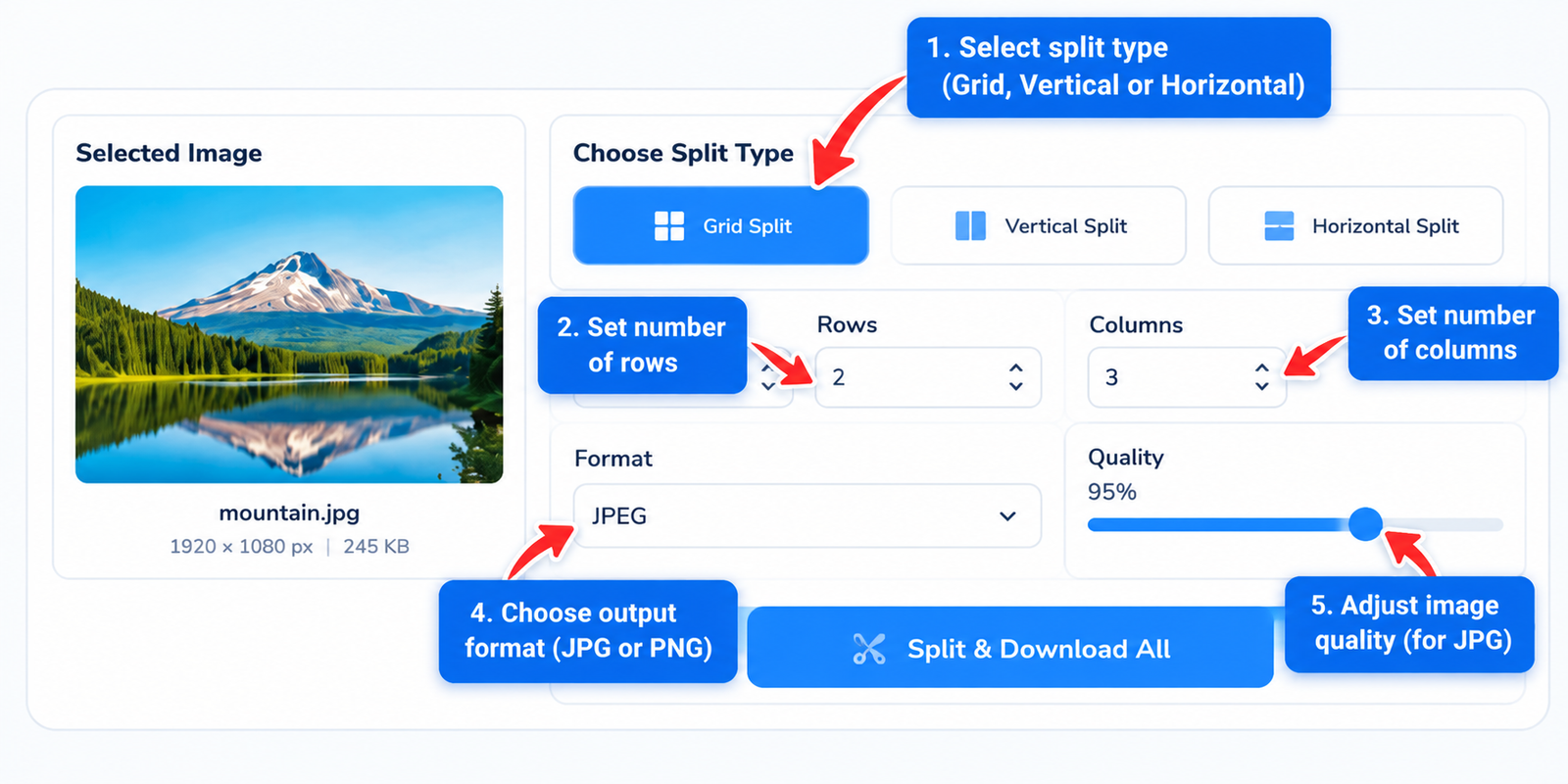
Choose a grid or split in one direction.
Grid mode can create up to 100 image parts.
Adjust quality for JPG and WEBP. PNG uses lossless output.
Each part receives its own filename.
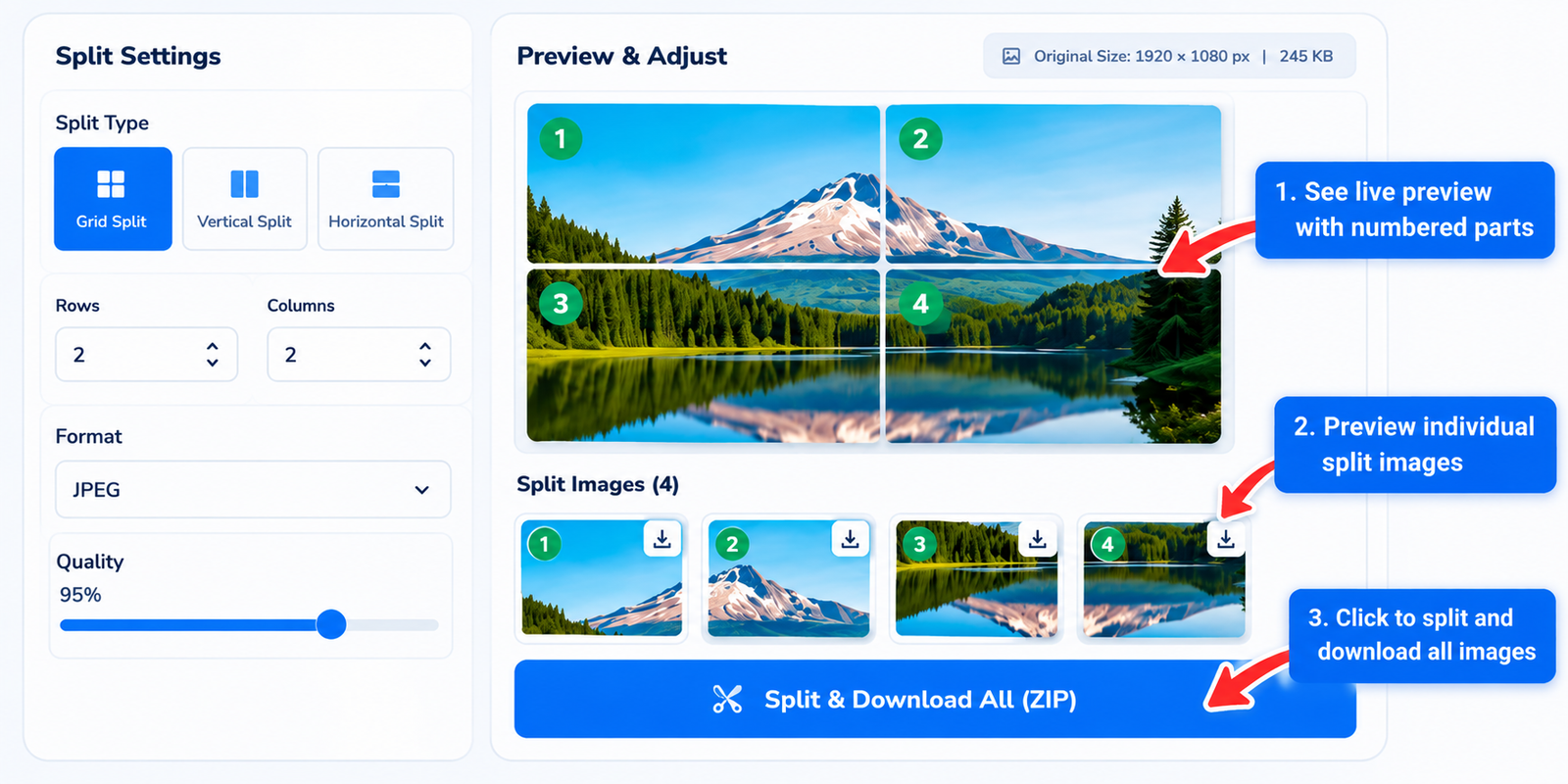
Green lines show where your image will be divided. Change the settings above to update the preview.
Quickly access our most useful images conversion and editing tools beside Online Image splitter.
Sometimes a single image is simply too large or too wide to use the way you want. You may want to turn one photo into several Instagram posts, divide a long graphic into smaller sections, or prepare an image for printing. Instead of opening complicated editing software, you can use an image splitter to divide it into separate pieces in a few simple steps.
Planning a connected Instagram feed? You can split images online into equal sections and upload the pieces as individual posts. The same idea works for carousel content, where a wide image can be divided into several slides that users can swipe through.
A large design does not always fit on a single sheet of paper and splitting an image into smaller sections can make it easier to print each part separately and put the pieces together afterward. Split photos online can be useful for posters, artwork, banners, classroom projects, and other large-format designs.
Long screenshots, infographics, maps, and web graphics can be difficult to share or work with as one file. With JPGJoin, you can split images online (jpg, jpeg, png) or other supported image files into smaller sections that are easier to save, share, and organize.
Designers and content creators often need individual parts of an image for different layouts and for this purpose a quick online image splitter can help separate a graphic into panels, tiles, or sections before it is added to a website, presentation, social media design, or creative project.
Whether you need a simple two-part split or a larger grid, the idea is the same as you just upload your image, choose how you want it divided, and work with the individual pieces instead of the original image as one large file.
Want to divide a photo into smaller sections? With JPGJoin, you can split images online without complicated editing software. Upload your image, choose a splitting method, and download the individual pieces when you’re done.
You can choose JPG, JPEG, PNG, or WebP image from your device or drag and drop it directly into the tool. Your image will appear in the preview area so you can check it before creating the separate pieces.
Select the splitting layout that fits your project. You can use a grid to split an image into equal parts, divide it vertically into columns, or create horizontal sections and also adjust the number of rows or columns until the layout looks right in the live preview.
Before downloading, take a quick look at the split preview. The numbered sections show exactly how your image will be divided. Change the rows, columns, spacing, output format, or image quality if you want to fine-tune the result. This makes it easy to split images online equal into parts exactly the way you need.
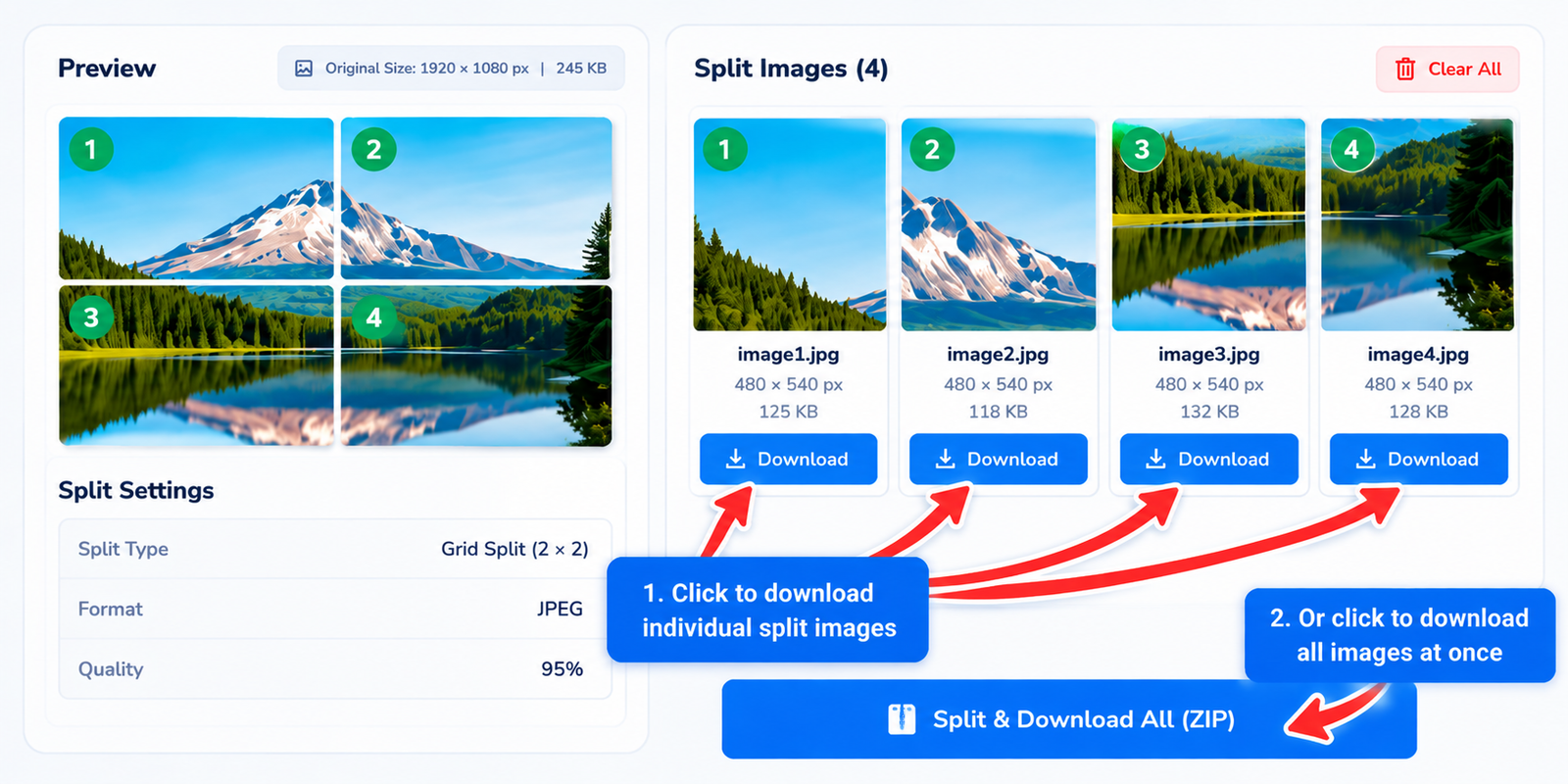
When everything looks good, split the image and download the individual files. You can save each piece separately or download all the results together. Whether you need to split JPG images for social media, printing, design, or another project, your separate image pieces are ready to use.
An image splitter can be useful for much more than simply cutting a picture into pieces. From social media layouts to printing and design projects, splitting a large image can make it easier to share, edit, and use in different ways. With JPGJoin, you can divide an image into separate sections and download each part for your project.
Create a connected Instagram feed by dividing one large photo into several smaller sections. You can split images online into a grid and upload the individual pieces as separate posts to create a continuous visual across your profile. Before splitting, preview the layout and adjust the number of rows and columns to suit your image.
Have a wide photo or graphic that you want to share across several carousel slides? You can split a picture into parts and use each section as an individual slide. This approach can be useful for panoramic photos, step-by-step graphics, comparisons, and visual stories. Choose a suitable split layout to create separate image sections for your carousel.
Large artwork, posters, diagrams, and banners may not fit on a single sheet of paper. An online image splitter can divide a design into smaller sections that can be printed separately and assembled afterward. Check the dimensions of each part before printing to help ensure that the sections fit your intended layout.
Long screenshots and tall graphics can be difficult to share or work with as a single file. You can split images online into smaller sections that are easier to save, send, upload, or organize. This can be helpful when working with lengthy screenshots, guides, diagrams, and other large images.
Designers can divide a photo or graphic into separate panels before using the pieces in a website, presentation, social media post, mockup, or other creative project. An image splitter online makes it easier to separate the sections of a larger image without manually cropping every part. You can then download the pieces and use them in your preferred design software.
Need evenly sized image sections? Use the grid option to split images into equal parts. Select the number of rows and columns to divide the image into a consistent layout. Equal image tiles can be useful for photo mosaics, tiled designs, visual planning, and creative projects where uniform sections are important.

Not every image needs to be divided in the same way. JPGJoin gives you three simple ways to split images online, so you can choose the layout that fits your photo, graphic, or project.
| Feature | Grid Split | Vertical Split | Horizontal Split |
|---|---|---|---|
| How it works | Divides one image into rows and columns | Divides the image into vertical sections | Divides the image into horizontal sections |
| Best for | Instagram grids, tiles, and mosaics | Wide photos, panoramas, and carousel slides | Tall graphics, screenshots, and long images |
| Custom sections | ✓ Rows & columns | ✓ Number of pieces | ✓ Number of pieces |
| Equal-size pieces | ✓ Yes | ✓ Yes | ✓ Yes |
| Live preview | ✓ Available | ✓ Available | ✓ Available |
| Output formats | JPG or PNG | JPG or PNG | JPG or PNG |
| Individual downloads | ✓ Yes | ✓ Yes | ✓ Yes |
| Download all pieces | ✓ ZIP download | ✓ ZIP download | ✓ ZIP download |
Choose Grid Split when you need several rows and columns, such as a social media grid or tiled design. Use Vertical Split when you want to divide a wide image from left to right. For tall images and long screenshots, Horizontal Split can be a more convenient choice.
Have questions about using an online image splitter? Find answers to common questions about splitting photos, JPG files, screenshots, and other images into separate pieces.
Yes, you can split images online with JPGJoin without installing image-editing software. Upload your image, choose a splitting method, adjust the number of sections, and create separate image pieces directly in your browser.
Upload your image to JPGJoin and select Grid Split. Set the number of rows and columns you need, then check the split layout preview. The image will be divided into evenly sized sections based on the grid you choose.
Yes, JPG and JPEG images can be divided into multiple sections. Use the grid option to create several rows and columns, or choose a vertical or horizontal split when you only need to divide the image in one direction.
JPGJoin accepts common image formats such as JPG, JPEG, PNG, and WebP, depending on browser support. You can choose a supported output format, such as JPG, PNG, or WEBP, when creating your image parts.
Grid Split divides an image using both rows and columns, making it useful for tiles and grid layouts. Vertical Split creates side-by-side sections, while Horizontal Split divides the image into sections from top to bottom.
Yes, a long screenshot, infographic, or other tall image can be divided into smaller sections. Use the horizontal split option to create sections from top to bottom, making a large image easier to share, organize, or use in different projects.
Yes, use the Grid Split option to divide one photo into multiple sections. Choose the rows and columns you need, preview the layout, and download the individual pieces to arrange them in your Instagram grid.
Yes, after splitting an image, each resulting piece is shown separately so you can preview and download individual files. You can also use the download-all option to save the complete set together in a ZIP archive.
Yes, you can select a supported output format for your split image parts. When JPG or WEBP output is selected, you can adjust the image quality according to your needs. PNG output is also available when you prefer a lossless format.
No, JPGJoin is an online image splitter that works directly in your browser. You can upload an image, choose your split settings, preview the layout, and download the resulting sections without installing a separate image-editing program.