Add Watermark to Images Online – Protect Your Photos Easily

Add watermark to images using free image watermark tool and protect your images from being reposted by others. Just upload your JPG, JPEG, or PNG images, add your own unique text or logo watermark, adjust its position and appearance, and download your watermarked images directly from your browser. No software installation or sign-up is required.

🖼️

Drop your images here

Drag and drop images here or click to browse

JPG, JPEG, PNG, WebP — multiple images supported

More Useful Image Editing Tools

Quickly access our most useful PDF conversion and editing tools beside Add Watermark to Images Tool.

Why Add a Watermark to Images?

When you share original photos online, it can be difficult to know where they will end up because someone may download your image, repost it, or use it somewhere else without giving you credit. That is why many creators choose to add watermark to images before sharing them publicly.

A watermark gives your photo a visible connection to you, your website, or your business. It can be your name, brand, website address, or logo and you can keep it small and subtle or make it more noticeable depending on how you plan to use the image.

For photographers and designers, a simple watermark on photos can help viewers recognize who created the work. For online sellers, adding a logo can also make product images easier to associate with their business.

You do not need complicated editing software for this because JPGJoin.com provides an online image watermark tool. You can upload a picture, add your text or logo, adjust its position and transparency, and save the finished image directly from your browser.

A watermark cannot completely prevent someone from copying an image, but it can make the original source easier to identify. When you add watermark to images online, your name or brand can remain visible even when the picture is shared on another website or social platform.

How Does the Add Watermark to Images Tool Work?

Add a watermark to your photos in a few simple steps: upload your image, choose a text or logo watermark, customize its appearance, and download the finished image directly from your browser with our add watermark to images tool.

01

Upload Your Image

Start by uploading the JPG, JPEG, PNG, or WebP image you want to watermark. Select an image from your device or drag and drop it into the tool. If you have several photos to work with, you can add multiple images at once.

Your image will appear in the preview area so you can see exactly what you are working with before adding a watermark.

Upload an image to add a watermark online
02

Choose Text or Logo Watermark

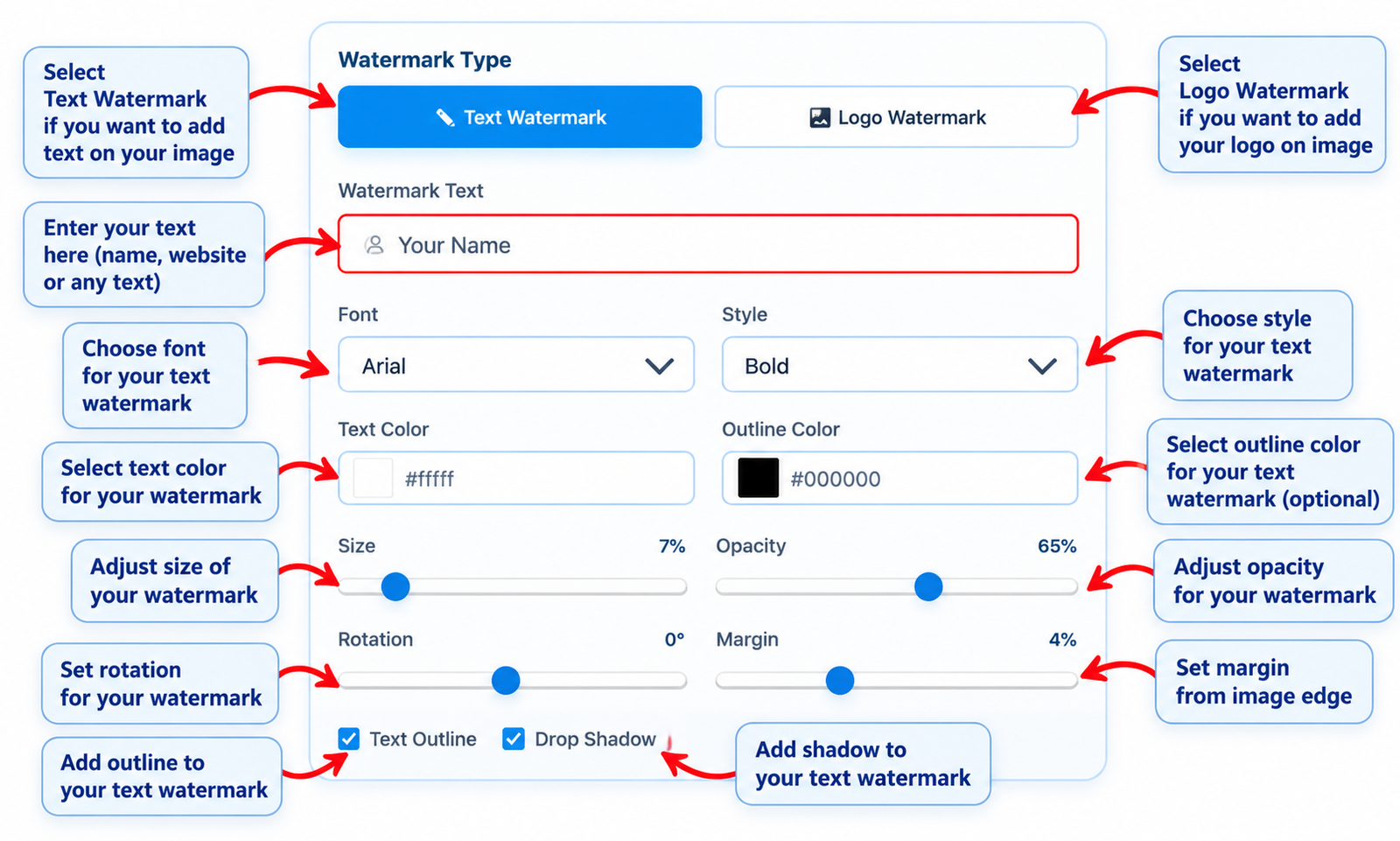
Once your image is uploaded, choose the type of watermark you want to use. Enter your name, website, copyright notice, or other text to create a text watermark.

If you want to use your branding instead, upload a logo and use it as your logo watermark. This gives you a simple way to add logo watermark to image files without opening separate editing software.

Choose text or logo watermark for your image
03

Customize Your Watermark

Adjust the watermark until it fits your image. Change its size, opacity, color, rotation, and position to get the appearance you want. You can also move the watermark directly on the preview.

For a subtle result, use lower opacity and a smaller size. To make your branding stand out, increase the size or visibility. These controls make it easy to add watermark to images online while keeping the original image clear.

Customize watermark size, opacity, position, and appearance
04

Preview and Download Your Watermarked Image

When the watermark looks right, check the preview one more time. Make sure the text or logo is positioned correctly and does not cover an important part of the photo.

When you are satisfied with the result, click the download button. Your finished image is ready to save and share. You can repeat the process whenever you need to add watermark to images online.

Preview and download the watermarked image

Features of Our Online Image Watermark Tool

Add a watermark to your images with simple controls designed for everyday photo editing. Choose text or a logo, adjust its appearance, and prepare your images for sharing or publishing.

Feature What You Can Do
Text Watermark Add your name, website, copyright notice, or custom text to your images.
Logo Watermark Upload your own logo and place it over your image for consistent branding.
Watermark Position Choose from multiple preset positions or move the watermark manually on the image.
Opacity Control Make the watermark subtle or more visible by adjusting its transparency.
Size & Rotation Change the watermark size and rotation to suit different photos and layouts.
Multiple Image Support Upload multiple images and apply the same watermark settings to your images.
Repeat Watermark Repeat a text or logo watermark across the image when you need broader coverage.
JPG, PNG & WebP Work with common image formats and choose a suitable output format when downloading.
Live Preview See your changes before downloading so you can adjust the watermark until it looks right.
Browser-Based Editing Watermark images online directly from your browser without installing desktop editing software.
Free to Use Add a watermark to your images online without paying for a separate image-editing application.

Whether you need a simple text watermark or a branded logo, the controls are designed to keep the process straightforward. Upload your image, make your adjustments, preview the result, and download the finished file when it is ready.

FAQs About Watermarking Images

How can I add watermark to images online?

Upload your image to our add watermark to images tool, choose a text or logo watermark, customize its size, position, opacity, and rotation, then download the finished image directly from your browser.

Can I add a text watermark to my photo?

Yes, you can add a text watermark to an image using your name, website, business name, or any other text. You can adjust the watermark to make it clearly visible without covering too much of the photo.

Can I add a logo watermark to an image?

Yes, you can upload a logo and use it as a watermark on your images. This is useful for photographers, designers, businesses, and creators who want to add their branding to photos before sharing them online.

Can I watermark multiple images at once?

Yes, the tool supports multiple image uploads, allowing you to add watermark to images without processing every photo separately. This can be useful when you have a collection of photos that need the same watermark.

Can I change the position and transparency of a watermark?

Yes, you can change the watermark position and adjust its opacity so it fits naturally with your image. You can also move the watermark to a preferred location and customize its appearance before downloading.

Does the image watermark tool work with JPG and PNG images?

Yes, you can use the tool to watermark JPG images and PNG images. The finished image can also be downloaded in a supported output format according to your requirements.

Is this watermark tool free to use?

Yes, you can use our free watermark tool to add text or logo watermarks to your images without installing additional software.

Does adding a watermark completely prevent someone from copying my photo?

No watermark can completely prevent an image from being copied or downloaded. However, a visible watermark can help identify the original creator, photographer, business, or website associated with the image.

Scroll to Top