
HEIC to JPG Converter Online - Convert Multiple HEIC Images Free
Convert HEIC photos to JPG online quickly and easily with JPGJoin. Upload one or multiple images and turn your HEIC to JPG files in just a few clicks. You can convert multiple iPhone photos at once, making it easy to share, upload, edit, or use your images on devices and websites that do not support the HEIC format. No software installation is required—everything works directly in your browser.
Convert HEIC Images to JPG
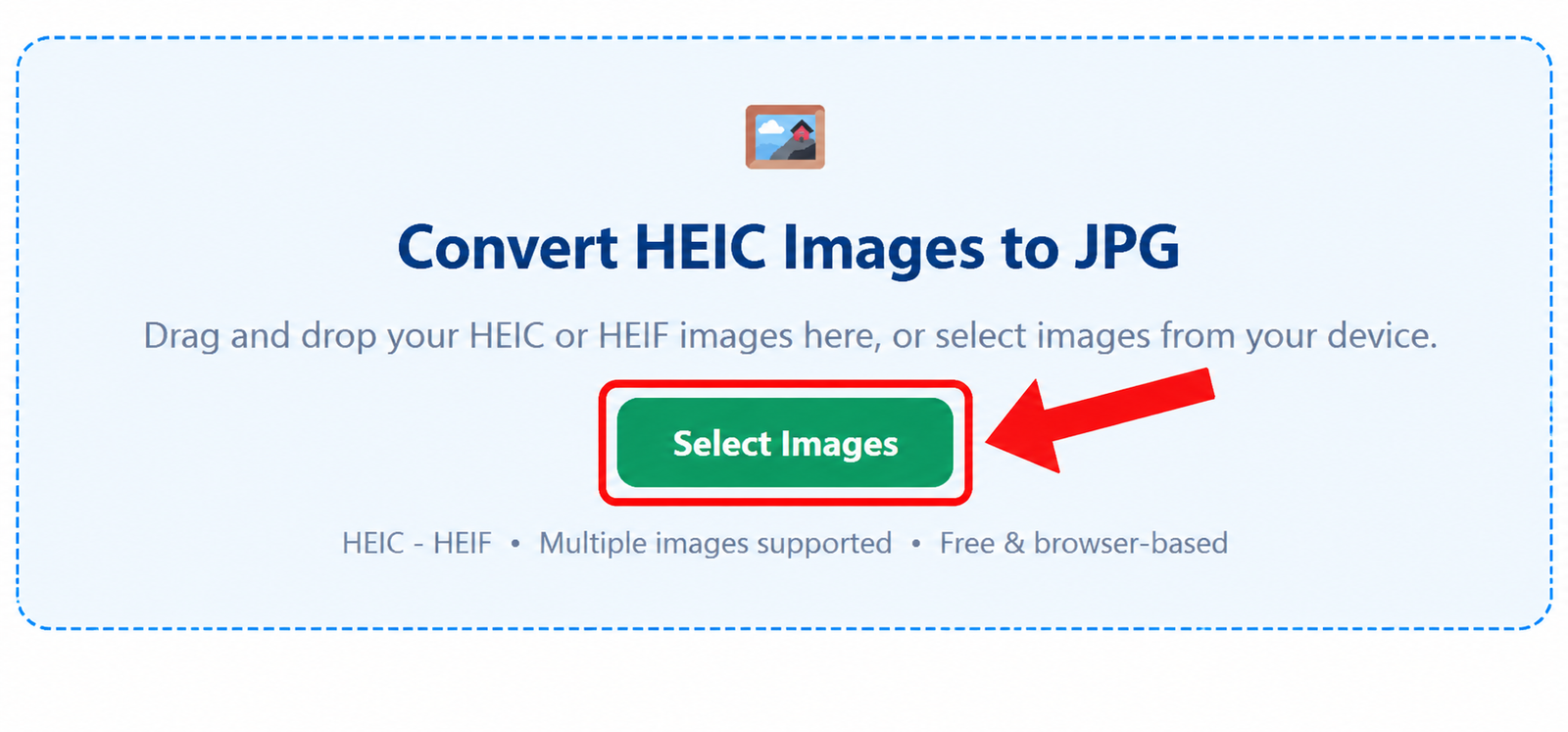
Drag and drop your HEIC or HEIF images here, or select images from your device.
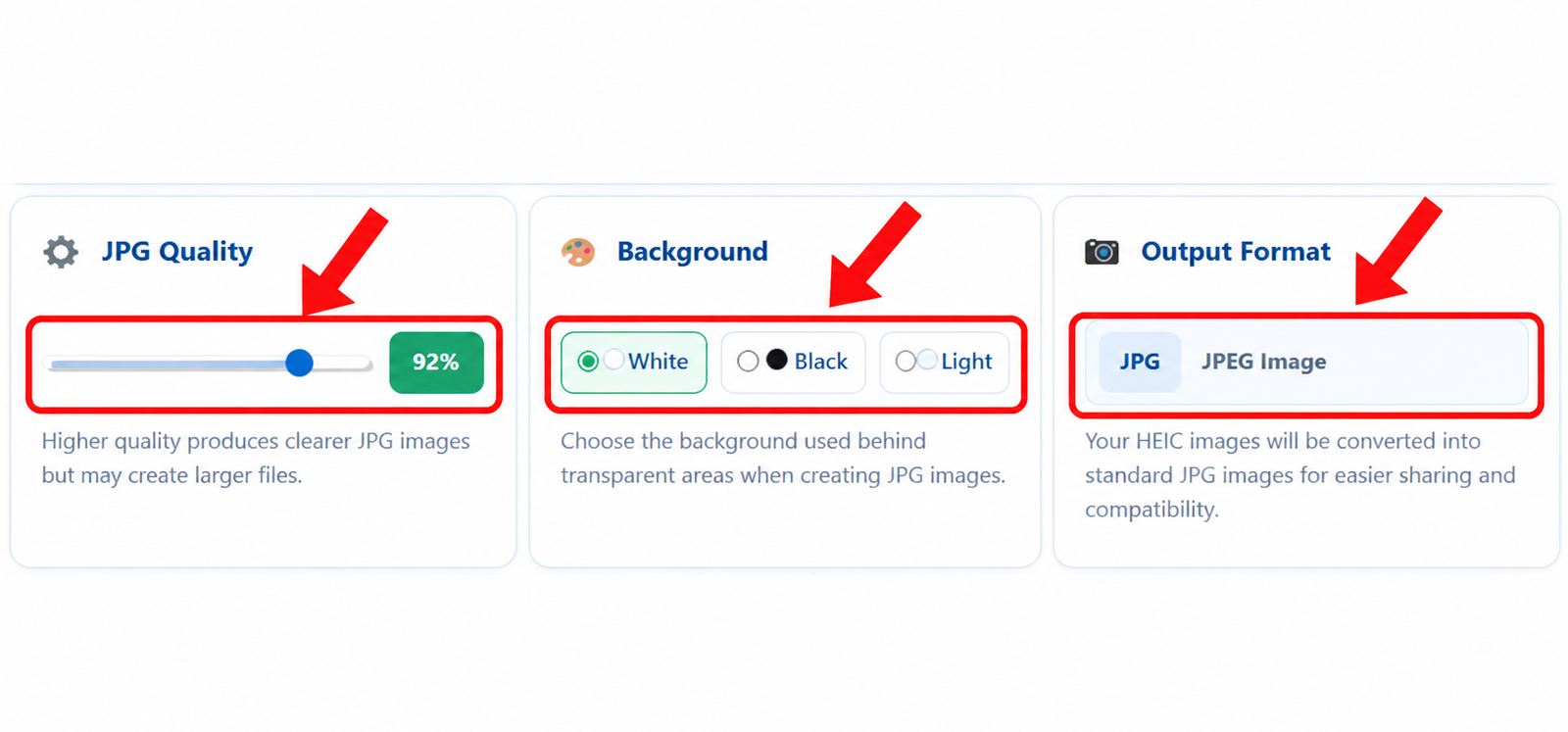
Higher quality produces clearer JPG images but may create larger files.
Choose the background used behind transparent areas when creating JPG images.
Your HEIC images will be converted into standard JPG images for easier sharing and compatibility.
More Useful Editing Tools
Quickly access our most useful images conversion and editing tools beside HEIC to JPG Converter.
Looking for an easy way to use your HEIC photos in a more widely supported format? JPGJoin helps you convert multiple HEIC images to JPG online without installing any software. Upload one or multiple HEIC files, select your preferred image quality and background, and create JPG images in just a few clicks. Our HEIC to JPG converter works directly in your browser and makes it simple to prepare iPhone photos for sharing, websites, editing, documents, and everyday use.
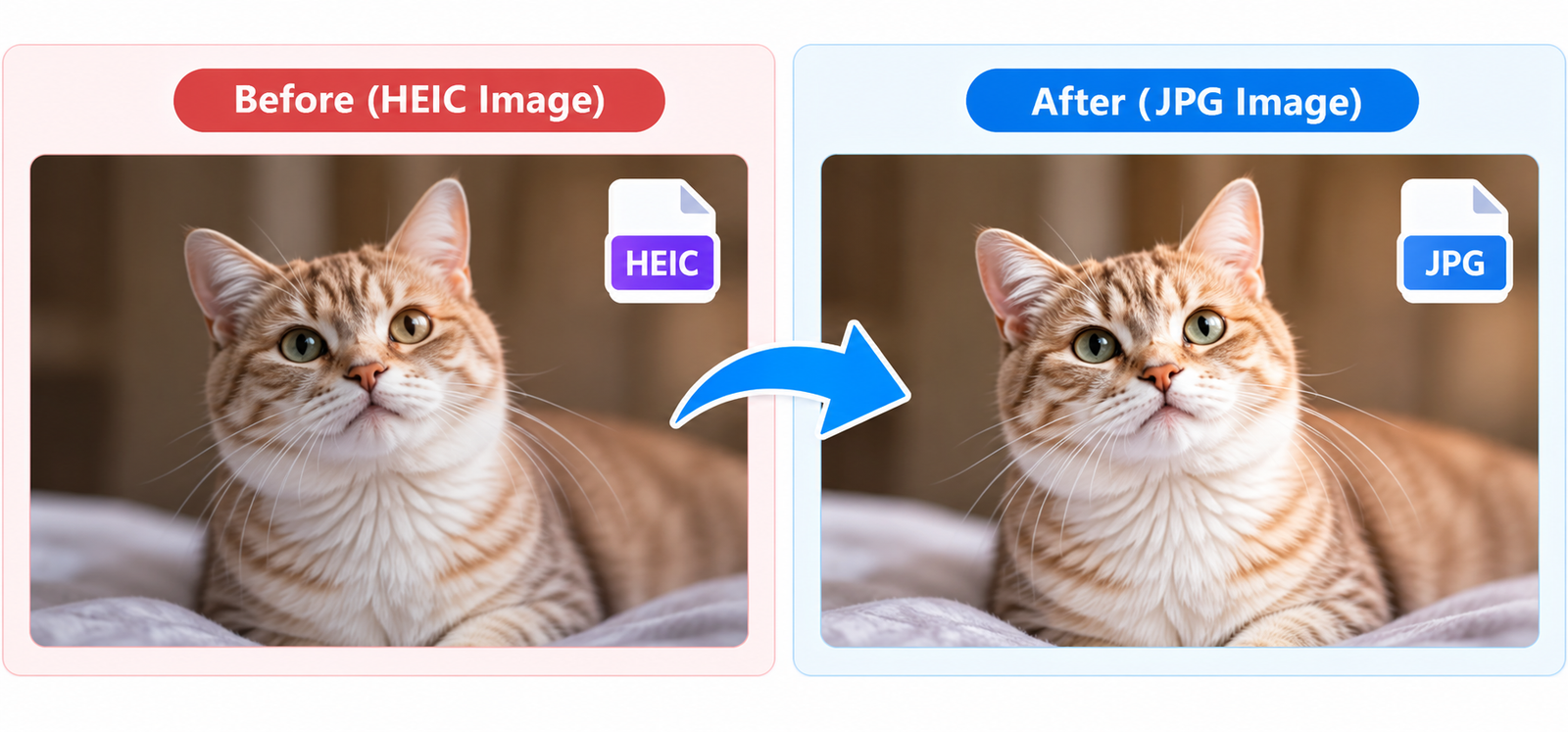
Why Convert HEIC to JPG?
HEIC is the default photo format used by many newer iPhones and Apple devices, but it is not supported everywhere. Some websites, apps, older devices, and image editing programs may not open HEIC files properly. Converting HEIC images to JPG makes your photos easier to use across different platforms and devices. JPG is a widely supported image format, so you can share, upload, edit, and use your photos without worrying about compatibility.
With a online HEIC converter, you can convert multiple iPhone photos at once instead of changing each image individually. This is especially useful when you have a large collection of HEIC photos that you need to upload to a website, send to someone, use in a document, or open on a non-Apple device. JPGJoin lets you convert HEIC to JPG online directly in your browser, without installing additional software.
How to Convert HEIC to JPG Online
You can convert HEIC photos to JPG online in just a few simple steps. JPGJoin lets you select multiple HEIC or HEIF photos, choose your preferred JPG quality and background, and convert your images directly in your browser. There is no need to install software or manually convert each photo one by one.
Upload Your HEIC Images
Start by selecting one or multiple HEIC or HEIF photos from your device. You can also drag and drop your images into the upload area. Your selected files will appear below the upload box so you can review them before starting the conversion.
Choose Your JPG Settings
After adding your images, choose the JPG quality you want for the final files. You can also select a background color for areas that need a solid background when converting HEIC images to JPG. These settings help you balance image quality and file size.
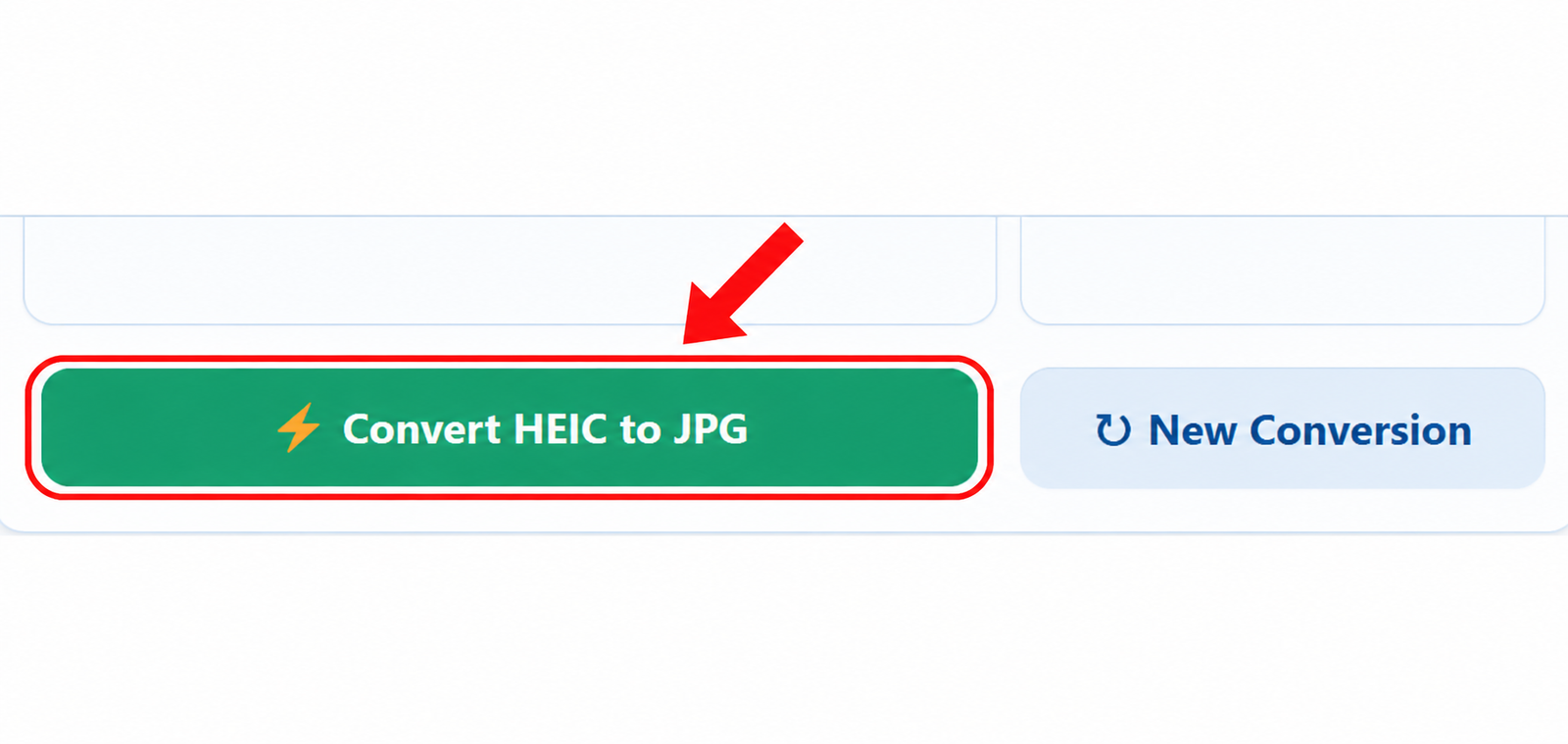
Convert HEIC to JPG
Once your images and settings are ready, click Convert HEIC to JPG. JPGJoin processes your selected photos and creates JPG versions while keeping the original HEIC files unchanged.
Download Your JPG Images
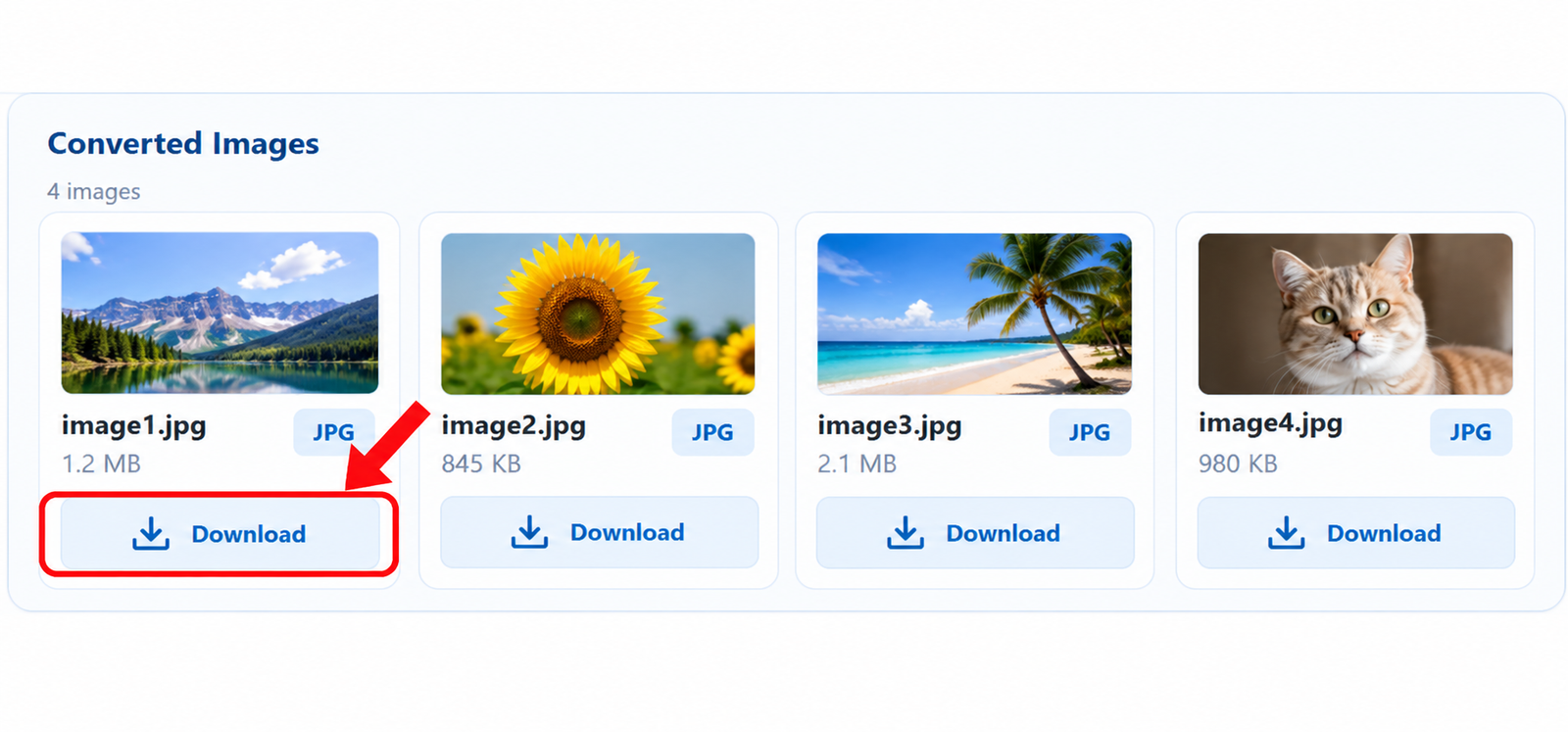
When the conversion is complete, your JPG images will appear in the results area. You can download individual JPG files or use the download-all option to save the converted images together.
HEIC vs JPG: Which Format Should You Use?
HEIC and JPG are both useful image formats, but they are designed for different purposes. HEIC can keep good image quality while using less storage space, which makes it useful for newer iPhones and Apple devices. JPG, on the other hand, is supported by almost all devices, websites, apps, and image editing programs. If you need an image that works almost anywhere, JPG is usually the more convenient choice.
If your photos are stored as HEIC files and you need to share or upload them somewhere that does not support the format, converting HEIC to JPG can make the process much easier. JPG files are also convenient for websites, online forms, documents, social media, and older computers. The right format ultimately depends on whether you prioritize smaller file sizes or wider compatibility.
| Feature | HEIC | JPG |
|---|---|---|
| Image Quality | High quality with efficient compression | Good quality with widely supported compression |
| File Size | Usually smaller | Usually larger |
| iPhone Support | Excellent | Excellent |
| Windows Compatibility | May require additional support | Widely supported |
| Website Compatibility | Limited on some websites | Widely supported |
| Easy Sharing | Depends on the device or app | Very easy |
| Best For | Apple devices and saving storage | Sharing, uploading, editing, and compatibility |
HEIC to JPG on iPhone, Android, Windows & Mac
HEIC photos are commonly created on iPhones and other Apple devices, but you may need JPG images when working with different devices or websites. With JPGJoin, you can convert HEIC images to JPG online from a desktop, laptop, tablet, or mobile browser without installing a separate image converter.
Convert HEIC to JPG on iPhone
If your iPhone stores photos as HEIC files, you can upload them directly to JPGJoin and convert them into JPG images. Select one or multiple photos, choose your preferred quality, and start the conversion. This is useful when you need JPG files for sharing, uploading, or using with a service that does not accept HEIC.
Convert HEIC to JPG on Android
When you receive HEIC photos on an Android device, compatibility can vary between apps and devices. Instead of searching for a separate converter app, you can use the browser-based HEIC to JPG converter to turn supported HEIC images into standard JPG files.
Convert HEIC to JPG on Windows
JPG is generally easier to use when moving photos between Windows computers, websites, applications, and other devices. If you have HEIC images that you cannot easily use in your workflow, you can convert HEIC photos to JPG online and download the resulting JPG files for editing, uploading, or sharing.
Convert HEIC to JPG on Mac
Mac users can also use JPGJoin when they need a more widely compatible version of an HEIC photo. Upload your images through the browser, select the JPG settings you need, and download the converted files when processing is finished.
FAQs About HEIC to JPG
What is a HEIC file?
HEIC is an image format commonly used by newer iPhones and Apple devices. It can store high-quality photos while using less storage space than some traditional image formats. However, HEIC is not supported everywhere, which is why many people choose to convert HEIC to JPG for easier sharing, uploading, and editing.
How can I convert HEIC to JPG online?
To convert HEIC to JPG online, upload your HEIC images to JPGJoin, choose your preferred JPG settings, and start the conversion. Once the images have been processed, you can download the converted JPG files directly to your device.
Can I convert multiple HEIC images to JPG at once?
Yes. JPGJoin supports bulk image conversion, allowing you to upload multiple HEIC photos and convert them to JPG in one process. This is useful when you have a large collection of iPhone photos and do not want to convert each image separately.
Can I convert iPhone HEIC photos to JPG?
Yes. You can use the HEIC to JPG converter to convert photos taken on an iPhone into JPG images. JPG is widely supported by websites, apps, computers, and mobile devices, making converted photos easier to use and share.
Will converting HEIC to JPG reduce image quality?
JPG uses compression, so the converted image may differ slightly from the original HEIC file. JPGJoin lets you choose the JPG quality before conversion, helping you find a suitable balance between image quality and file size.
Can I convert HEIC to JPG without installing software?
Yes. JPGJoin works directly in your web browser, so you do not need to install separate image conversion software. Simply upload your HEIC images, choose your settings, convert them, and download the resulting JPG files.
Can I use the HEIC to JPG converter on my phone?
Yes. You can use the HEIC to JPG converter from a supported mobile browser. This makes it convenient to convert iPhone photos directly from your phone without first transferring them to a computer.
Is JPG better than HEIC for sharing photos?
JPG is often more convenient when broad compatibility is important. Most websites, apps, computers, and mobile devices support JPG. Converting HEIC to JPG can make your photos easier to share with people or services that do not support HEIC files.
Does converting HEIC to JPG change the original image?
No. The conversion creates a new JPG version of the image. Your original HEIC file remains separate, so you can keep the original photo while using the JPG version for websites, sharing, editing, or other purposes.
Are my HEIC images uploaded to a server?
JPGJoin is designed to process images directly in your browser. This means the conversion workflow does not require installing desktop software and is convenient for converting your images online.