01
Upload Your JPG Images
It is simple to combine JPG to PNG. Start by uploading the JPG or JPEG images you want to combine. You can select multiple images from your device or drag and drop them into the JPG to PNG merger.
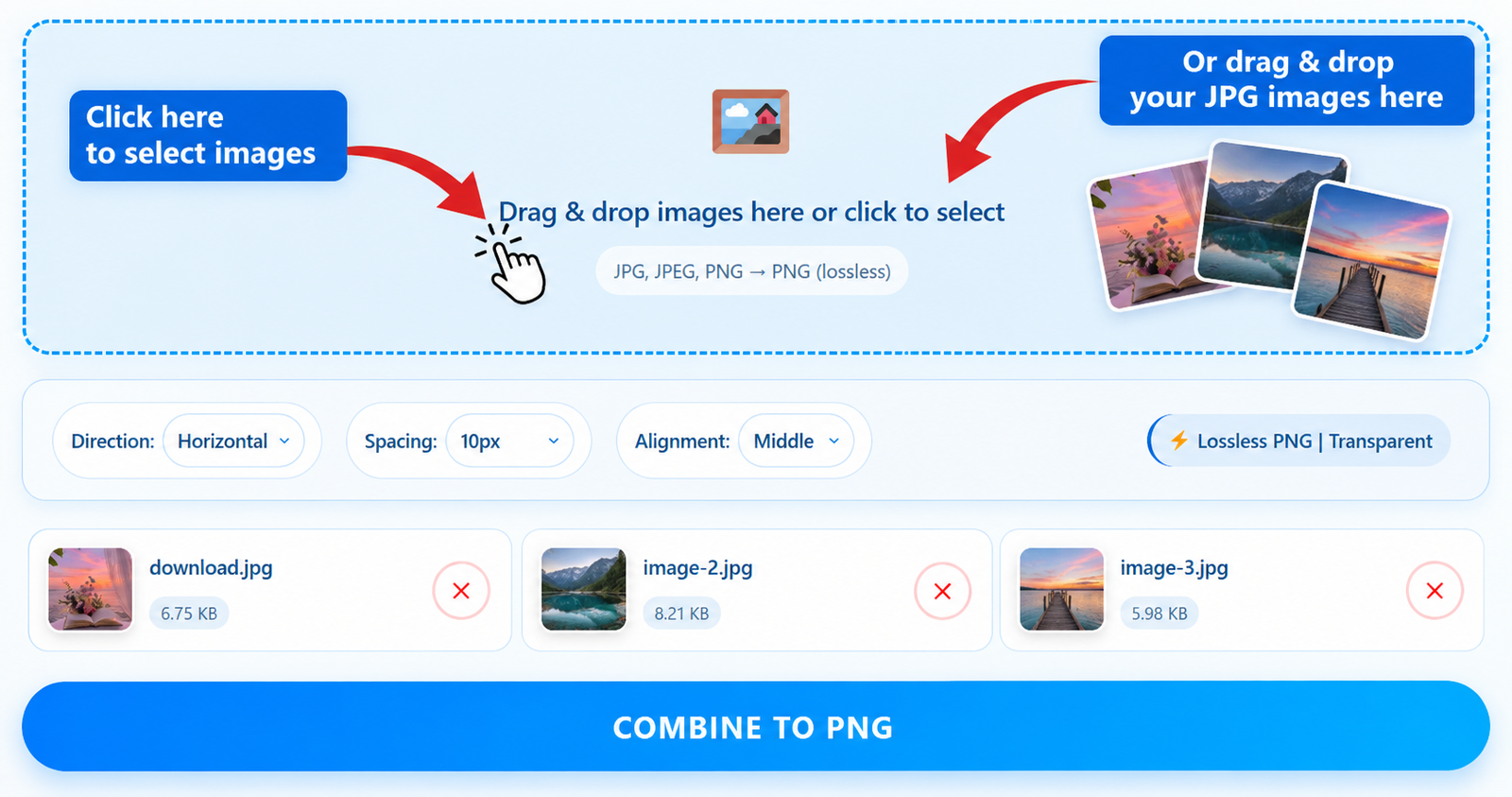

Easily combine JPG to PNG files online by bringing multiple JPG or JPEG images together into one PNG image. Upload your images, arrange them in the order you want, and create a single PNG file with our JPG to PNG merger — no software installation or sign-up required.
or
JPG, JPEG or PNG → PNGYou can select multiple JPG, JPEG or PNG images.
Quickly access our most useful image conversion and editing tools.
Combine your images into a single PNG file in just a few simple steps. No complicated software or image editing experience is required.
It is simple to combine JPG to PNG. Start by uploading the JPG or JPEG images you want to combine. You can select multiple images from your device or drag and drop them into the JPG to PNG merger.
Once you upload your images to the combine JPG to PNG tool, check their order before combining them. This helps create a clean final image with the pictures arranged exactly as you need.
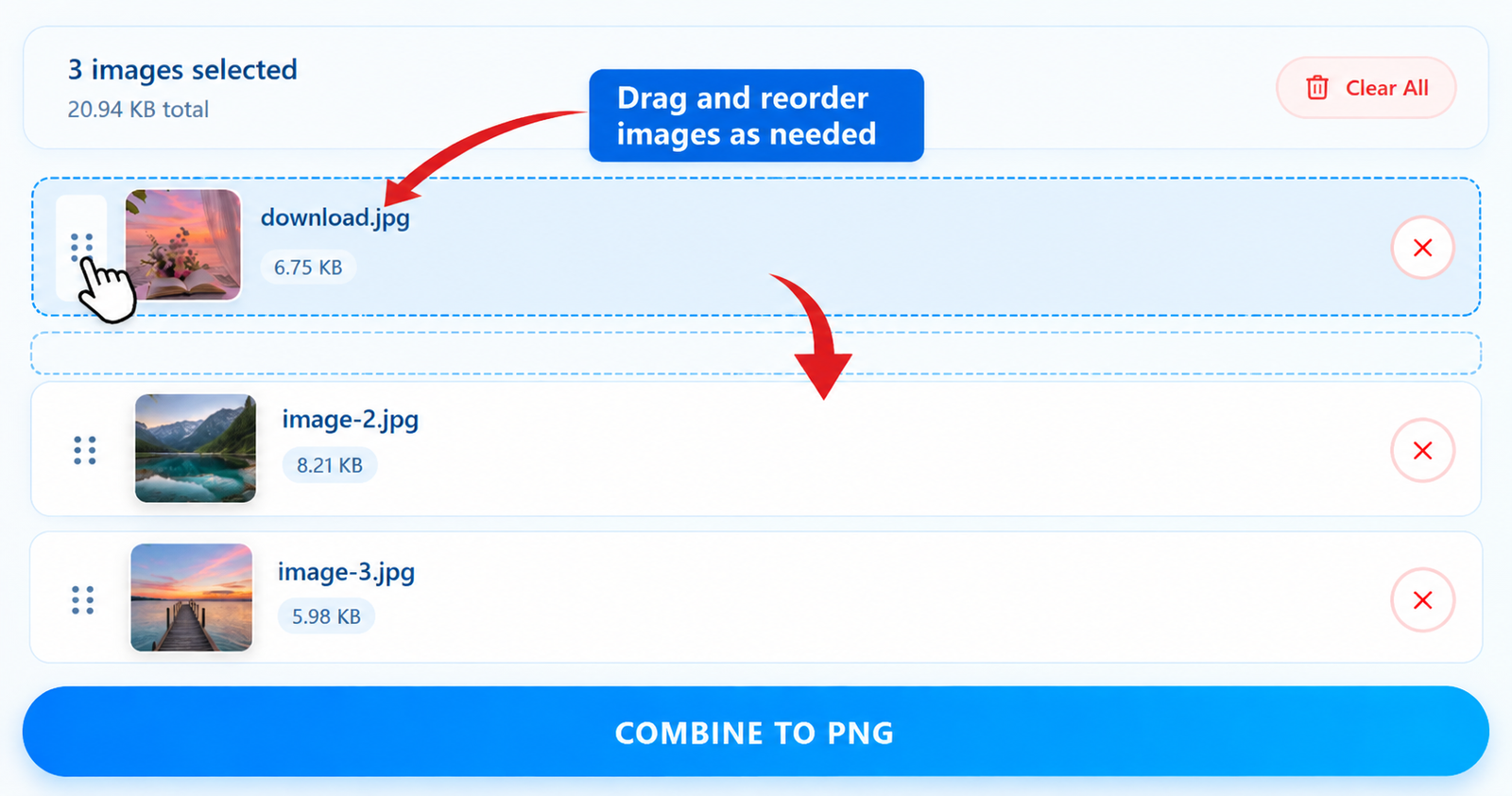
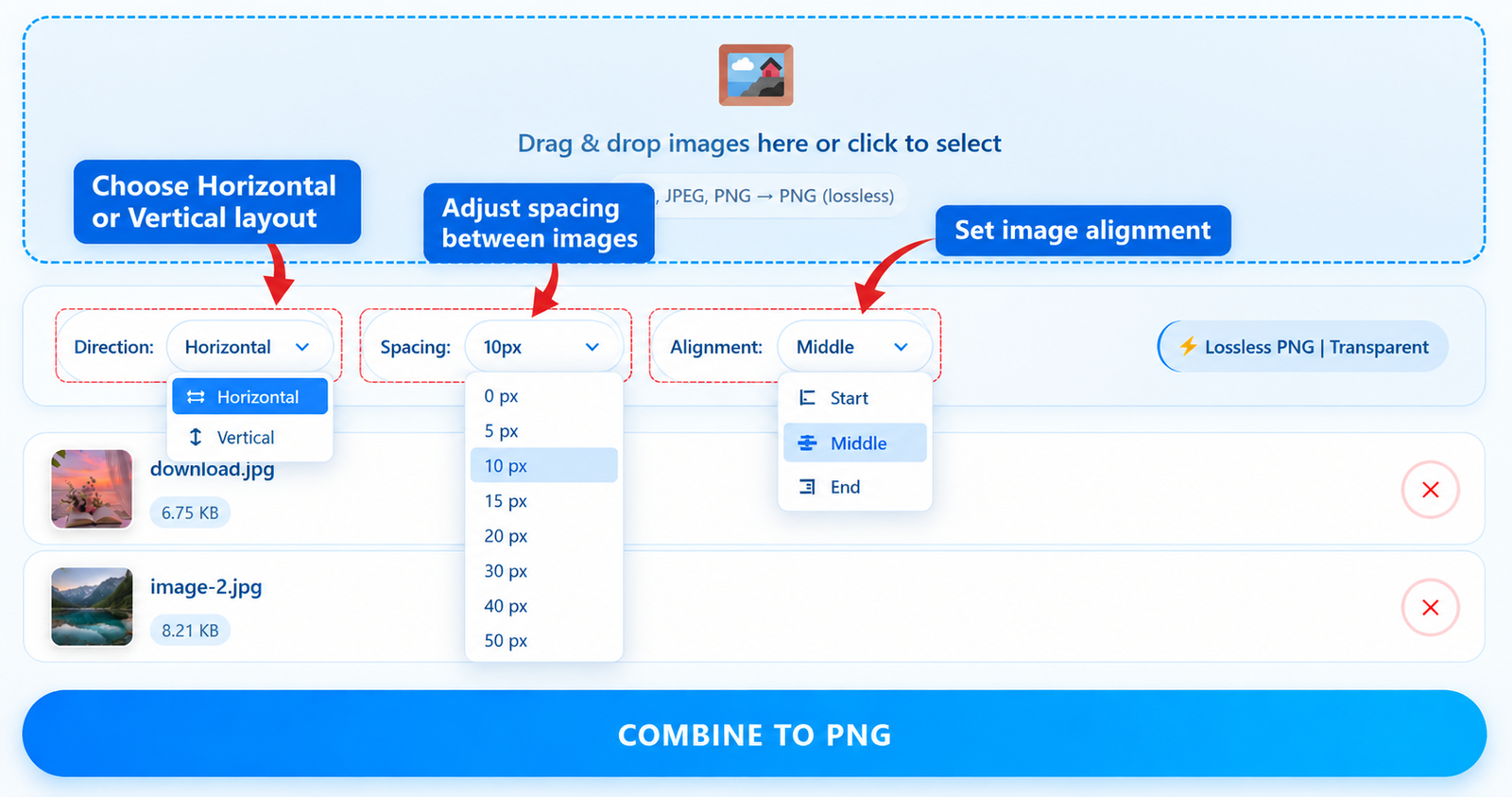
Select a horizontal or vertical layout and adjust the spacing between your images. You can also choose how the images should be aligned in the final PNG.
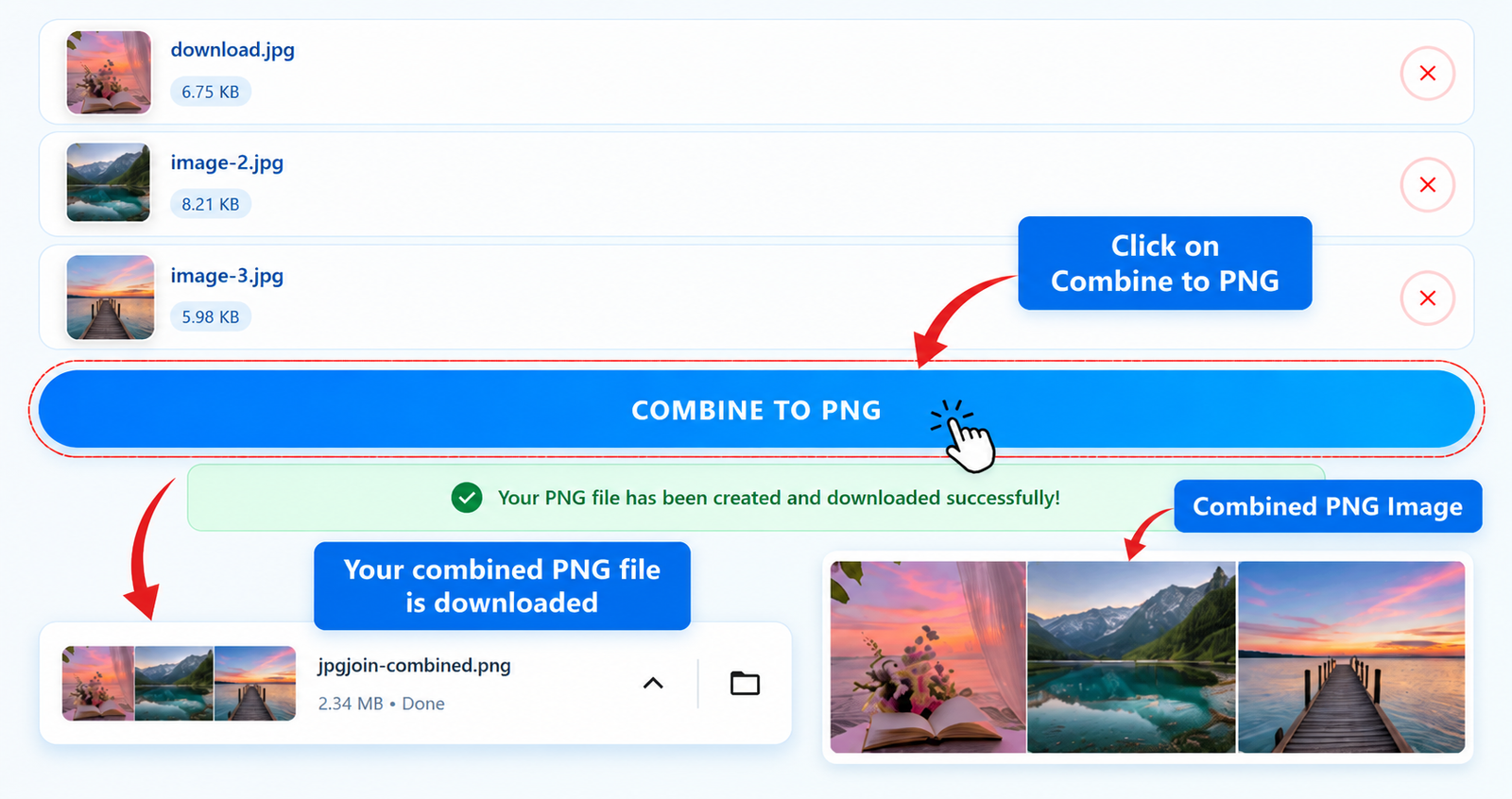
When everything looks right, click the combine button. Your images will be processed directly in your browser and saved as one PNG file that you can download and use wherever you need.
Combining several images into one file can make them easier to organize, share, and use. If you have multiple JPG or JPEG images that belong together, converting them into a single PNG with the combine JPG to PNG tool can be a convenient way to keep everything in one place. Instead of sending several separate images, you can create one finished image with the pictures arranged in the order you choose.
Our JPG to PNG merger makes this process simple. You can combine JPG to PNG in a few seconds without complicated software. Upload multiple images, choose whether they should appear horizontally or vertically, adjust the spacing between them, and select their alignment before creating the final PNG. Everything happens directly in your browser, so there is no need to open a separate image editing program.
When several pictures belong to the same project, keeping them in one file can make the final result easier to manage. You might have screenshots, product images, scanned pages, or photographs that you want to present together. Instead of uploading each image separately, you can combine JPG images into one PNG and share the finished file.
Different projects need different layouts. A horizontal arrangement works well when you want images to appear side by side, while a vertical layout is useful when the pictures need to follow one another from top to bottom. You can combine JPG to PNG, adjust the space between images, and control their alignment to create a cleaner final result.
PNG is a useful format when you want a high-quality image with support for transparency. PNG uses lossless compression, making it suitable for graphics, screenshots, illustrations, and other images where preserving visual detail is important.
Whether you are preparing images for a website, organizing screenshots, creating a simple image collage, or putting several pictures into one file, combine JPG to PNG gives you a straightforward way to create the result without complicated editing software.
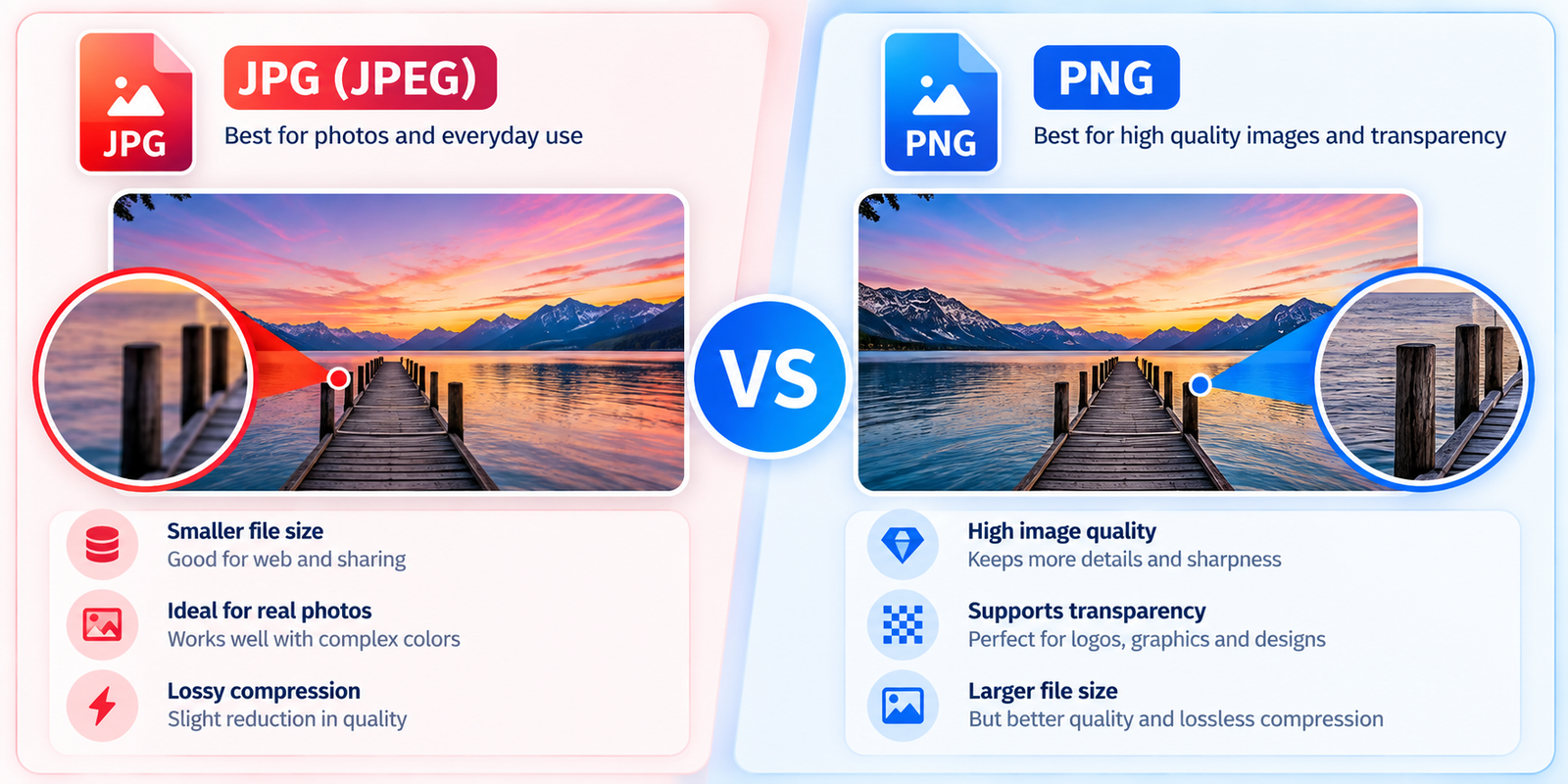
JPG and PNG are two of the most common image formats used in daily life, but they are designed for different purposes. JPG is widely used for photographs and other detailed images because it can keep file sizes relatively small. PNG, on the other hand, is often preferred for graphics, screenshots, logos, and images where transparency or clean details are important.
When you combine JPG to PNG, the individual JPG images are placed together and the finished result is saved as a PNG file. Choosing PNG for the final image can be useful when you want a format that supports transparency and lossless compression.
JPG uses lossy compression to reduce file size, which makes it a practical choice for photographs and images with many colors and subtle changes in detail. The smaller file size can also make JPG convenient for websites, email attachments, and everyday photo sharing.
PNG supports transparent backgrounds and uses lossless compression, making it a useful choice for screenshots, illustrations, interface graphics, logos, and other visual content where sharp edges and fine details should be preserved.
Saving several images as one PNG can be helpful when the final file needs to contain different pictures without introducing additional JPG compression. It also gives you the option to work with a transparent background when your image layout requires one.
The right format ultimately depends on how you plan to use the finished image. For photographs where file size is important, JPG can be a practical option. For combined images, graphics, or projects that benefit from transparency, PNG can be a convenient choice.
JPGJoin.com is designed to make it straightforward to combine JPG to PNG while giving you useful control over the final PNG. Instead of simply placing images together, the tool lets you choose the arrangement, adjust spacing, control alignment, and manage your selected images before creating the final file.
| Feature | JPGJoin | Basic Image Merger |
|---|---|---|
| JPG / JPEG Support | ✓ Supported | ✓ Usually supported |
| PNG Input Support | ✓ Supported | Varies |
| Horizontal Layout | ✓ Available | Varies |
| Vertical Layout | ✓ Available | Varies |
| Adjustable Spacing | ✓ 0–50 px | Often limited |
| Image Alignment | ✓ Start, Center & End | Varies |
| Drag & Drop Upload | ✓ Supported | Varies |
| Image Preview | ✓ Thumbnail Preview | Varies |
| Remove Individual Images | ✓ Available | Varies |
| Browser-Based Processing | ✓ Yes | Depends on the tool |
| PNG Output | ✓ Yes | Varies |
| Transparent PNG Canvas | ✓ Supported | Varies |
One useful feature of the tool is the control you have over the final arrangement. You can place images horizontally or vertically, choose the alignment, and add spacing between images. This makes it easier to create a result that fits your project instead of relying on a fixed layout.
The thumbnail list lets you review the images you have selected before creating the final file. You can remove an individual image or clear the entire selection and start again. This helps prevent unwanted images from being included in the final PNG.
The JPG to PNG merger uses browser-based image processing to create the final PNG. Your selected images are processed by the browser's Canvas API rather than being sent to a separate image-processing server by this tool.
Once your images are ready, click the combine button. The tool creates a single PNG file and starts the download automatically, making it practical for quick image-combining tasks without opening a separate editor.
Yes. You can upload multiple JPG or JPEG images to the JPG to PNG merger, arrange them in the order you want, choose a horizontal or vertical layout, and combine them into a single PNG file.
Yes. JPGJoin lets you combine JPG to PNG online without requiring paid image-editing software or a subscription. Simply upload your images, adjust the available options, and download the resulting PNG file.
You can select multiple images at the same time. The tool currently supports up to 30 images in one operation, giving you flexibility for image collections, screenshots, scanned pages, and other projects containing several pictures.
Yes. Before creating the PNG, you can review the images you have selected and remove any image you do not want to include. The tool also lets you choose between horizontal and vertical layouts, adjust the spacing, and control the alignment of the images.
Yes. The tool accepts JPG, JPEG, and PNG image files. The selected images can be combined into a single PNG output, making it useful when your source images are stored in different supported formats.
The final file is created as PNG, which uses lossless compression. However, converting a JPG to PNG cannot restore image information that was already lost when the original JPG was compressed. The tool does not add another round of JPG compression when creating the PNG output.
No. JPGJoin works directly in your web browser, so you do not need to install a separate image editor or desktop application. Upload your images, choose your preferred settings, and create your PNG using the tool.
The image-combining process is performed directly in your browser. The tool uses your browser to read the selected images and combine them into a PNG, so the images do not need to be sent to a remote image-processing server for this process.
Yes. You can choose a horizontal layout to place images side by side or a vertical layout to place them from top to bottom. You can also adjust the spacing and alignment to create the layout that works best for your images.
After the images are combined, the PNG file is downloaded through your browser using its normal download settings. The file is generated as a PNG and uses the filename jpgjoin-combined.png.