01
Upload Your JPG Images
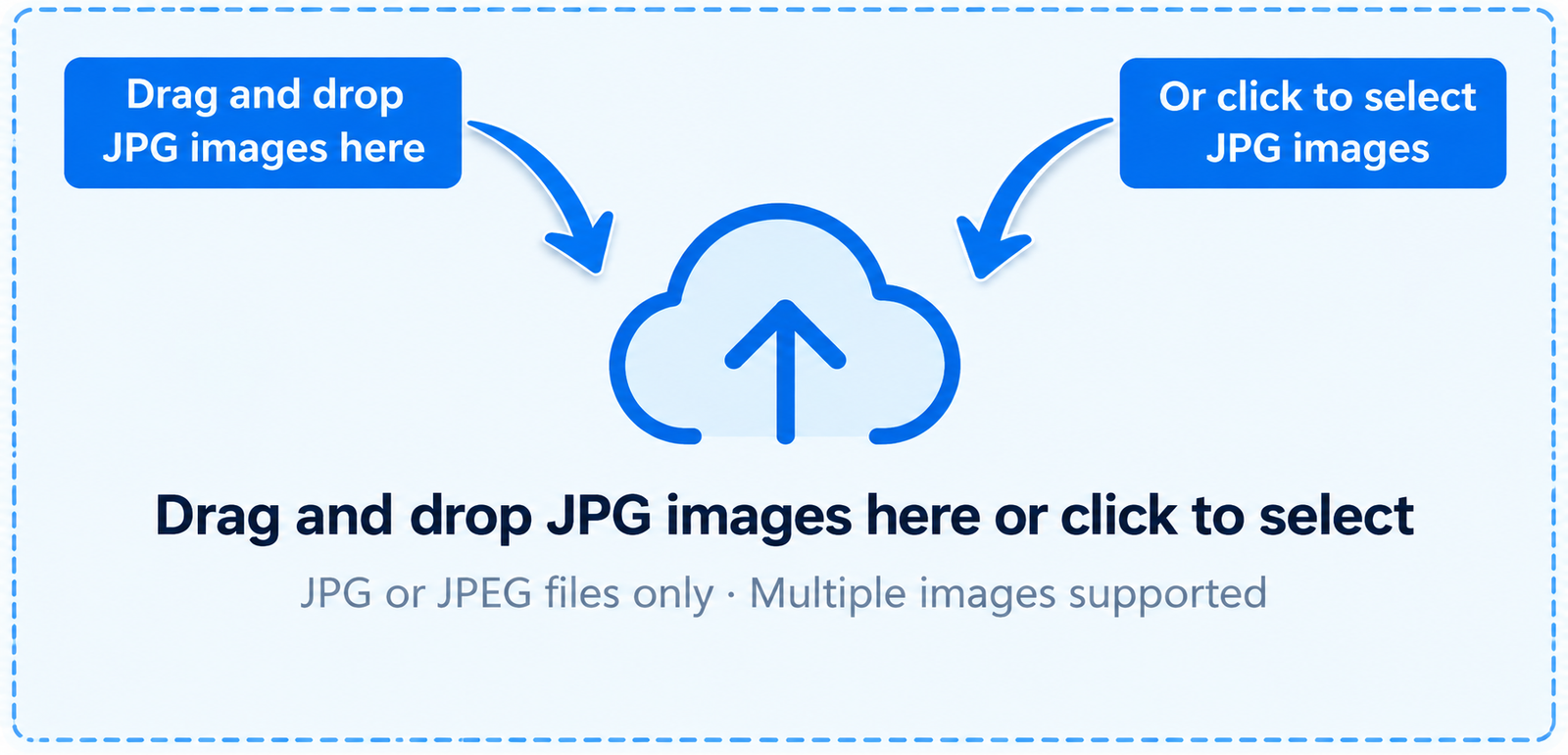
Start by uploading the JPG or JPEG images you want to combine and can select multiple images from your device or simply drag and drop them into the Merge JPG to PDF converter.

Merge multiple JPG or JPEG images into one PDF file in seconds with our combine JPG to PDF converter online free tool. Only you have to upload your images, arrange them in the order you want, and create a single PDF directly in your browser — no software or sign-up required.
Upload JPG or JPEG images, arrange them in your preferred order, and combine them into one PDF document.
Page orientation adjusts automatically to each image.
Choose whether to keep the entire image visible or fill the page.
Select how much blank space should appear around images.
Select your settings, then upload your JPG images above.
Drag images to change their order. The first image will appear first in your PDF.
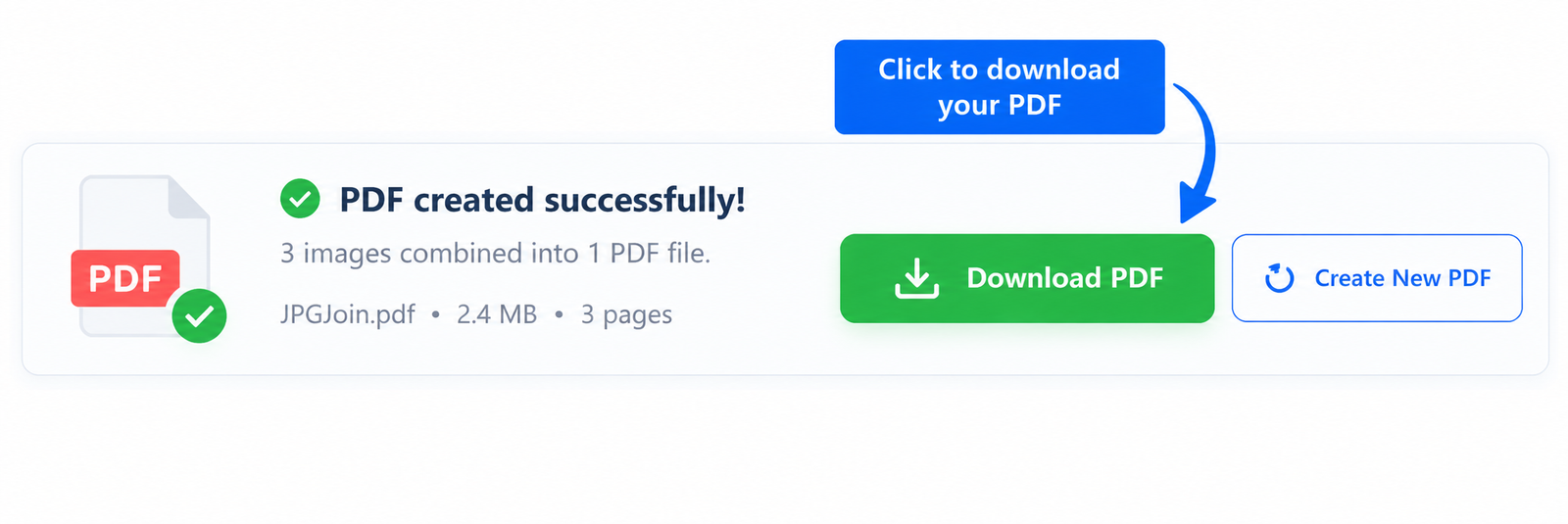
Your images have been combined into a PDF document.
If you are looking for a quick and easy way to convert JPG to PDF online, JPGJoin lets you combine multiple JPG and JPEG images into a single PDF document for free. Upload your images, arrange them in your preferred order, customize the PDF page size and margins, and download your PDF in just a few clicks. The conversion process runs directly in your browser, making it simple and convenient to convert images to PDF.
Quickly access our most useful PDF conversion and editing tools beside Combine JPG to PDF converter.
Merge multiple JPG images into a single PDF in just a few simple steps without installing any software and combine JPG to PDF easily.
Start by uploading the JPG or JPEG images you want to combine and can select multiple images from your device or simply drag and drop them into the Merge JPG to PDF converter.
After uploading your images, review their order before creating the PDF and drag to arrange the JPG images in the sequence you want so the final PDF follows the correct order.
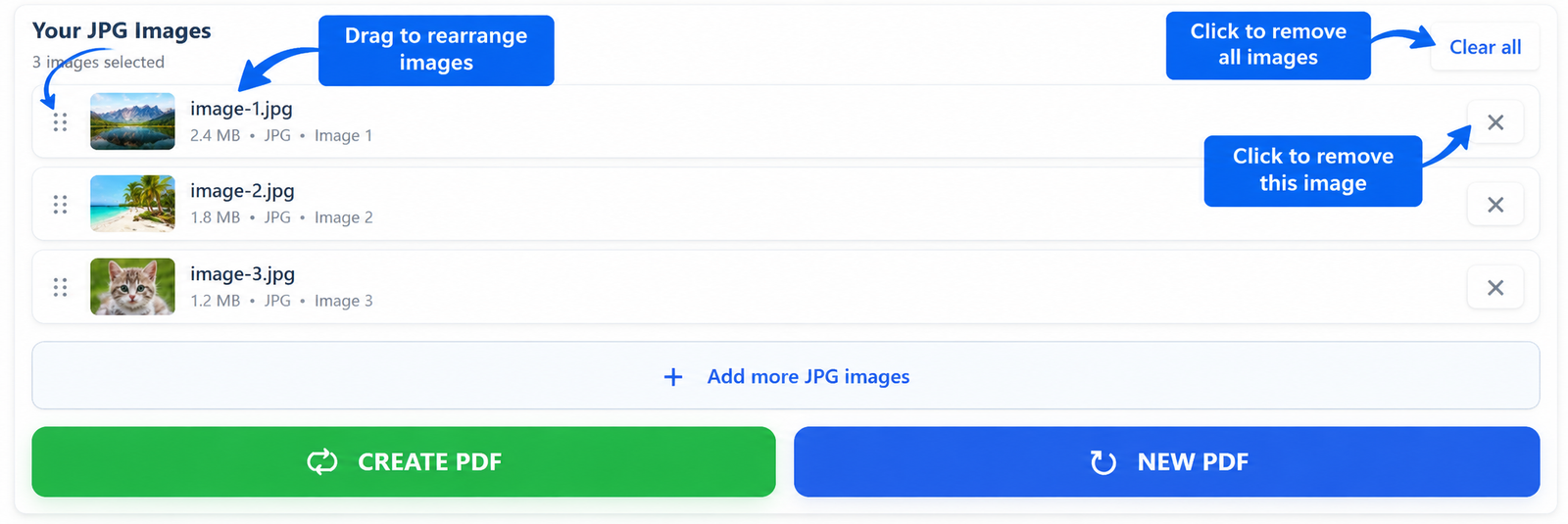
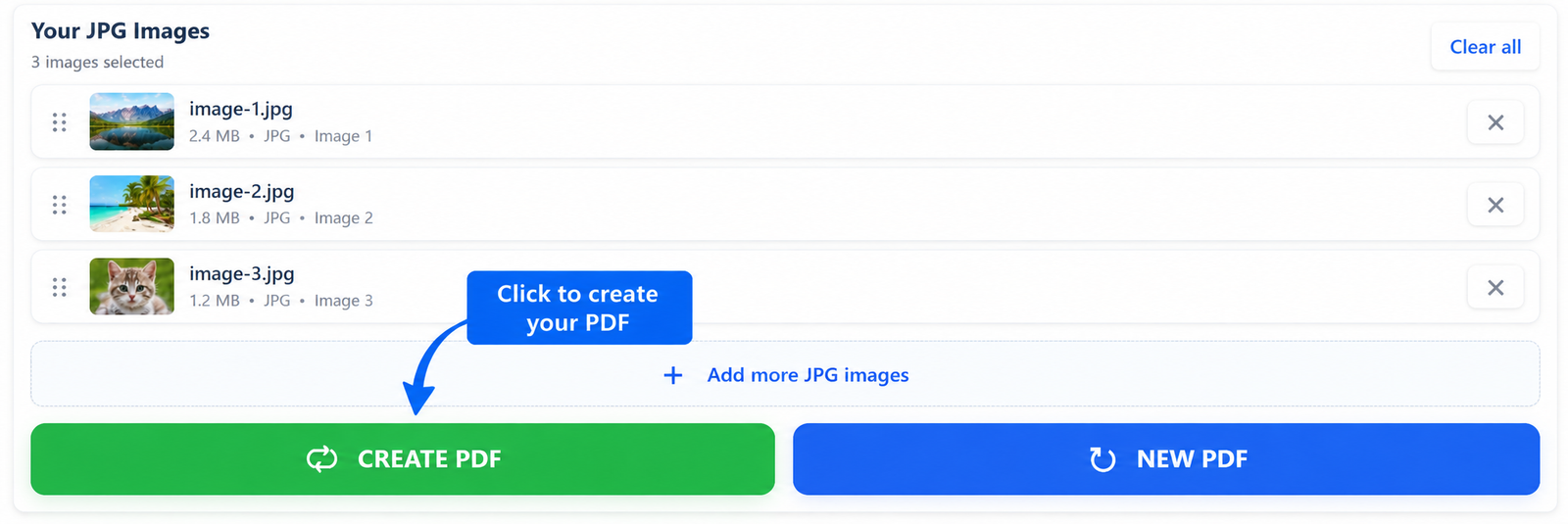
Once your JPG images are arranged, click the Create PDF button to combine JPG to PDF file which can be processed directly in your browser.
When the PDF is ready, click the download button and the new file save it to your device. Your selected JPG images are now combined into one PDF ready to use, store, or share.
Combine JPG to PDF is useful and more convenient when you need to keep multiple images together in one organized document. Converting JPG images to PDF allows you to combine several images into a single file that is easier to store, share, print, and manage.
Instead of sending or storing several separate JPG files, you can combine them into one PDF document. This keeps related images together and makes the final file easier to handle.
A single PDF is often more convenient to share through email, messaging apps, or online platforms and you can combine your images first and send one organized document instead of multiple image attachments.
When several JPG images belong to the same document, their order can be important. Combining them into a PDF lets you arrange the images in the required sequence before creating the final file.
PDF is widely used for documents that need to be viewed or printed. Converting JPG images into a PDF can make collections of scanned pages, forms, notes, receipts, or other images easier to organize and print.
With our Combine JPG to PDF converter online, you can combine your images directly in your browserand there is no need to install additional software just to create a PDF from multiple JPG files.
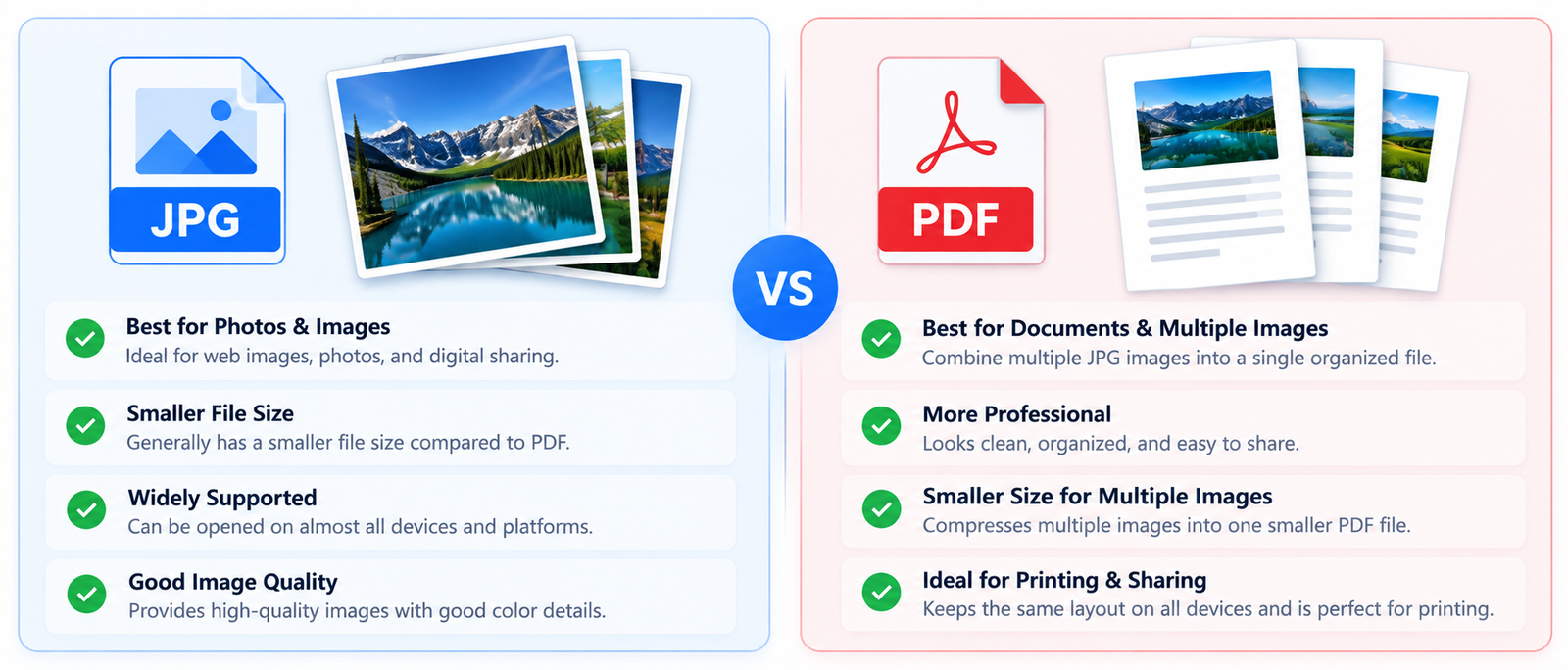
JPG and PDF are both useful formats, but they are designed for different purposes like JPG is mainly used for individual images and photos, while PDF is commonly used when you need to keep multiple pages or images together in one document.
JPG is a practical choice when you need to share or display a single image and it is widely supported, usually has a smaller file size, and works well for photographs, website images, and other visual content.
PDF can be more convenient when several images belong to the same document. You can place multiple JPG images into one PDF and keep them together in a specific order which is useful for scanned pages, forms, notes, receipts, and document collections.
| Feature | JPG | |
|---|---|---|
| Best for | Photos and individual images | Documents and multiple pages |
| Multiple images | Usually stored separately | Can be combined into one file |
| Sharing | Good for individual images | Convenient for complete documents |
| Printing | Suitable for image printing | Well suited for document printing |
| Organization | Each image is a separate file | Multiple pages can stay together |
If you have several JPG images that need to stay together, converting them into a single PDF can make the collection easier to manage. With our combine JPG to PDF online tool, you can upload your images, arrange their order, and create one PDF directly in your browser.
Our Merge JPG to PDF converter online is designed to make combining multiple images into one PDF simple and convenient. You can upload several JPG images, arrange them in the required order, and create a single PDF directly from your browser.
| Feature | What It Offers | Why It Helps |
|---|---|---|
| Multiple JPG Uploads | Upload multiple JPG or JPEG images at once | Combine several images without processing them individually |
| Easy Image Arrangement | Arrange images in your preferred sequence | Keep pages in the correct order in the final PDF |
| Browser-Based Processing | Create your PDF directly in your browser | No desktop software installation is required |
| Simple Interface | Clear upload, organize, and PDF creation controls | Makes the conversion process easy to follow |
| Fast PDF Creation | Turn your selected JPG images into one PDF | Helps you create a usable document quickly |
| Privacy-Friendly | Images are processed directly in your browser | Your files do not need to be uploaded to a separate server |
The Combine JPG to PDF tool lets you review and arrange your uploaded JPG images before creating the final document. This is especially useful when the images represent pages that need to appear in a specific sequence.
Instead of keeping several image files separately, you can combine them into one PDF document. This makes related images easier to store, share, and manage as a single file.
Yes, You can upload multiple JPG or JPEG images, arrange them in the order you want, and combine them into a single PDF file.
Yes, You can use the combine JPG to PDF converter online free to combine your images into one PDF without installing additional software.
Yes, You can arrange the uploaded JPG images in the required sequence before creating the PDF. This helps ensure that the pages appear in the correct order in the final document.
No, The combine jpg to pdf tool works directly in your web browser, so you do not need to install a separate desktop application to combine your JPG images into a PDF.
Yes, JPG and JPEG are supported image extensions, so you can use supported JPG or JPEG images when creating your PDF.
Yes. The page is designed to work across different screen sizes, so you can use the tool from a mobile device, tablet, or desktop browser.
The PDF creation process is handled directly in your browser. This allows you to combine your selected images without sending them to a separate server for processing.
Once your PDF has been created, you can download it to your device and use it for storing, sharing, printing, or submitting your combined images as a single document.