
Merge ID Card – Combine Front and Back Images into One File
Easily merge ID card images online with JPGJoin - Just Upload the front and back of your ID card and combine both sides into one file in just a few clicks. Our ID Card merge tool makes it simple to prepare ID cards for online applications, document submission, printing, and record keeping. Choose your preferred layout and create a combined file without installing any additional software.
Review your combined front and back images before downloading.
More Useful Image Editing Tools
Quickly access our most useful images conversion and editing tools beside Online ID Card Merger
Need an easy way to combine both sides of your identity card? JPGJoin helps you merge ID card images online without installing any software. Upload the front and back of your ID card, choose a vertical or horizontal layout, adjust the spacing, and create one combined file in just a few clicks. You can download your result as a JPG image, PNG image, or PDF document. Our Online ID Card Merger tool makes it easier to prepare ID cards for online forms, document submission, printing, and personal record keeping.
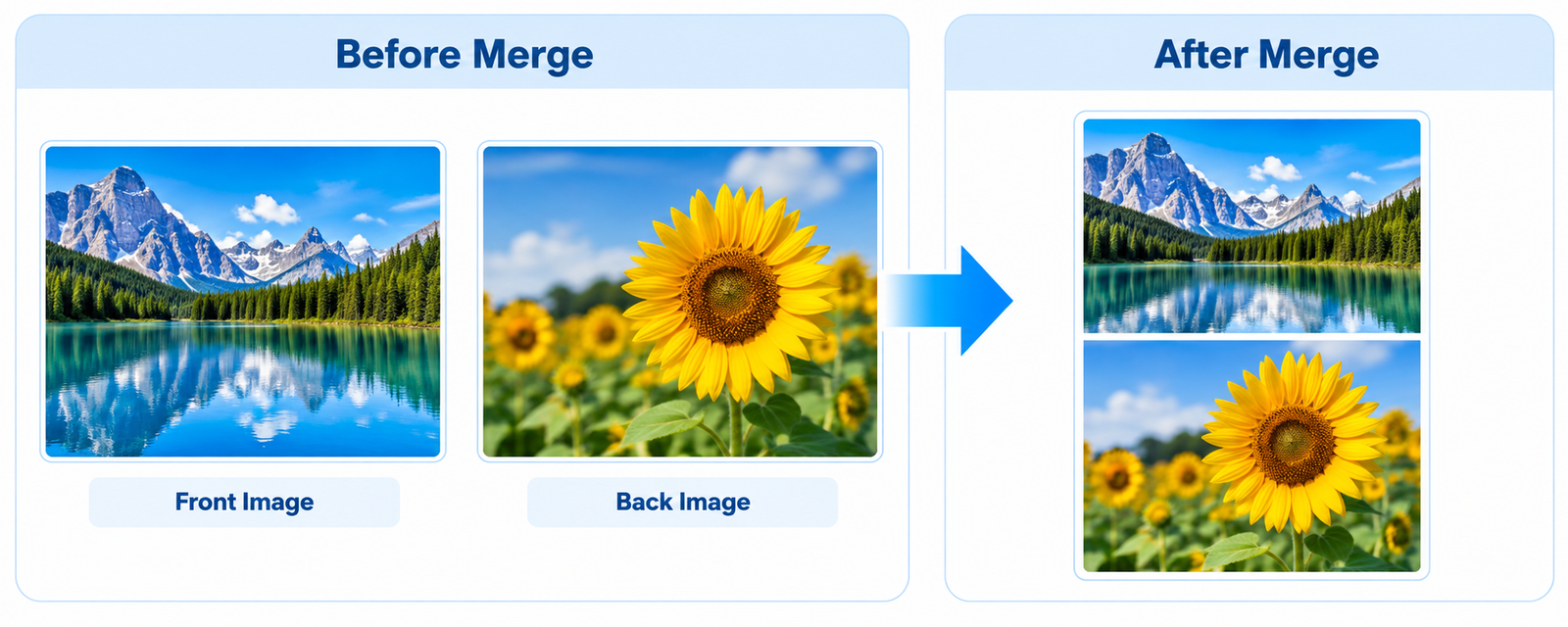
Why Merge ID Card Front and Back?
When submitting identity documents online, you may need to provide both sides of your ID card in a single file. Using our Combine ID Card tool, you can combine the front and back of your identity card into one clear image or PDF document. This makes your files easier to organize, share, print, and upload to websites that require both sides of an ID card.
Instead of keeping two separate images, you can merge ID card front and back in a vertical or horizontal layout. Adjust the spacing between the images to suit your needs, then download the combined file in JPG, PNG, or PDF format. Whether you are preparing documents for an online application, verification process, or personal records, JPGJoin offers a simple way to combine both sides in one place.
How to Merge ID Card Front and Back Online
You can Combine ID card images online in just a few simple steps. Follow the instructions below to combine both sides of your identity card into one JPG, PNG, or PDF file.
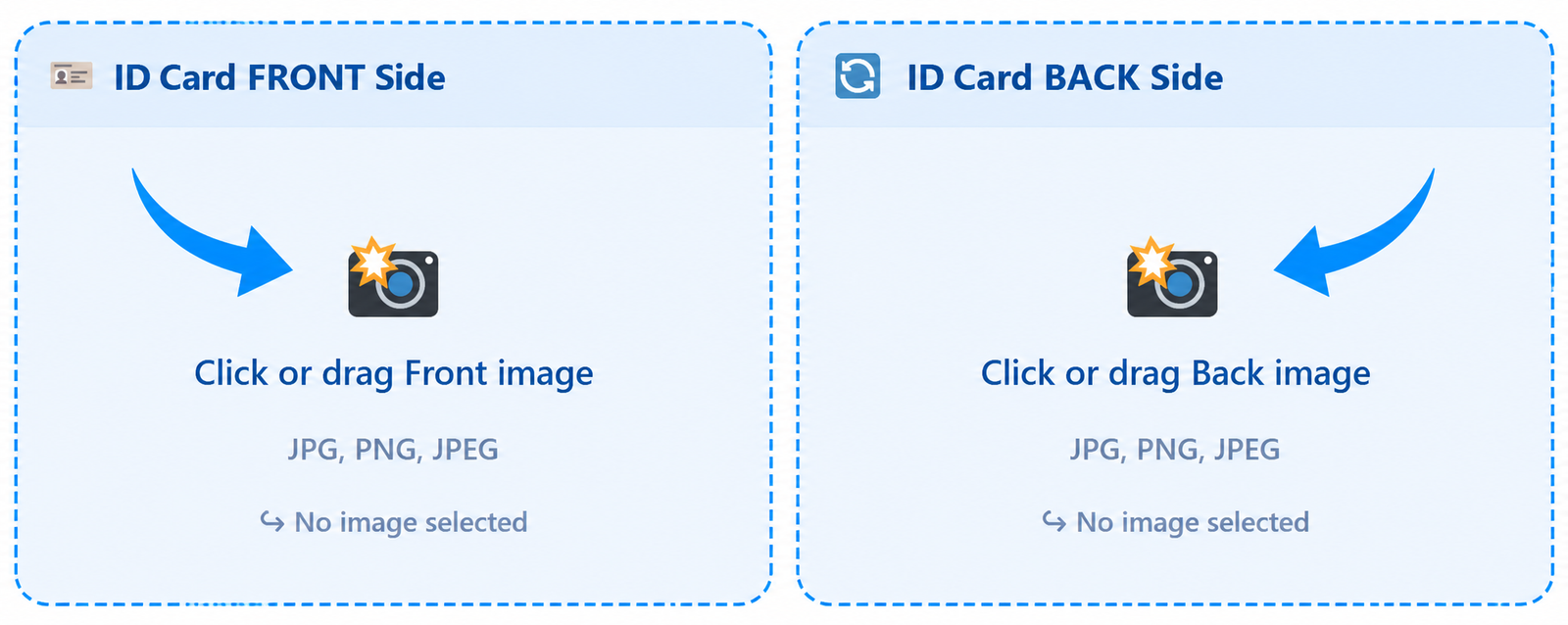
Upload the Front and Back of Your ID Card
Select the front and back images of your ID card from your device and make sure both images are clear and readable so the important details remain visible in the combined file.
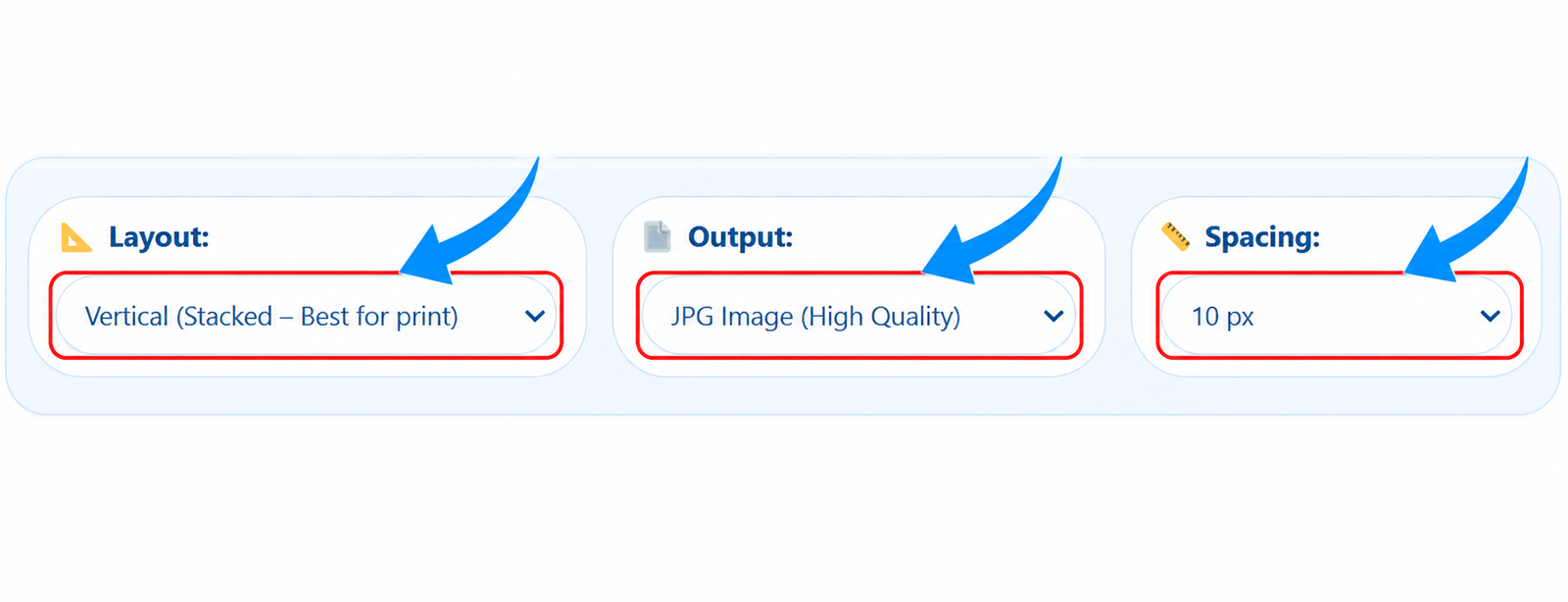
Choose Your Layout and Output Format
Select a vertical or horizontal layout to arrange both sides of your ID card and also choose the spacing you prefer and select JPG, PNG, or PDF as your output format.
Preview Your Combined ID Card
Preview the result before downloading Combined ID card. Check that the front and back are arranged correctly, the text is readable, and the spacing suits your document requirements.

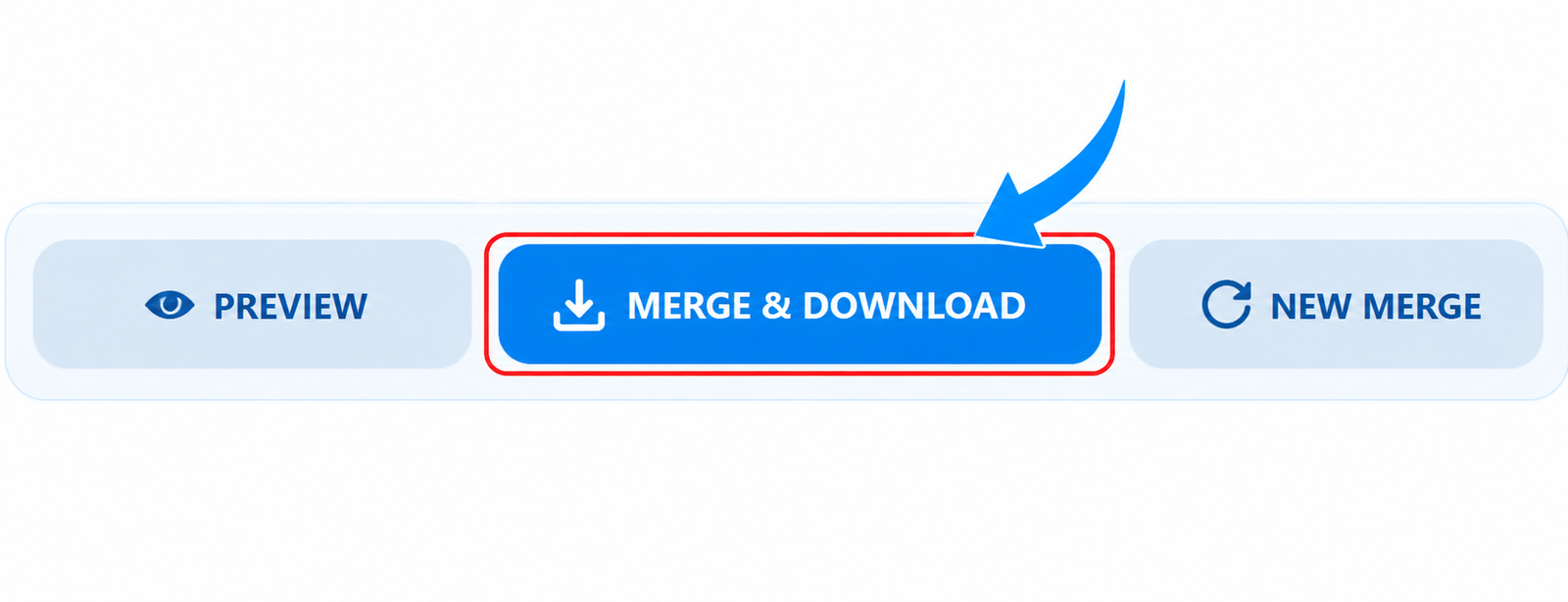
Merge ID Card and Download Your File
Click the merge and download button to create your ID Card combined file. Your merged ID card will be ready to save and use for supported online applications, printing, or personal records.
Vertical vs Horizontal ID Card Layout
When you merge ID card images, choosing the right layout helps keep both sides organized and easy to read. JPGJoin lets you arrange the front and back of your identity card vertically or horizontally, depending on how you plan to use the combined file. Consider the available space and any document submission requirements before selecting a layout.
Vertical ID Card Layout
A vertical layout places one side of the ID card above the other, which is a useful choice when you want a portrait-style image or need both sides arranged in a single column. This layout can also be convenient for documents that are displayed or printed vertically.
Horizontal ID Card Layout
A horizontal layout places the front and back images side by side. It works well when you prefer a landscape-style result and have enough horizontal space for both images. This arrangement makes it easy to view the two sides together at a glance.
Both layouts let you merge ID card front and back into one file. For the best result, use clear source images and preview the combined ID card before downloading it.
Supported Output Formats: JPG, PNG, and PDF
When you Combine ID card images with JPGJoin, you can choose an output format that suits your needs. The tool supports JPG, PNG, and PDF downloads, allowing you to prepare a combined identity card image for sharing, printing, or document submission. Choose your format based on the requirements of the website or organization receiving your file.
Merge ID Card as JPG
JPG is a practical choice when you need a widely supported image file and suitable for many online forms and everyday document sharing. Keep in mind that JPG does not support transparent backgrounds, so transparent areas are filled with white.
Merge ID Card as PNG
PNG is useful when you want a lossless image format. It can preserve image details without the additional compression used by JPG and supports transparency where applicable. Choose PNG when image quality is your priority and the receiving platform accepts it.
Merge ID Card as PDF
PDF is a convenient option when you need to submit or share your combined ID card as a document. It can be easier to include in document workflows and print when required. Always check the receiving website's file size and format limits before uploading.
Before downloading your merged file, review the preview and confirm that both sides are readable. Selecting the right format helps you merge ID card front and back in a file that suits your intended use.
JPG vs PNG vs PDF: Which Format Is Best for ID Cards?
When you merge ID card front and back images, choosing the right output format helps you prepare a file for sharing, printing, or online submission. Compare JPG, PNG, and PDF below to decide which format best matches your requirements.
| Feature | JPG | PNG | |
|---|---|---|---|
| File type | Image | Image | Document |
| Image quality | Uses lossy compression | Lossless image format | Depends on the image and PDF settings |
| Transparency | Not supported | Supported | Depends on the PDF content |
| Typical file size | Often smaller | Can be larger | Depends on embedded images and settings |
| Best use | Everyday image sharing | When preserving image details matters | Document submission and printing |
| Choose when | The website accepts JPG images | The website accepts PNG images | The website requests or accepts PDF files |
Tip: Before downloading your merged ID card, check the receiving website's accepted formats and file-size limits. Use the format that meets its requirements and make sure the details on both sides remain readable.
FAQs About Merge ID Card
How can I merge ID card front and back online?
You can merge ID card images online with JPGJoin by uploading the front and back images, choosing a layout and output format, and previewing the result. Click the merge and download button to save both sides in one file.
Can I merge both sides of my ID card into one image?
Yes, You can combine the front and back of your ID card into one image. Choose a vertical layout to place one side above the other or a horizontal layout to place them side by side.
Can I merge an ID card into a PDF file?
Yes, The Merge ID Card tool supports PDF output, along with JPG and PNG. Select PDF before downloading your combined file, and check that the receiving website accepts PDF documents.
Is the Merge ID Card tool free to use?
JPGJoin provides an online tool for combining both sides of an ID card without installing desktop software. Check the tool page for any current usage restrictions.
Can I adjust the spacing between the two ID card sides?
Yes, Select an available spacing option to adjust the gap between the front and back images. Preview the combined file before downloading to make sure the layout looks right.
Will merging my ID card reduce image quality?
The result depends on your original images and the selected output format. PNG preserves image details without lossy compression, while JPG uses lossy compression. Start with clear images and check the preview before downloading.
Can I merge ID card images on my mobile phone?
Yes, You can use the Merge ID Card tool in a supported mobile browser. Upload both images from your phone, choose your preferred settings, and download the combined file.
Is it safe to upload my identity card images?
ID cards contain sensitive personal information. Before uploading, review the website's privacy policy and how it processes files. Avoid sharing your completed ID card publicly and use trusted websites for identity documents.
What should I do if my merged ID card looks unclear?
Use sharp source images with good lighting and readable text. Make sure neither side is cropped, choose a suitable output format, and review the preview before downloading your merged ID card.