
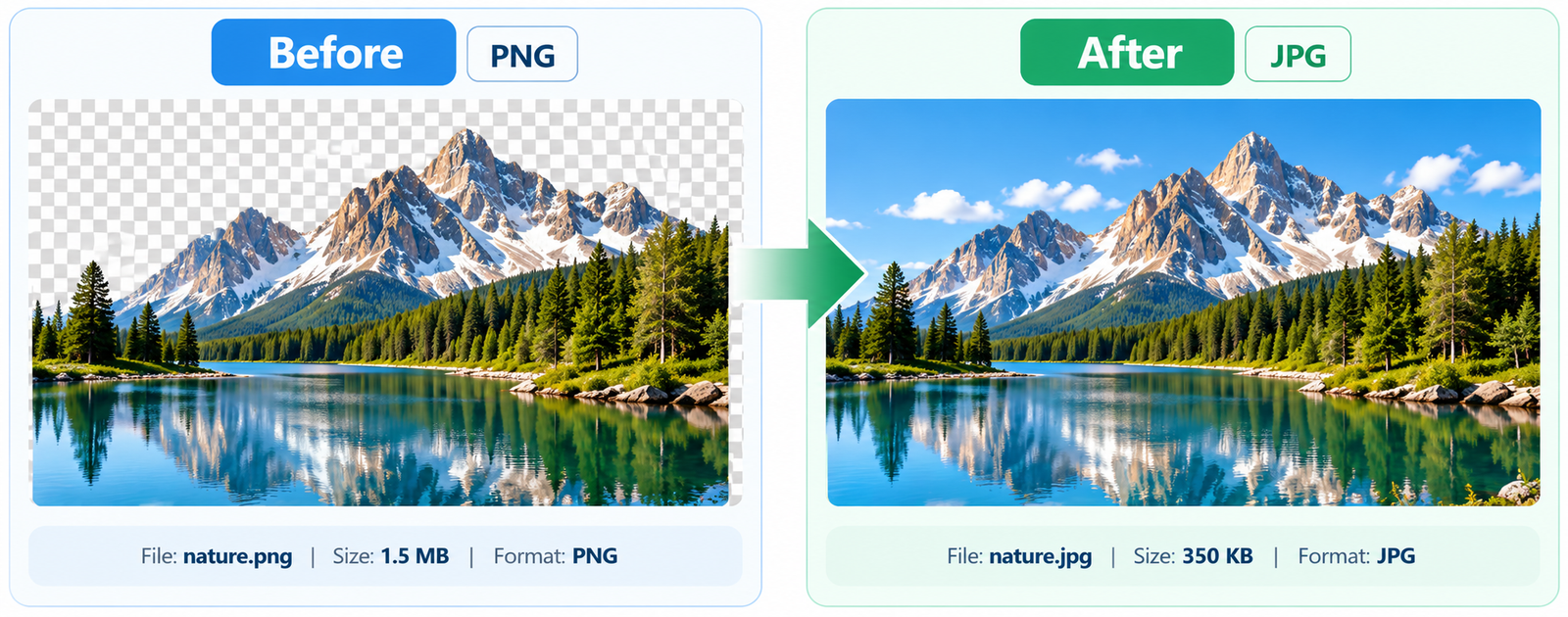
PNG to JPG Converter Online

Convert multiple PNG images to JPG online for free with JPGJoin. Upload one or multiple PNG files and quickly convert them into high-quality JPG images without installing any software. Our PNG to JPG converter works directly in your browser, making it simple to convert multiple PNG files online on desktop, tablet, or mobile.

πŸ–ΌοΈ

Convert PNG Images to JPG

Drag and drop your PNG files here, or select images from your device.

PNG only β€’ Multiple files supported β€’ Free & browser-based
No PNG images selected yet.
βš™οΈ JPG Quality
92%
Higher quality produces clearer images but may create larger files.
πŸ“ Image Size
px
🎨 Background
πŸ”’
Your images stay in your browser

PNG files are processed directly in your browser for conversion. They are not uploaded to our server by this tool.

PNG vs JPG: Which Format Should You Use?

Need to change your PNG images into JPG format? JPGJoin lets you convert multiple PNG images to JPG online quickly and easily without installing software. Upload one or multiple PNG files, choose your preferred image quality, size, and background, and create JPG images in just a few clicks. Our PNG to JPG converter works directly in your browser and is designed to make image conversion simple for photos, graphics, documents, websites, and everyday use.

Why Convert PNG to JPG?

PNG is a useful image format, especially when you need transparency or sharp graphics. However, JPG can be a better choice when you need a smaller file size or want an image format that is widely supported across websites, apps, and devices. That is why many people choose to convert PNG Images Online when preparing images for online use, sharing, or storage.

JPG uses compression to reduce the size of an image while keeping a good level of visual quality. This can make JPG files more convenient for uploading to websites, sending through email, adding to documents, or storing a large collection of photos. An Online PNG converter tool makes this format change much quicker when you have several images to process.

Another reason to convert PNG to JPG is compatibility. JPG is supported by almost all modern browsers, operating systems, image viewers, and common editing applications. If a website or application specifically asks for a JPG or JPEG image, converting your PNG beforehand can help you meet that requirement without changing the original image manually.

How to Convert PNG to JPG Online

Converting PNG images to JPG does not have to be complicated. With an online PNG Images converter, you can change your images into JPG format directly from your browser without installing additional software. Follow these simple steps to convert multiple PNG images online using JPGJoin.

Step 1: Upload Your PNG Images

Start by opening the JPGJoin PNG converter tool. Click the upload area and select the PNG images from your device. You can also drag and drop your files into the converter. If you have several images, you can select multiple PNG files at the same time and convert multiple PNG files online.
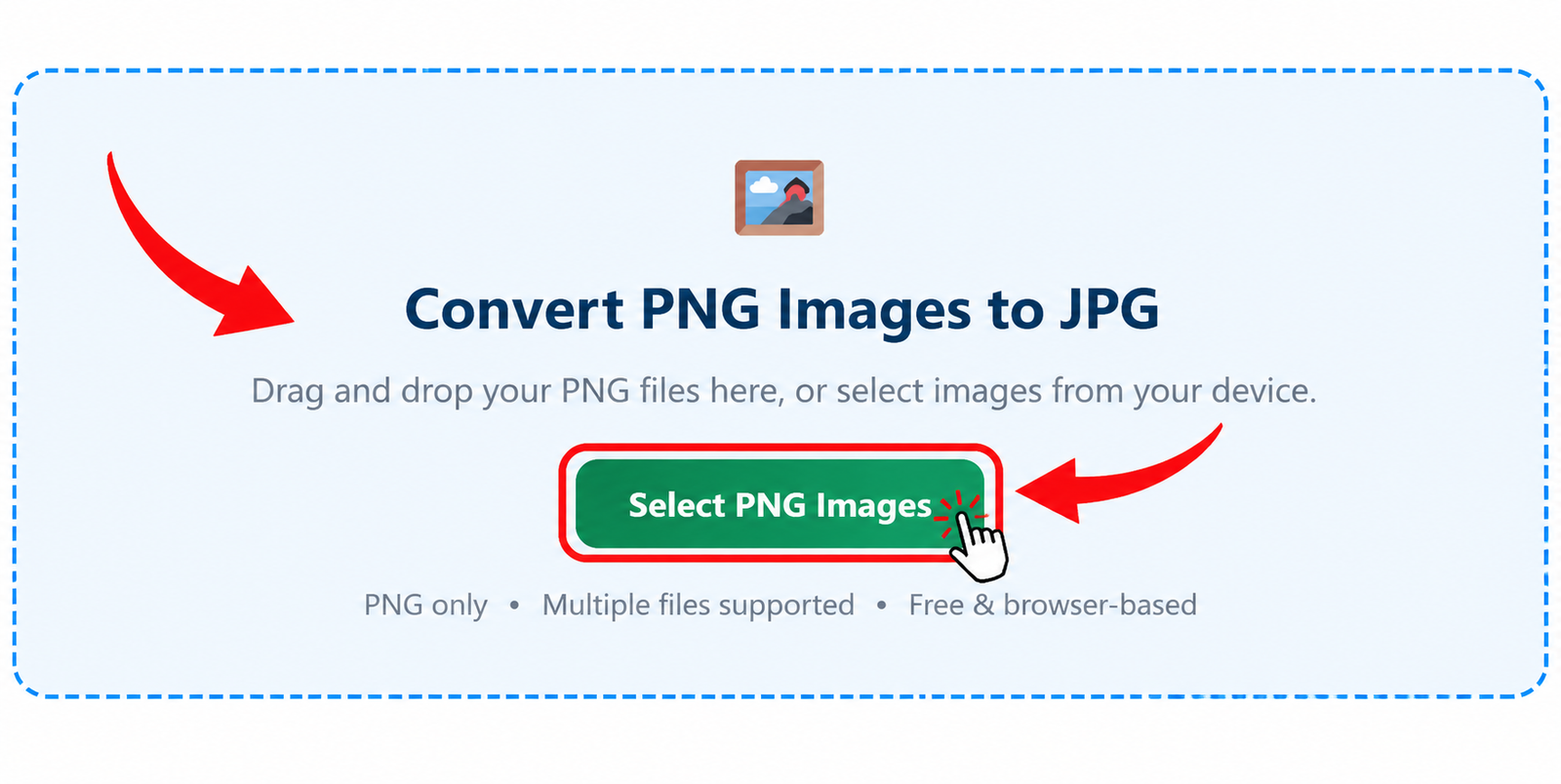
Upload PNG images to the PNG to JPG converter

Step 2: Choose Your JPG Settings

After adding your PNG files, review the available conversion settings. You can choose the JPG quality and other options according to your needs. A higher quality setting can preserve more image detail, while a lower setting can help create a smaller JPG file. Select the settings that work best for your intended use.
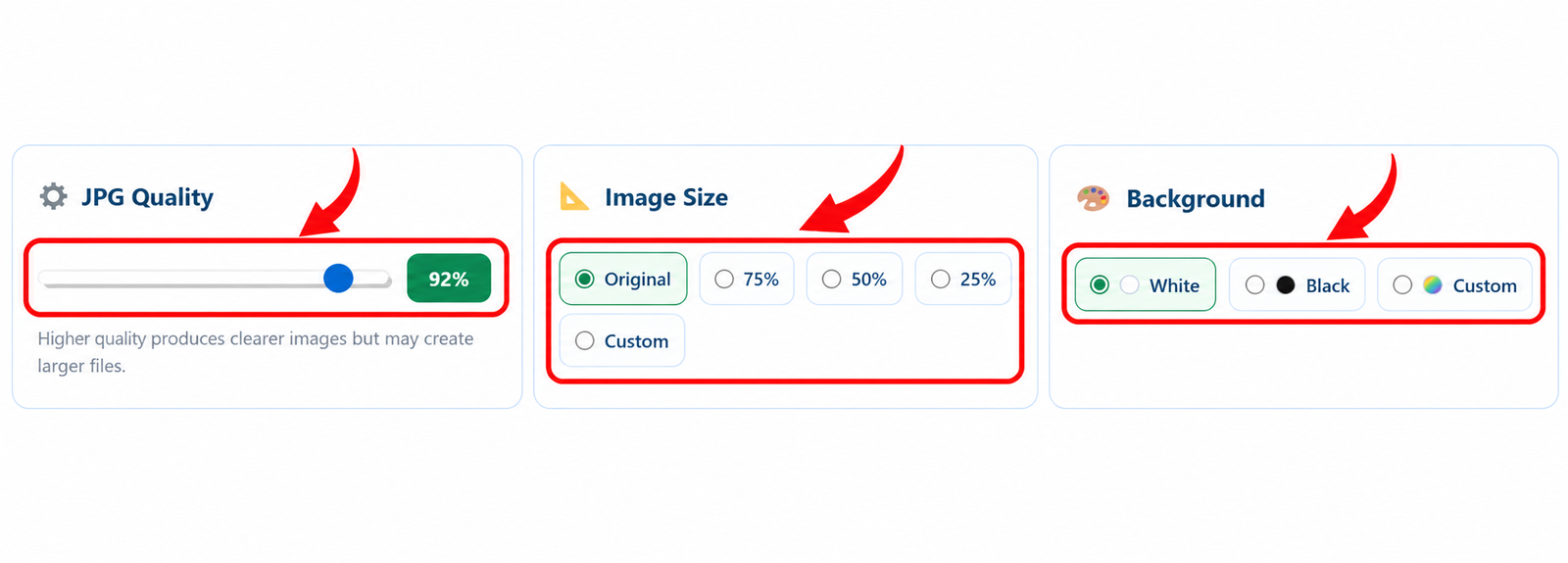
Choose JPG quality and conversion settings for PNG images

Step 3: Convert PNG to JPG

Once your files and settings are ready, click the convert button to start the process. JPGJoin will process your PNG images and create JPG versions. The conversion is handled directly in your browser, making it quick and convenient when you need to convert PNG images online.
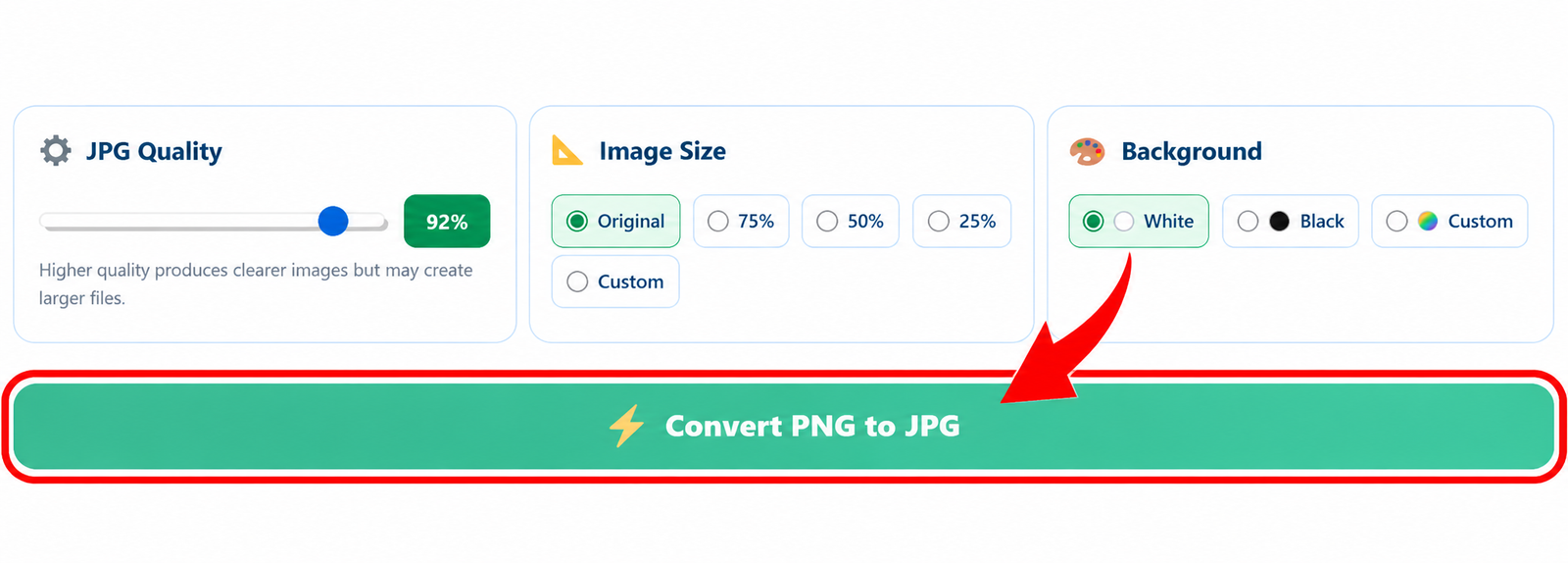
Convert PNG images to JPG format online

Step 4: Download Your JPG Images

When the conversion is complete, download your new JPG images to your device. If you converted multiple PNG files, you can download the converted images as needed. Your original PNG files remain unchanged, so you can keep them for future use while using the new JPG versions for websites, documents, sharing, or other projects.
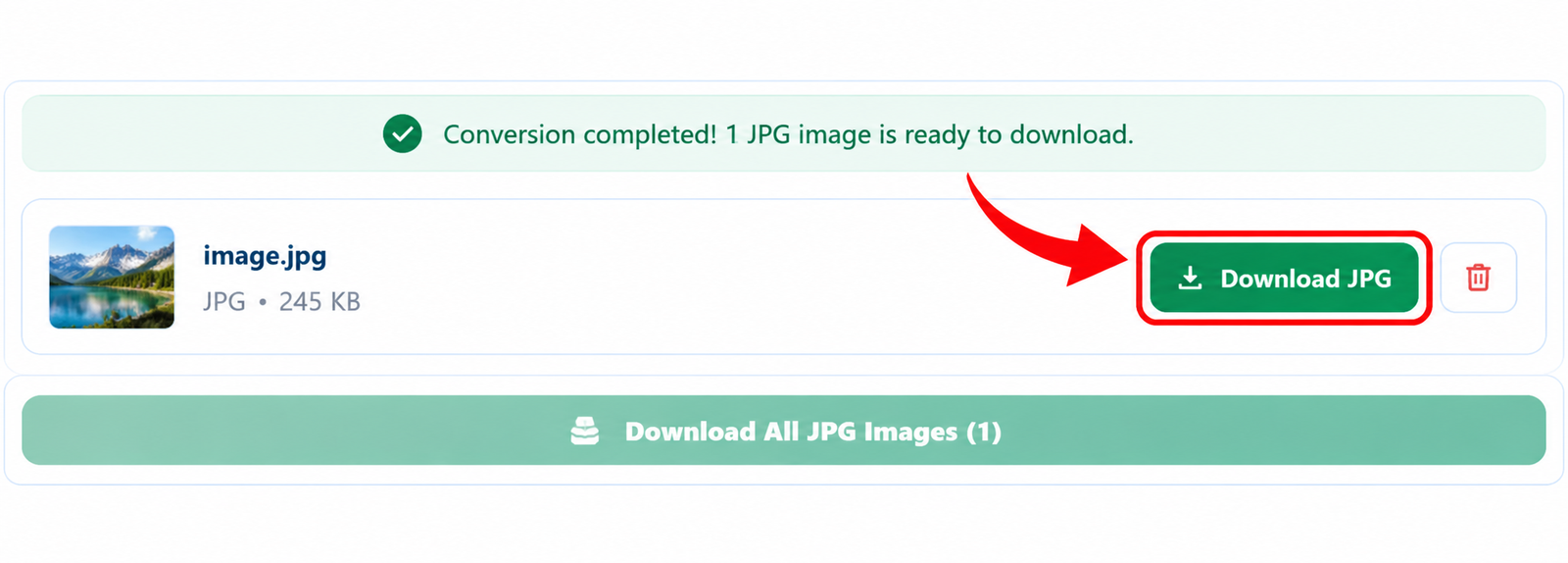
Download converted JPG images after PNG to JPG conversion

That’s all you need to do. With JPGJoin, the complete PNG to JPG conversion process can be completed in a few simple steps without complicated image-editing software.

PNG vs JPG: Which Format Should You Use?

PNG and JPG are two of the most commonly used image formats, but they are designed for different purposes. PNG is often preferred for graphics, screenshots, logos, and images that need a transparent background, while JPG is commonly used for photographs and images where a smaller file size is important. Understanding the difference can help you choose the right format or decide when to convert PNG to JPG.

Feature PNG JPG
Compression Lossless compression Lossy compression
File Size Usually larger Usually smaller
Image Quality Preserves image details well Good quality with smaller file size
Transparency Supports transparent backgrounds Does not support transparency
Best For Logos, icons, graphics, screenshots Photos, websites, sharing, storage
Website Use Useful when transparency or detail matters Useful when smaller file sizes are needed
Common Extension .png .jpg / .jpeg

If you are working with photographs or need smaller files for online use, JPG can be a practical choice. If transparency or lossless image quality is important, PNG may be more suitable. When a JPG file is specifically required, you can use a PNG to JPG converter to change the format quickly.

The best format depends on how you plan to use the image. JPG is often convenient for photographs, websites, email attachments, and everyday image sharing. PNG can be a better option for logos, icons, illustrations, and graphics that require transparency.

PNG to JPG on iPhone, Android, Windows & Mac

You can convert PNG to JPG on almost any modern device without installing complicated image editing software. JPGJoin works directly in your web browser, so you can use the Online PNG converter on an iPhone, Android phone, Windows PC, or Mac. The basic process is the same: open the converter, upload your PNG image, choose your preferred settings, and download the converted JPG file.

PNG to JPG on iPhone

On an iPhone, open JPGJoin using Safari or another supported browser. Upload the PNG image from your device, adjust the available settings if needed, and start the conversion. Once processing is complete, download the JPG image and save it to your preferred location on your iPhone.

PNG to JPG on Android

Android users can also convert PNG images online without installing a separate conversion app. Open JPGJoin in your mobile browser, select the PNG file from your device, and begin the conversion. After the process finishes, you can download the JPG image directly to your Android device.

PNG to JPG on Windows

On a Windows computer, open JPGJoin in your preferred web browser and upload one or multiple PNG files. You can review the conversion settings before starting the process. After conversion, download your JPG images and use them for websites, documents, presentations, sharing, or storage.

PNG to JPG on Mac

Mac users can follow the same simple process. Open JPGJoin in Safari, Chrome, or another supported browser, upload your PNG files, and convert them to JPG format. This makes it convenient to convert multiple PNG files online without opening a separate image editing application.

Whether you are using a phone, tablet, Windows PC, or Mac, JPGJoin keeps the PNG to JPG conversion process simple and accessible. You only need a browser and your PNG images to get started.

FAQs About PNG to JPG Converter Tool

Can I convert PNG to JPG online for free?

Yes, You can use JPGJoin to convert PNG to JPG online without installing additional software. Upload your PNG image, choose your preferred settings, and download the converted JPG file.

Can I convert multiple PNG files to JPG at once?

Yes, JPGJoin supports multiple PNG images, allowing you to convert multiple PNG files online instead of processing each image individually. This can save time when you have several images to convert.

Does converting PNG to JPG reduce image quality?

JPG uses lossy compression, so the final image may have some quality differences compared with the original PNG. You can choose a suitable JPG quality setting to balance image quality and file size when using the PNG to JPG converter.

What happens to a transparent PNG background?

JPG does not support transparency. When you convert PNG to JPG, transparent areas need to be replaced with a solid background color. This is why a transparent PNG may look different after conversion.

Can I convert PNG to JPG on my phone?

Yes, You can use JPGJoin on supported mobile browsers, including devices such as iPhone and Android phones. Simply open the converter, upload your PNG image, and convert it to JPG directly from your browser.

Can I use the PNG to JPG converter on Windows and Mac?

Yes, JPGJoin works through your web browser, so you can convert PNG images online on both Windows and Mac computers without needing a separate image conversion application.

Is JPG smaller than PNG?

JPG files are often smaller than PNG files, particularly for photographs and detailed images. The exact file size depends on the original image and the compression settings used during PNG to JPG conversion.

Do I need to install software to convert PNG to JPG?

No, You can use JPGJoin directly in your browser, so there is no need to install separate image conversion software. Upload your PNG files, complete the conversion, and download your JPG images.

What is the difference between PNG and JPG?

PNG supports lossless compression and transparent backgrounds, while JPG uses lossy compression and does not support transparency. PNG is often useful for graphics and logos, while JPG is commonly used for photographs and situations where a smaller file size is preferred.

Can I convert PNG to JPG without changing the original PNG?

Yes, The conversion creates a JPG version of your image while your original PNG file remains available on your device. This allows you to keep the original file while using the JPG version wherever it is required.

Scroll to Top