Image to Text Converter – Extract Text from Images with OCR
Turn your images into editable text with our free Image to Text tool. Easily extract text from images such as JPG, PNG, screenshots, and scanned documents using online OCR. Whether you need to convert a JPG to text, extract content from a PNG image, or turn a screenshot into editable text, JPGJoin makes the process simple and convenient.
More Useful Tools
Quickly access our most useful images conversion and editing tools beside Image to text converter.
How Image to Text Converter Tool Works Online?
Extract text from your images in just a few simple steps with JPGJoin's online OCR tool. You just have to upload your image, choose your preferred language, and let the tool turn the content into editable text.
Upload Your Image
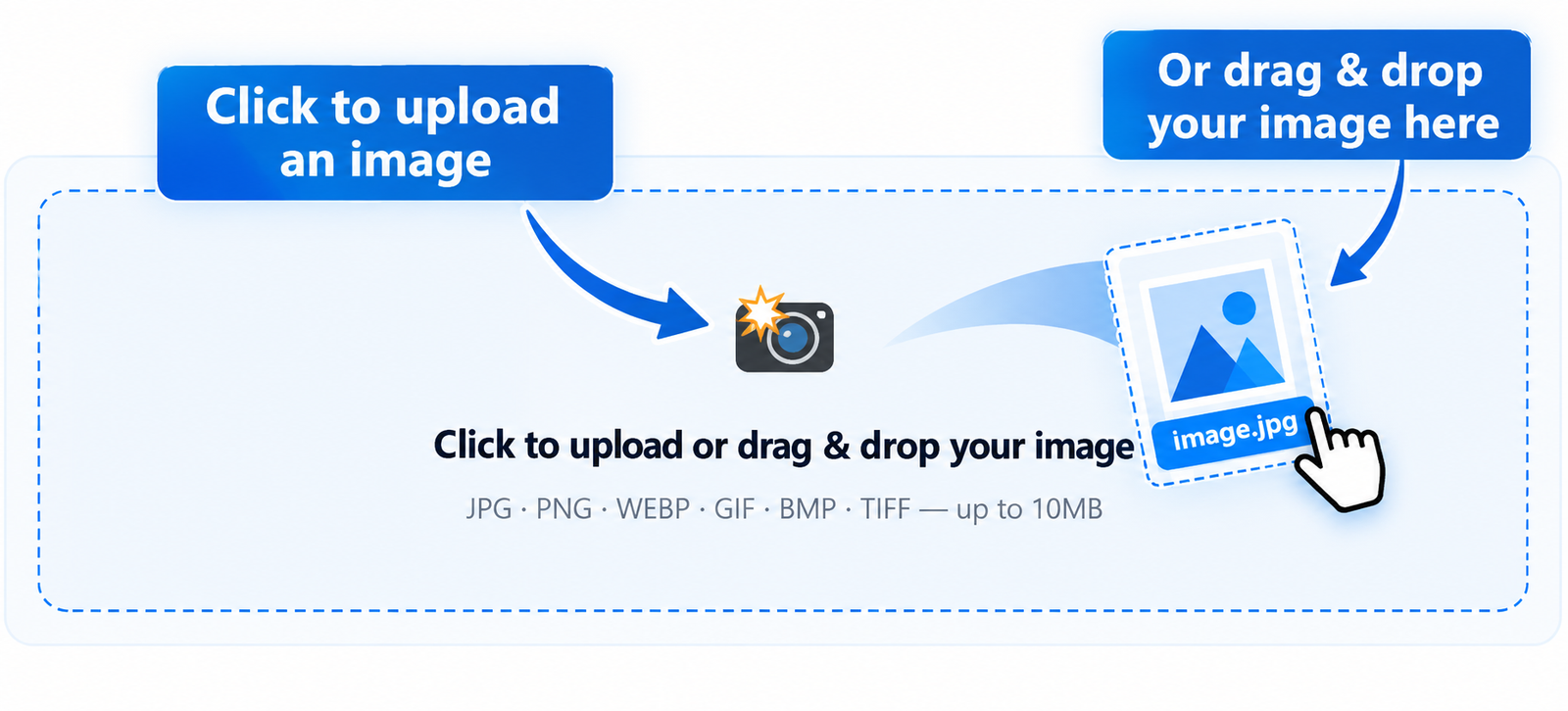
Start by uploading the image you want to process. You can select or drag a JPG, PNG, WEBP, or another supported image file from your device, or simply drag and drop it into the Image to Text tool.
Choose Your Language and OCR Settings
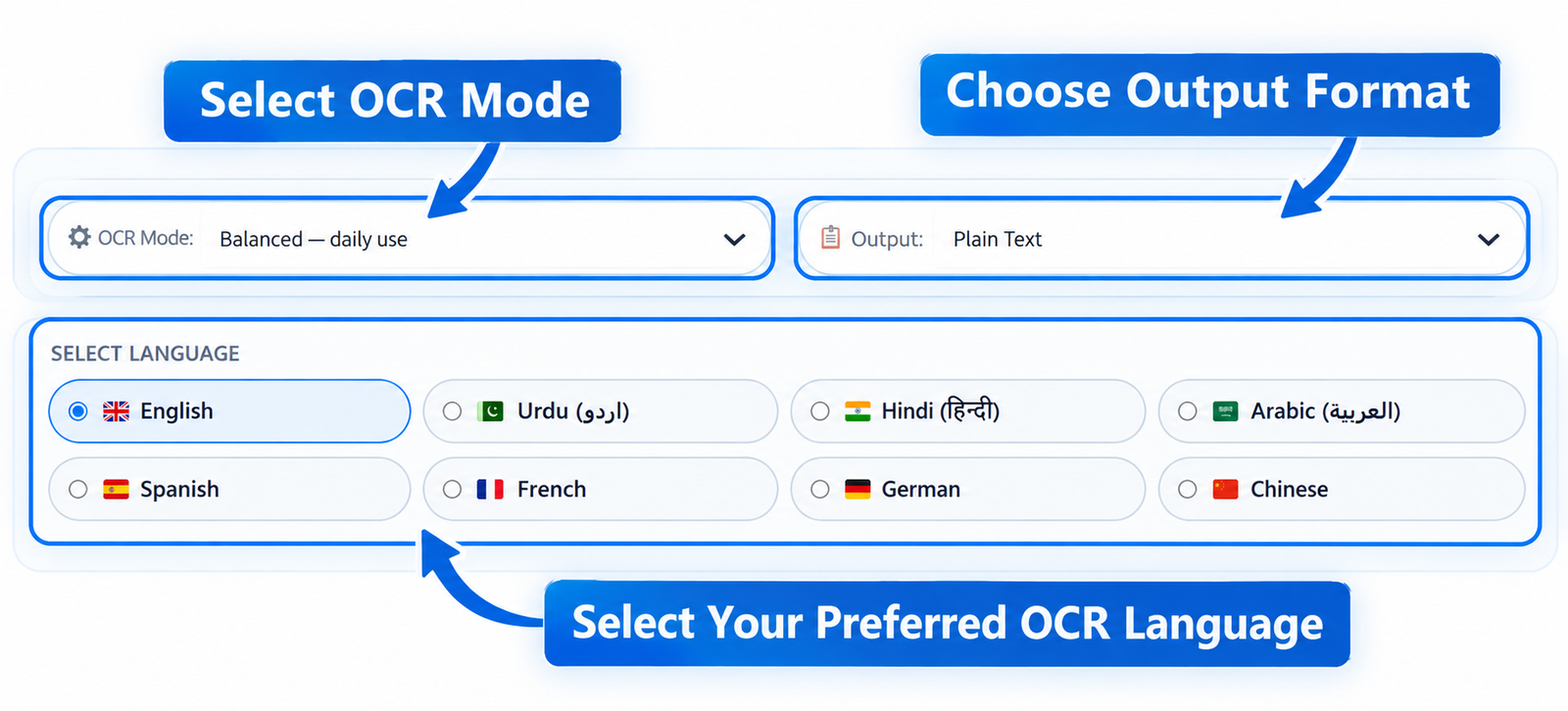
Select the language used in your image and choose the OCR quality that suits your document and you can also use image enhancement options when working with photos, screenshots, or images with less clear text.
Extract and Review the Text
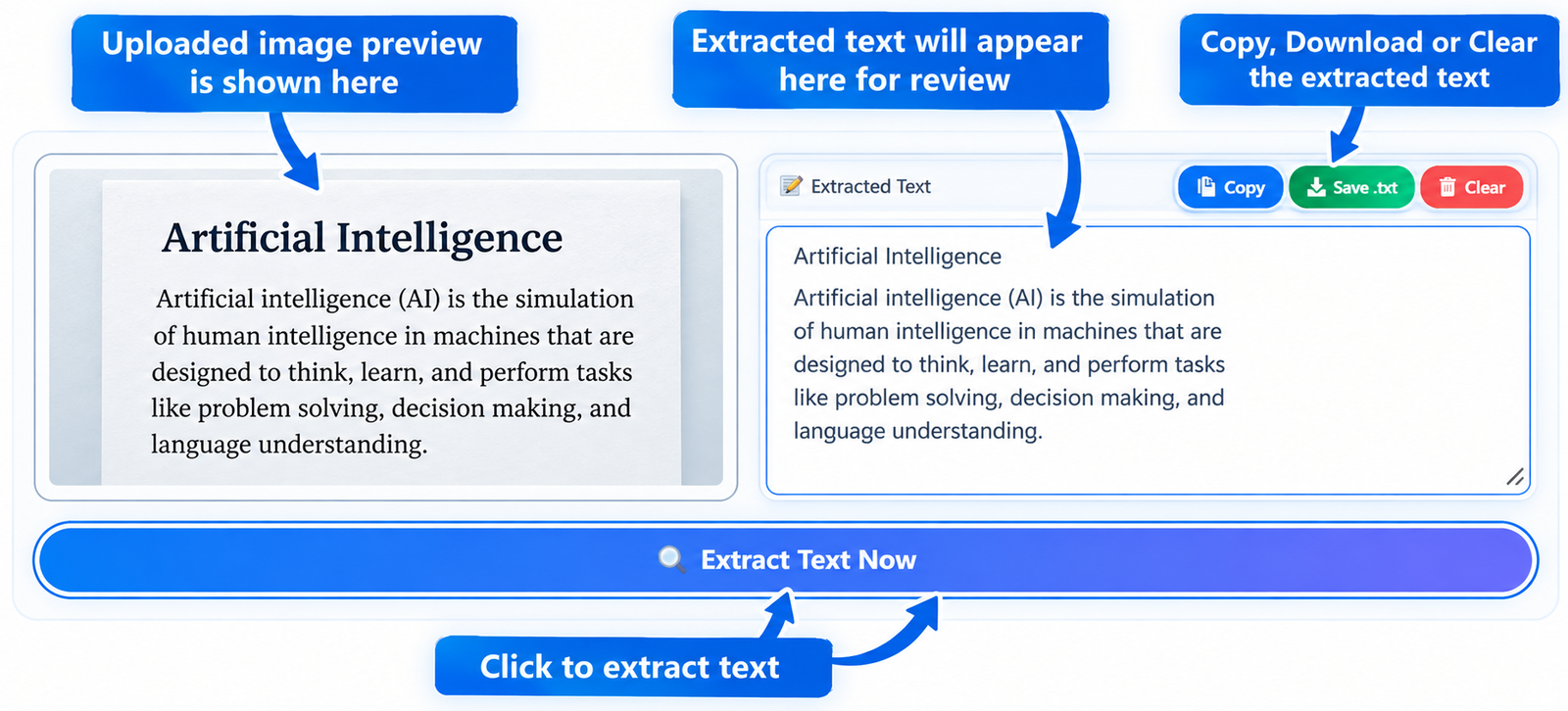
Click the Extract Text button and let the OCR technology recognize the text in your image. Once the process is complete, the extracted content will appear in the text editor where you can review and make changes.
Copy or Download the Extracted Text
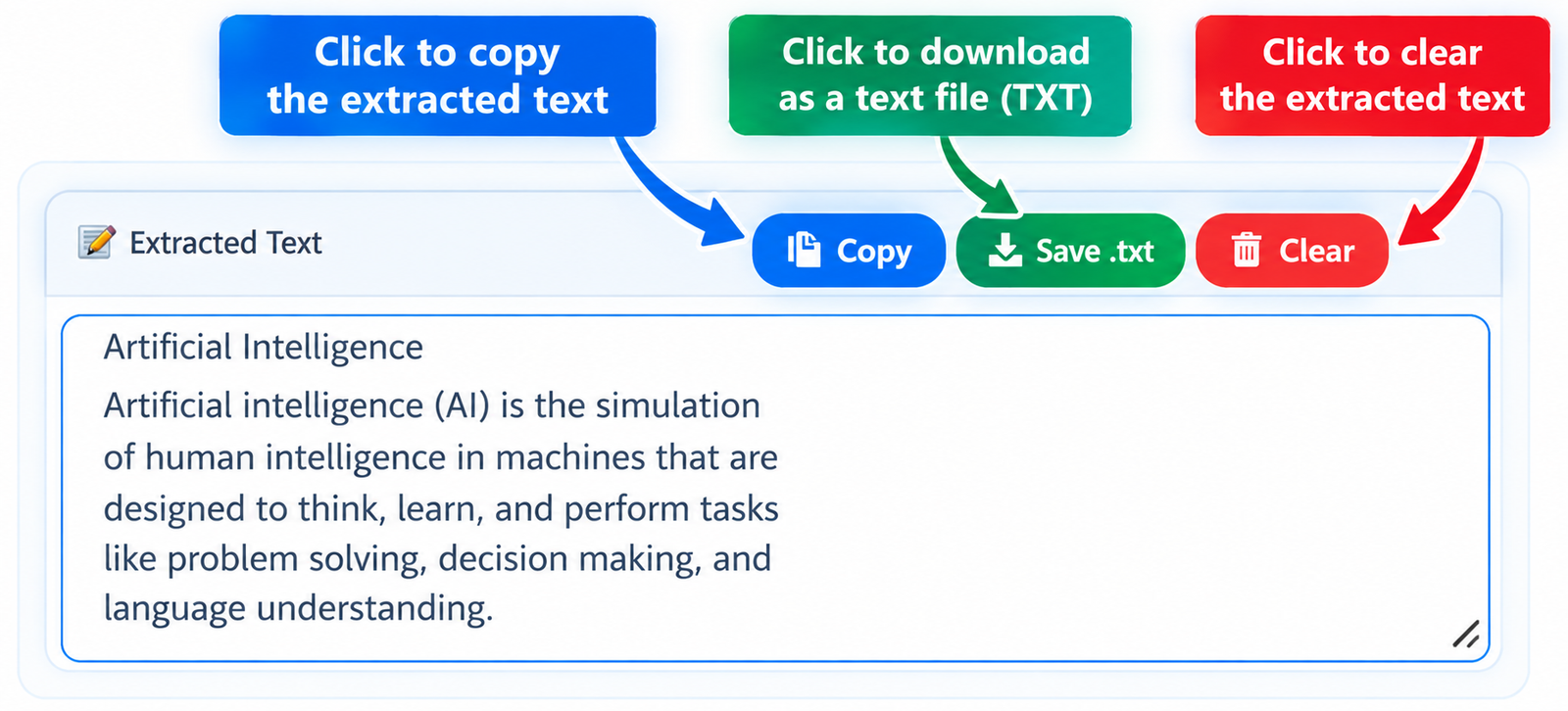
After checking the result, you can copy the extracted text directly to your clipboard or download it as a text file. Your converted content is then ready to edit, save, share, or use wherever you need it.
What Types of Images Can You Convert to Text?
JPGJoin's Image to Text Converter works with different types of images containing readable text. From ordinary photos and screenshots to scanned documents, you can use the tool to extract text from images and turn it into editable digital content.
JPG to Text
JPG and JPEG are among the most commonly used image formats. If you have a photograph, document, note, or other image containing text, you can use JPGJoin to extract text from a JPG image without typing the content manually. Simply upload your image and let the OCR system recognize the visible text.
This can be helpful when you need to copy information from a picture into a document, email, assignment, or another application. Instead of retyping the complete content, you can use the JPG to Text process to make the recognized text easier to edit and reuse.
PNG to Text
PNG images are also widely used for screenshots, graphics, documents, and digital content. With JPGJoin, you can extract text from a PNG image when the image contains readable written or printed content.
Whether the PNG contains a short piece of information or a larger block of text, an online OCR tool can save time by converting the visible content into editable text. This makes it easier to copy, review, modify, and save the extracted information.
Screenshot to Text
Screenshots often contain useful information that cannot be copied directly. For example, you may have a screenshot of a website, message, software window, error notification, online document, or another piece of content.
Instead of manually typing everything shown in the screenshot, you can convert screenshot to text with an OCR-based Image to Text tool. Upload the screenshot, allow the tool to process the image, and then review the recognized text before copying or downloading it.
Photo to Text
Photos can contain much more than just visual information. A picture may include notes, printed pages, signs, labels, receipts, forms, or other readable content. If the text is clear enough, OCR can help recognize that information and convert it into editable text.
The Photo to Text process is particularly useful when the original text is available only as an image. Instead of manually copying the words from the photograph, you can upload the image and use OCR to identify the text automatically.
Scanned Images and Documents
Scanned documents are another common source of text that may not be directly editable. A scanned page is usually stored as an image, which means you cannot simply select and copy its words like normal digital text.
JPGJoin can help you extract text from scanned documents by using OCR to recognize the characters visible in the uploaded image. This can be useful for digitizing older documents, notes, printed pages, and other image-based information.
In general, the quality of the extracted text depends on factors such as image clarity, resolution, lighting, orientation, and how clearly the original characters are visible. For better OCR results, use a clear image with readable text and avoid heavily blurred or distorted images.

Why Use JPGJoin's Image to Text Converter?
Extracting text manually from an image can take unnecessary time, especially when you have multiple pages, screenshots, or documents. JPGJoin provides a simple way to convert image to text online and work with the recognized content more efficiently.
Save Time on Manual Typing
Re-typing text from an image can be slow and frustrating. An Image to Text Converter uses OCR technology to recognize visible characters and transform them into editable text. This can reduce the amount of manual typing required when working with photographs, screenshots, scanned pages, or other text-based images.
Turn Image Content into Editable Text
Text inside an image cannot normally be selected or edited like ordinary digital text. With an OCR Image to Text tool, recognized content can be converted into a format that is easier to copy, edit, organize, and reuse.
This is particularly useful when you need to copy text from an image and move it into a document, email, notes application, spreadsheet, or another text editor.
Extract Text from Screenshots
Screenshots are often used to save information that cannot be copied directly. Instead of manually typing the words shown on your screen, you can upload the screenshot and use OCR to recognize its text.
This makes Screenshot to Text conversion useful for extracting readable content from website screenshots, software interfaces, online messages, instructions, and other screen captures.
Useful for Scanned Documents
Many scanned documents are stored as images rather than editable text files. If you need to reuse information from a scanned page, OCR can help recognize the characters contained in the image.
You can therefore use JPGJoin to extract text from scanned documents when the original editable version is unavailable. The extracted result can then be reviewed and corrected as needed.
Work with Different Image Formats
Different types of images may contain useful text. JPGJoin is designed to work with common image formats so you can process content from photographs, PNG images, screenshots, and other supported files without first converting every image manually.
Whether you need JPG to Text, PNG to Text, or another supported image-to-text conversion, the workflow remains simple: upload the image, process it, review the recognized text, and use the result.
Copy or Download the Extracted Result
After the OCR process is complete, you can review the recognized content before using it elsewhere. Having editable text makes it easier to copy individual sections, make corrections, or save the extracted information for later use.
This simple workflow makes an online OCR tool useful for students, researchers, office workers, content creators, and anyone who regularly needs to work with text contained inside images.
Image to Text Converter Features
JPGJoin provides a practical set of features for converting images into editable text. The table below gives you a quick overview of what you can do with our Image to Text Converter.
| Feature | What It Does |
|---|---|
| Image to Text OCR | Recognizes readable text from an uploaded image and converts it into editable text. |
| Multiple Image Formats | Supports common image formats including JPG, JPEG, PNG, WEBP, GIF, BMP, and supported TIFF images. |
| OCR Language Selection | Select the appropriate OCR language before processing your image for better text recognition. |
| Image Preview | Preview your uploaded image before and during the text extraction process. |
| Image Enhancement | Use the available enhancement option to prepare the image for OCR processing when needed. |
| OCR Quality Options | Choose between Quick, Standard, and Enhanced processing options according to your needs. |
| Editable Text Output | Review and edit the recognized text directly after the OCR process is completed. |
| Copy Extracted Text | Copy the recognized content and paste it into documents, notes, emails, or other applications. |
| Download as TXT | Save the extracted text as a plain TXT file for later use. |
| Download as JSON | Export the recognized text and related output information in JSON format. |
| Word & Character Count | View the approximate number of words and characters contained in the extracted result. |
| Drag & Drop Upload | Upload an image conveniently by dragging it into the tool or selecting it from your device. |
| Large Image Preview | Open the uploaded image in a larger fullscreen preview when you need a closer look. |
| Browser-Based Processing | OCR processing is performed in the browser using the tool's client-side OCR implementation. |
| Responsive Interface | The tool interface is designed to work across desktop, tablet, and mobile screen sizes. |
FAQs About Image to Text Converter
Find answers to common questions about using JPGJoin's Image to Text Converter and extracting editable text from images with OCR.
What is an Image to Text Converter? +
An Image to Text Converter is an OCR-based tool that recognizes text contained in an image and converts it into editable digital text. It can be useful for extracting content from photographs, screenshots, scanned pages, JPG files, PNG images, and other supported image formats.
How do I extract text from an image? +
Upload your image to the JPGJoin tool, select the appropriate OCR language and settings, and start the text extraction process. After processing is complete, the recognized text will appear in the result area where you can review, edit, copy, or download it.
Can I convert JPG to text? +
Yes, You can use JPGJoin image to text converter tool and perform JPG to Text conversion. Upload a JPG or JPEG image containing readable text, process it with OCR, and review the extracted content in the result area.
Can I extract text from a PNG image? +
Yes. JPGJoin supports PNG images, allowing you to extract text from a PNG image when the image contains readable text. After OCR processing, the recognized content can be reviewed and edited.
Can I convert a screenshot to text? +
Yes. You can use the tool for Screenshot to Text conversion. This can help you extract readable content from website screenshots, messages, software interfaces, instructions, and other screen captures.
Which image formats are supported? +
The current tool interface supports common image formats including JPG, JPEG, PNG, WEBP, GIF, BMP, and TIFF. Browser support for individual formats can vary, so using a standard JPG, JPEG, or PNG image is generally the simplest option.
Can I edit the extracted text? +
Yes. The extracted result is provided as editable text. You can review the OCR output, correct recognition errors, modify the content, and then copy or download the result.
Can I download the extracted text? +
Yes. After extracting the text, you can copy the result or use the available download options to save the extracted content as a TXT file. The tool also provides a JSON download option.
What can affect OCR accuracy? +
OCR results can be affected by image quality, resolution, blurry text, unusual fonts, poor lighting, image orientation, background patterns, and unclear characters. For better results, use a clear image with sharp and readable text whenever possible.
Is JPGJoin's Image to Text tool free to use? +
JPGJoin provides this free Image to Text Converter for extracting text from supported images. You can upload an image, process it with the available OCR options, and work with the resulting text directly in the tool.